Playback starts YouTube’s embedded player (privacy-enhanced mode).
How to Take Screenshot in Windows 7
ChannelHOWTECHDescription from the creator
This tutorial will help you in learning how to capture the display screen of your computer by using Windows Classic Print Screen function.
Don't forget to check out our site howtech.tv/ for more free how-to videos!
youtube.com/ithowtovids - our feed
facebook.com/howtechtv - join us on facebook
plus.google.com/103440382717658277879 - our group in Google+
While working on a project or simply surfing on the Internet, have you ever come across a situation where you want to capture the screen just as it is? In order to cater this problem, Windows offers you a quick and easy solution of using its Print Screen command. Using a Print Screen is just like using a camera to take a snapshot of your current display screen at the time when you want it. Follow this step by guide to learn how to use print screen on Windows.
Step # 1 -- Open up any Window
In the first step of learning how to use print screen on Windows, open up any window of your choice from which you want to take a screenshot. You may open Windows Explorer, Internet Explorer, any application or a Web page of your choice. Now press the "Print Screen" button on the keyboard to take the screenshot. Once you press the "Print Screen" button, a screenshot of the current display on the screen will save in the memory.
Step # 2 -- Paste it in Paint
Once you take a screen capture, go to the "Start Menu" and search for Windows Paint. Now click on its name to open the Paint application. Once it has opened, click on the "Paste" button which is located at the top left corner of the window and click on the "Paste" option from its list.
Step # 3 -- Edit or Save the Screenshot
In the next step when you clicked on the "Paste" option, a screenshot of the display of your screen will paste in the Paint. Now you can edit or make changes over it. Once you have done, you can save it as a normal Image file on your computer.
Step # 4 -- Taking a Screenshot of a Message Box
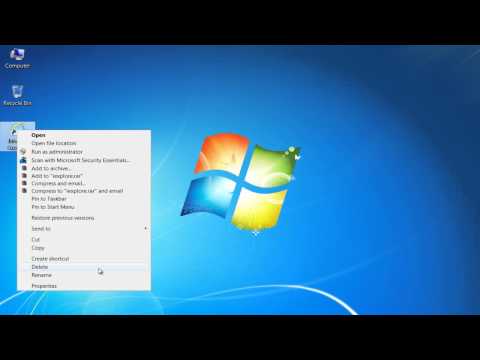
In the next step, we will show you how to take a screenshot of only a Message Box instead of the whole screen. For this purpose, delete any icon from the desktop so that the Delete Confirmation Message Box will appear. Once it has appeared in front of the screen, press and hold the "Alt" button and press the "Print Screen" button on the keyboard along with it to take a screen capture of the Message box.
Step # 5 -- Paste the Screenshot
Once you have taken a screenshot by pressing the "Alt" key, open up Paint. Now paste the screenshot by using the same function which we defined in the previous step. Once you have pasted it, you will see that only the screenshot of a Message Box will be pasted in the Paint.
Step # 6 -- Save the Image
In the last step, if you wish to edit or change anything in the screenshot, you can use Paint tools and edit the image just like any other image. Once you are done, click on the "Save" button to save the image for your further use.
About this tutorial
HOWTECH published this 0:57 video tutorial on October 25, 2013. It has been watched 1,481,570 times on YouTube.
- Channel
- HOWTECH
- Category
- Howto & Style
- Duration
- 0:57
- Published
- October 25, 2013
- Views
- 1,481,570
- Likes
- 5,236
Share
Further reading
-
How to Take a screenshot on Windows 7
screenshot.net
Click on “Take Screenshot” button to take a screenshot. Save the file on Cloud storage. In addition to this, this free tool also has an editing tool which allows users to add watermarks, texts, shapes, lines and more. T…
-
How To Screenshot In Windows 7 With Key Shortcut – 9 Ways To ...
9jaboizgist.com.ng
After the screenshot has been taken, Snip & Sketch will open an editing window ready to further process the screenshot. You can read more about how to work with it here: How to Use Snip & Sketch to Take Screenshots in W…
-
How to Take A Screenshot in Windows 10, 8, 7
lifewire.com
Single-Window Screenshots (Windows 10 and 8) To take a screenshot of a single window, first make it the active window by selecting its title bar (the top). Press Alt+PrtScn. A screenshot of just the active window saves…
This tutorial in other languages
- FRComment prendre Capture d'écran dans Windows 7
- ESCómo tomar captura de pantalla en Windows 7
- PTComo tomar captura de tela no Windows 7
- ITCome prendere Screenshot di Windows 7
- DEWie Take Screenshot in Windows 7
- NLHoe te Screenshot nemen in Windows 7
- RUКак сделать скриншот в Windows, 7
- PLJak wziąć zrzut ekranu w Windows 7
- JAWindowsでスクリーンショットを撮る方法7
- ARكيفية اتخاذ لقطة في ويندوز 7
- HIWindows में स्क्रीनशॉट लेने के लिए कैसे 7
- IDBagaimana Mengambil Screenshot di Windows 7