Playback starts YouTube’s embedded player (privacy-enhanced mode).
How to Lock Screen in Windows 7
ChannelHOWTECHDescription from the creator
In this tutorial you are going to learn how to lock Windows 7 which is a great way to secure your PC is you are stepping away from it for a moment.
Don't forget to check out our site howtech.tv/ for more free how-to videos!
youtube.com/ithowtovids - our feed
facebook.com/howtechtv - join us on facebook
plus.google.com/103440382717658277879 - our group in Google+
This tutorial will show you how to lock a Windows 7 computer.
Step # 1 -- Open the Start Menu
Click the "Start" button on the lower left side of your Windows desktop to access the Start menu. At the bottom of this menu, you can see a button which says "Shutdown." Click the arrow to the right of "Shutdown," and this will reveal a submenu.
Step # 2 -- Locking Windows from the Submenu
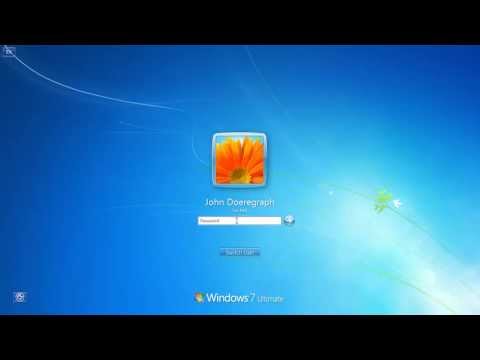
In the submenu, under "Log off," you will see a button called "Lock." Click this button, and you will automatically be "locked" out of Windows. You will be taken to the welcome screen where you must enter your password to regain access. With this method you can easily lock windows 7.
Step # 3 -- Using a Shortcut
Alternatively you can quickly lock the machine with a keyboard shortcut, simple press the Windows button and "L" at the same time. The computer will lock. You have just learned two ways of locking your computer that should help improve your privacy and security on your Windows 7 machine.
Don't forget to check out our site howtech.tv/ for more free how-to videos!
youtube.com/ithowtovids - our feed
facebook.com/howtechtv - join us on facebook
plus.google.com/103440382717658277879 - our group in Google+
This tutorial will show you how to lock a Windows 7 computer.
Step # 1 -- Open the Start Menu
Click the "Start" button on the lower left side of your Windows desktop to access the Start menu. At the bottom of this menu, you can see a button which says "Shutdown." Click the arrow to the right of "Shutdown," and this will reveal a submenu.
Step # 2 -- Locking Windows from the Submenu
In the submenu, under "Log off," you will see a button called "Lock." Click this button, and you will automatically be "locked" out of Windows. You will be taken to the welcome screen where you must enter your password to regain access. With this method you can easily lock windows 7.
Step # 3 -- Using a Shortcut
Alternatively you can quickly lock the machine with a keyboard shortcut, simple press the Windows button and "L" at the same time. The computer will lock. You have just learned two ways of locking your computer that should help improve your privacy and security on your Windows 7 machine.
About this tutorial
HOWTECH published this 0:58 video tutorial on November 4, 2013. It has been watched 1,376,329 times on YouTube.
- Channel
- HOWTECH
- Category
- Howto & Style
- Duration
- 0:58
- Published
- November 4, 2013
- Views
- 1,376,329
- Likes
- 5,274
Share
This tutorial in other languages
- FRComment verrouiller l'écran dans Windows 7
- ESCómo bloquear la pantalla en Windows 7
- PTComo bloqueio de tela no Windows 7
- ITCome Blocco Schermo in Windows 7
- DEWie Lock-Bildschirm in Windows 7
- NLHoe te Screen Lock in Windows 7
- RUКак Блокировка экрана в Windows 7
- PLJak zablokować ekran w Windows 7
- JAWindows 7で画面をロックする方法
- ARكيفية قفل الشاشة في ويندوز 7
- HIविंडोज 7 में स्क्रीन लॉक करने के लिए कैसे
- IDCara Mengunci Layar di Windows 7