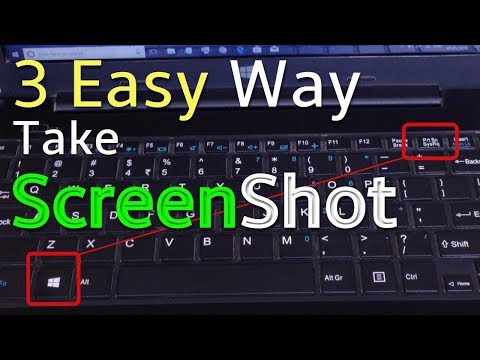
Playback starts YouTube’s embedded player (privacy-enhanced mode).
How to take a screenshot on a PC or Laptop any Windows 2020
ChannelWebbyFan.comIn brief
Master three quick ways to capture your screen on Windows—using keyboard shortcuts or the built-in Snipping Tool—then edit and save your screenshots with ease. Perfect for beginners or anyone who needs a fast, no-frills method.
Key steps
- Press Prt Sc / SysRq to copy the screen to clipboard
- Use Win + Prt Sc to auto-save a full-screen screenshot
- Paste (Ctrl + V) into Paint to edit your screenshot
- Save the file in the Screenshots folder
Questions & answers
Where are screenshots saved when using Win + Prt Sc?
They’re automatically saved in the Screenshots folder under Pictures.
Chapters
Description from the creator
Like - Share - Comment youtu.be/gbJr0Cv95n8
00:00 | Intro
00:11 | Prt SC / SysRq Key
01:45 | Windows Key + Prt SC / SysRq Key
02:28 | Snipping Tool / Snip & Sketch
✪ Steps To Take Screenshot
- Press Prt screen Button on your Laptop
- Open Paint Tool
- Click on Paste or press Ctrl + V
- Edit Your Screenshot As you Want
- Save It
- Done.
✪ Screenshot Automatically saved on Screenshot folder, simply find picture folder and then you can see screenshot folder
how to take screenshot in laptop
how to screenshot on laptop
how to take screenshot on laptop
How to take screenshot in pc
how to screenshot on pc
How to take a screenshot on a PC or Laptop any Windows
About this tutorial
WebbyFan.com published this 3:30 video tutorial on October 25, 2019. It has been watched 11,424,458 times on YouTube.
- Channel
- WebbyFan.com
- Category
- Howto & Style
- Duration
- 3:30
- Published
- October 25, 2019
- Views
- 11,424,458
- Likes
- 140,634
Tags
Share
Further reading
-
How to Take a Screenshot on Windows 10 in 2020 | Beebom
beebom.com
Taking Screenshot on Windows 10 in 2020 There are various ways to take screenshot on Windows 10. In this article, we are first going to see how we can take screenshots using native tools and then move on to some third-p…
-
How to take a screenshot on Windows 10 computers in several ...
msn.com
Windows 10 provides several ways to take screenshots of your entire computer screen, or just select parts of it. The fastest way to take a screenshot on Windows 10 is by pressing the "PrtScn ...
-
The Easiest Way to Take a Screenshot in Windows | wikiHow
wikihow.com
Save your screenshot as an image file. Click File, click Save, enter a file name, click a location on the left side of the page, and click Save.. You can change the screenshot's file type by clicking the "Save as type"…
This tutorial in other languages
- FRComment prendre une capture d'écran sur un PC ou un ordinateur portable tout ordinateur Windows 2020
- ESCómo tomar una captura de pantalla en un PC o Laptop cualquier Windows 2020
- PTComo tirar um screenshot em um PC ou laptop qualquer Windows 2020
- ITCome prendere uno screenshot su un PC o computer portatile qualsiasi Windows 2020
- DEWie Sie einen Screenshot auf einem PC oder Laptop jeden Windows 2020 nehmen
- NLHoe maak je een screenshot op een PC of laptop een Windows 2020 te nemen
- RUКак сделать скриншот на ПК или ноутбука любой ОС Windows 2020
- PLJak zrobić zrzut ekranu na komputerze PC lub laptopie każdym systemie Windows 2020
- JA任意のWindows 2020 PCまたはラップトップ上で、スクリーンショットを撮る方法
- ARكيف تأخذ لقطة على جهاز كمبيوتر شخصي أو محمول أي ويندوز 2020
- HIएक पीसी या लैपटॉप किसी भी Windows 2020 पर एक स्क्रीनशॉट लेने के लिए
- IDCara mengambil screenshot pada PC atau Laptop setiap Windows 2020