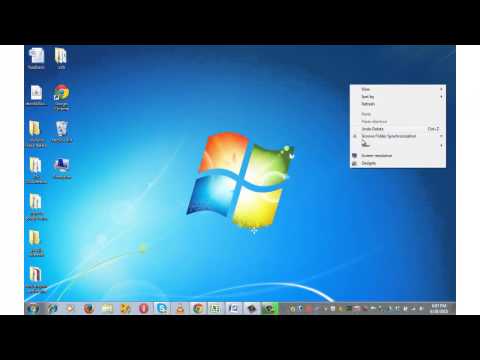
Playback starts YouTube’s embedded player (privacy-enhanced mode).
How to check graphics card memory in Windows 7, Vistas & 8
ChannelTechnofareDescription from the creator
Higher Graphic card memory is required for high resolution games, or animation software. This tutorial explains process to check the graphic card memory of your computer system.
If you download a game that needs high resolution, you will notice a pop up that mentions, the need for high memory graphic card, so it will ask you to upgrade the same.
This is perhaps the reason, why you will have a need to know the graphic card details.
There are 3 methods through which you can check graphic card details on your windows 7, 8 or vistas
Method 1 - Right click on computer - Properties - Device Manager - Display Adapters.
Method 2 - Right click on Desktop -Personalize - Display - Adjust Resolution - Adaptor.
Method 3 –Simultaneously Press Win key +R from keyboard - type dxdiag Select Display tab.
Note: As of now external graphic cards are not available companies like Asus, Nvidia are working on the same.
……………………………………………………………………
About creator of this video: Harish Bali is a Tech blogger and Social media expert who loves to make tutorials on use of technology in day to day life.
Follow us:
Blog on Tech Guide:
technofare.com/
Google Plus Technofare :
plus.google.com/+Technofareblog/posts
Google Plus Harish Bali:
plus.google.com/+harishBali/posts
Facebook:
facebook.com/technofare
Subscribe to Channel:
youtube.com/user/Technofare
Watch other videos on Technofare:
youtube.com/user/Technofare.
If you download a game that needs high resolution, you will notice a pop up that mentions, the need for high memory graphic card, so it will ask you to upgrade the same.
This is perhaps the reason, why you will have a need to know the graphic card details.
There are 3 methods through which you can check graphic card details on your windows 7, 8 or vistas
Method 1 - Right click on computer - Properties - Device Manager - Display Adapters.
Method 2 - Right click on Desktop -Personalize - Display - Adjust Resolution - Adaptor.
Method 3 –Simultaneously Press Win key +R from keyboard - type dxdiag Select Display tab.
Note: As of now external graphic cards are not available companies like Asus, Nvidia are working on the same.
……………………………………………………………………
About creator of this video: Harish Bali is a Tech blogger and Social media expert who loves to make tutorials on use of technology in day to day life.
Follow us:
Blog on Tech Guide:
technofare.com/
Google Plus Technofare :
plus.google.com/+Technofareblog/posts
Google Plus Harish Bali:
plus.google.com/+harishBali/posts
Facebook:
facebook.com/technofare
Subscribe to Channel:
youtube.com/user/Technofare
Watch other videos on Technofare:
youtube.com/user/Technofare.
About this tutorial
Technofare published this 1:14 video tutorial on November 3, 2015. It has been watched 1,090,165 times on YouTube.
- Channel
- Technofare
- Category
- Howto & Style
- Duration
- 1:14
- Published
- November 3, 2015
- Views
- 1,090,165
- Likes
- 9,879
Tags
Share
This tutorial in other languages
- FRComment vérifier la mémoire de la carte graphique dans Windows 7, et 8 Vistas
- ESCómo comprobar la tarjeta de memoria de gráficos en Windows 7, y 8 Vistas
- PTComo verificar gráficos cartão de memória no Windows 7, Vistas & 8
- ITCome controllare la grafica scheda di memoria in Windows 7, Vistas & 8
- DEWie Grafikkartenspeicher in Windows 7, Vistas zu überprüfen und 8
- NLHoe kan ik afbeeldingen Controleer kaart geheugen in Windows 7, Vistas & 8
- RUКак проверить графическая память карты в Windows 7, далях & 8
- PLJak sprawdzić pamięć karty graficznej w systemie Windows 7 i 8, Vistas
- JA、Windows 7でヴィスタス&8のグラフィックスカードのメモリをチェックする方法
- ARكيفية التحقق من الرسومات بطاقة الذاكرة في ويندوز 7، و 8 آفاق
- HIविंडोज 7, खा़का और 8 में ग्राफिक्स कार्ड स्मृति की जांच कैसे करें
- IDBagaimana memeriksa grafis kartu memori pada Windows 7, Vistas & 8