Playback starts YouTube’s embedded player (privacy-enhanced mode).
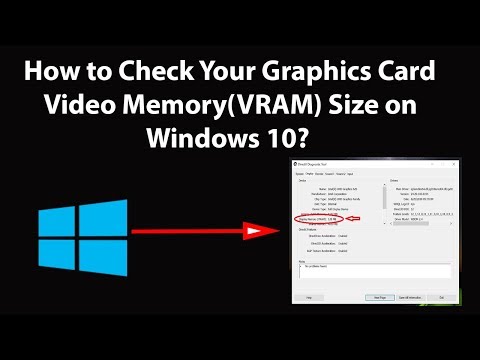
How to Check Your Graphics Card Video Memory (VRAM) Size on Windows 10?
ChannelTechMeSpotDescription from the creator
How to Check Your Graphics Card Video Memory (VRAM) Size on Windows 10?
Method 1:
Step 1: Right Click on the Desktop, and then click on 'Display Settings.'
Step 2: Under Display, scroll down and then click on 'Advanced Display Settings.'
Step 3: Click on 'Display Adapter Settings.'
Step 4: Check your 'Dedicated Video Memory' This is your VRAM.
Method 2:
Step 1: Press 'windows + r' key on the keyboard to get 'run' window.
Step 2: Type 'dxdiag' without quotes, and then click on 'ok' button.
Step 3: Click on 'Display' tab.
Step 4: There you can check your VRAM.
Thanks for watching, please like and subscribe
==============================================
YouTube Subscribe: goo.gl/4lCCN8
Patreon: patreon.com/TechMeSpot
Facebook: facebook.com/techmespot
Twitter: twitter.com/techmespot
Website: techmespot.com
#howto #CheckVram #Windows10
Method 1:
Step 1: Right Click on the Desktop, and then click on 'Display Settings.'
Step 2: Under Display, scroll down and then click on 'Advanced Display Settings.'
Step 3: Click on 'Display Adapter Settings.'
Step 4: Check your 'Dedicated Video Memory' This is your VRAM.
Method 2:
Step 1: Press 'windows + r' key on the keyboard to get 'run' window.
Step 2: Type 'dxdiag' without quotes, and then click on 'ok' button.
Step 3: Click on 'Display' tab.
Step 4: There you can check your VRAM.
Thanks for watching, please like and subscribe
==============================================
YouTube Subscribe: goo.gl/4lCCN8
Patreon: patreon.com/TechMeSpot
Facebook: facebook.com/techmespot
Twitter: twitter.com/techmespot
Website: techmespot.com
#howto #CheckVram #Windows10
About this tutorial
TechMeSpot published this 3:34 video tutorial on November 3, 2019. It has been watched 589,349 times on YouTube.
- Channel
- TechMeSpot
- Category
- Howto & Style
- Duration
- 3:34
- Published
- November 3, 2019
- Views
- 589,349
- Likes
- 4,983
Tags
Share
This tutorial in other languages
- FRComment vérifier votre carte graphique mémoire vidéo (VRAM) Taille sur Windows 10?
- ESCómo comprobar la tarjeta gráfica de memoria de vídeo (VRAM) Tamaño en Windows 10?
- PTComo verificar seus gráficos cartão de memória de vídeo (VRAM) Tamanho no Windows 10?
- ITCome controllare la scheda grafica di memoria video (VRAM) Dimensione su Windows 10?
- DEWie Sie Ihre Grafikkarte Grafikspeicher (VRAM) Größe unter Windows 10 überprüfen?
- NLHoe uw grafische kaart videogeheugen (VRAM) Grootte op Windows 10?
- RUКак проверить Видеокарта Video Memory (VRAM) Размер на Windows 10?
- PLJak sprawdzić Graphics Karta pamięci wideo (VRAM) Rozmiar w Windows 10?
- JAWindowsの10のあなたのグラフィックカードのビデオメモリ(VRAM)のサイズを確認する方法?
- ARكيفية التحقق من بطاقة الرسومات ذاكرة فيديو (VRAM) الحجم على ويندوز 10؟
- HIकैसे Windows 10 पर अपना ग्राफ़िक्स कार्ड वीडियो मेमोरी (VRAM) आकार की जाँच करने के लिए?
- IDBagaimana Periksa Kartu Grafis Video Memory (VRAM) Ukuran pada Windows 10?