Playback starts YouTube’s embedded player (privacy-enhanced mode).
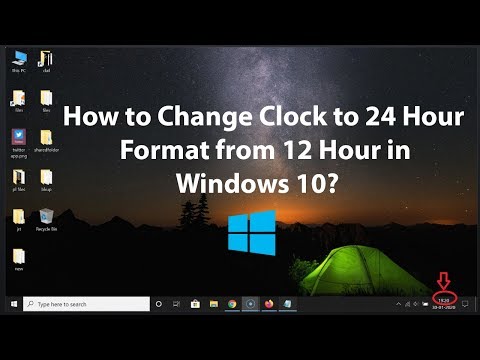
How to Change Clock to 24 Hour Format from 12 Hour in Windows 10?
ChannelTechMeSpotDescription from the creator
How to Change Clock to 24 Hour Format from 12 Hour in Windows 10?
Step 1: Go to Clock at the bottom right section of Taskbar, and then right click on it.
Step 2: Click on 'Adjust date/time.'
Step 3: Scroll down at the very bottom, and then click on 'Change Data Formats.'
Step 4: Go to 'Short time,' and then click on box under that, and then select 9:40.
It's done.
Thanks for watching, please like and subscribe
==============================================
YouTube Subscribe: goo.gl/4lCCN8
Facebook: facebook.com/techmespot
Twitter: twitter.com/techmespot
Website: techmespot.com
#howto #ChangeClock #Windows10
Step 1: Go to Clock at the bottom right section of Taskbar, and then right click on it.
Step 2: Click on 'Adjust date/time.'
Step 3: Scroll down at the very bottom, and then click on 'Change Data Formats.'
Step 4: Go to 'Short time,' and then click on box under that, and then select 9:40.
It's done.
Thanks for watching, please like and subscribe
==============================================
YouTube Subscribe: goo.gl/4lCCN8
Facebook: facebook.com/techmespot
Twitter: twitter.com/techmespot
Website: techmespot.com
#howto #ChangeClock #Windows10
About this tutorial
TechMeSpot published this 2:27 video tutorial on March 2, 2020. It has been watched 640,183 times on YouTube.
- Channel
- TechMeSpot
- Category
- Howto & Style
- Duration
- 2:27
- Published
- March 2, 2020
- Views
- 640,183
- Likes
- 8,741
Tags
Share
This tutorial in other languages
- FRComment faire pour changer l'horloge au format 24 heures de 12 heures dans Windows 10?
- ESCómo cambiar el reloj a formato de 24 horas a partir de 12 horas en Windows 10?
- PTComo Mudar Relógio para o formato 24 horas de 12 horas no Windows 10?
- ITCome cambiare orologio in formato 24 ore dalle 12 ore in Windows 10?
- DESo ändert Uhr bis 24-Stunden-Format von 12 Stunden in Windows 10?
- NLHoe te veranderen Klok tot en met 24-uurs weergave van 12 uur in Windows 10?
- RUКак изменить часы на 24 часовой формат с 12 часов в Windows 10?
- PLJak zmienić Zegar do formatu 24 godziny od 12 godzin w systemie Windows 10?
- JAどのように変更する時計に24時間形式へのWindows 10での12時間から?
- ARكيفية تغيير الساعة إلى تنسيق 24 ساعة من 12 ساعة في نظام التشغيل Windows 10؟
- HI12 घंटे से कैसे बदलें घड़ी के लिए 24 घंटे के प्रारूप करने के लिए Windows 10 में?
- IDCara Mengubah Jam 24 Jam Format dari 12 Jam pada Windows 10?