Playback starts YouTube’s embedded player (privacy-enhanced mode).
How to Clear Cache in Internet Explorer
ChannelHOWTECHDescription from the creator
Facing problems due to your browsers cache? Save up some of that storage space and follow this guide to learn how to clear the cache in internet explorer
Don't forget to check out our site howtech.tv/ for more free how-to videos!
youtube.com/ithowtovids - our feed
facebook.com/howtechtv - join us on facebook
plus.google.com/103440382717658277879 - our group in Google+
Introduction:
The browser's cache helps in storing up specific type of information about the websites that you are visiting. This helps in loading webpages more quickly in the future. Your browser's utilizes the storage space in your hard drive. You can free up that utilized space by clearing out your browsers cache. In this tutorial you will learn how to clear your cache in internet explorer.
Step # 1 -- Accessing the Delete Browsing History Window
To clear the browser cache in Internet explorer, first of all what you need to do is open the delete browsing history window.
For that, open up the settings menu on the top right side of the screen, move over to Safety and click on the delete browsing history button. Alternatively, you can simply press the CTRL+SHIFT+DEL shortcut key to open up the delete browsing history window.
Step # 2 -- Temporary Internet Files and Cookies
With that done, tick on the checkboxes titled "Temporary Internet Files" and "Cookies". Uncheck all the rest of the options if they are enabled.
Now move at the bottom of the window and click on the delete button. This will clear out your cache in internet explorer and you will get a confirmation window at the bottom of the screen. The processing may take a little bit of time.
Step # 3 -- Alternate Method of removing the browser cache
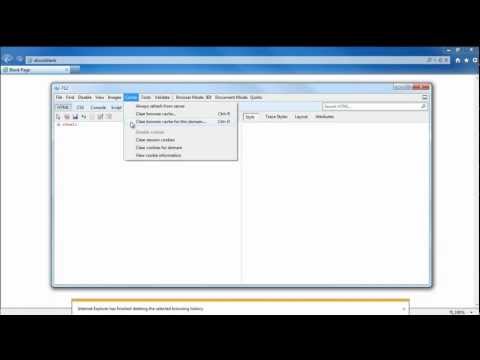
Furthermore, certain websites and applications require a more thorough procedure and you may still face a problem. To clear the browser cache in Internet explorer more thoroughly, open up the internet options menu and select the f12 developer tools option.
Step # 4 -- Clearing the browser cache
Over here, click on the cache menu and two options will be provided to you. The clear browser cache option and the clear browser cache for this domain option. Here, select the clear browser cache option. Alternatively, you can simply press the CTRL+R shortcut key to clear the browser cache from the F12 window.
Step # 5 -- Confirmation message
With that done, a confirmation window will appear on the screen. Click on Yes and you're done.
Don't forget to check out our site howtech.tv/ for more free how-to videos!
youtube.com/ithowtovids - our feed
facebook.com/howtechtv - join us on facebook
plus.google.com/103440382717658277879 - our group in Google+
Introduction:
The browser's cache helps in storing up specific type of information about the websites that you are visiting. This helps in loading webpages more quickly in the future. Your browser's utilizes the storage space in your hard drive. You can free up that utilized space by clearing out your browsers cache. In this tutorial you will learn how to clear your cache in internet explorer.
Step # 1 -- Accessing the Delete Browsing History Window
To clear the browser cache in Internet explorer, first of all what you need to do is open the delete browsing history window.
For that, open up the settings menu on the top right side of the screen, move over to Safety and click on the delete browsing history button. Alternatively, you can simply press the CTRL+SHIFT+DEL shortcut key to open up the delete browsing history window.
Step # 2 -- Temporary Internet Files and Cookies
With that done, tick on the checkboxes titled "Temporary Internet Files" and "Cookies". Uncheck all the rest of the options if they are enabled.
Now move at the bottom of the window and click on the delete button. This will clear out your cache in internet explorer and you will get a confirmation window at the bottom of the screen. The processing may take a little bit of time.
Step # 3 -- Alternate Method of removing the browser cache
Furthermore, certain websites and applications require a more thorough procedure and you may still face a problem. To clear the browser cache in Internet explorer more thoroughly, open up the internet options menu and select the f12 developer tools option.
Step # 4 -- Clearing the browser cache
Over here, click on the cache menu and two options will be provided to you. The clear browser cache option and the clear browser cache for this domain option. Here, select the clear browser cache option. Alternatively, you can simply press the CTRL+R shortcut key to clear the browser cache from the F12 window.
Step # 5 -- Confirmation message
With that done, a confirmation window will appear on the screen. Click on Yes and you're done.
About this tutorial
HOWTECH published this 1:08 video tutorial on October 31, 2013. It has been watched 114,123 times on YouTube.
- Channel
- HOWTECH
- Category
- Howto & Style
- Duration
- 1:08
- Published
- October 31, 2013
- Views
- 114,123
- Likes
- 191
Share
This tutorial in other languages
- FRComment supprimer le cache dans Internet Explorer
- ESCómo borrar la memoria caché en Internet Explorer
- PTComo limpar o cache no Internet Explorer
- ITCome Cancella cache in Internet Explorer
- DEWie man Cache löschen im Internet Explorer
- NLHoe kan ik Clear Cache in Internet Explorer
- RUКак очистить кэш в Internet Explorer
- PLJak wyczyścić pamięć podręczną w programie Internet Explorer
- JAどのようにInternet Explorerのキャッシュをクリアします
- ARكيفية مسح ذاكرة التخزين المؤقت في Internet Explorer
- HIकैसे इंटरनेट एक्सप्लोरर में कैश साफ़ करने के लिए
- IDCara Clear Cache di Internet Explorer