Playback starts YouTube’s embedded player (privacy-enhanced mode).
How to Configure Hotmail on iPhone and iPad
ChanneliPhone, iPad and Android Tutorials from HowTechDescription from the creator
In this tutorial you will learn how to configure hotmail on iPhone.
Don't forget to check out our site howtech.tv/ for more free how-to videos!
youtube.com/ithowtovids - our feed
facebook.com/howtechtv - join us on facebook
plus.google.com/103440382717658277879 - our group in Google+
This tutorial will show you how to configure hotmail on iPhone. There are a variety of settings you can customize, to get the best mail experience.
Step #1 -- Tap Settings Icon
Scroll down to the Mail, Contacts, Calendars tab.
Step #2 -- Tap Mail, Contacts, Calendars
Step #3 -- Select Hotmail
Under the accounts section of this page, tap the Hotmail tab. This will pull up all of the options we can configure.
Step #4 -- Synch Content
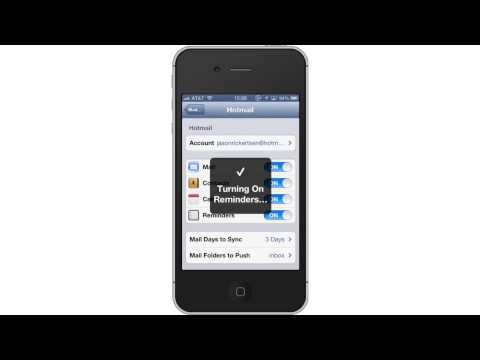
You can synch various hotmail content such as mail, contacts, calendars, and reminders. To synch your contacts tap the "off" button. Repeat this process for contacts, calendars, and reminders.
Step #5 -- Adjust Mail Days to Sync
Tap the "Mail Days to Sync" tab. From here you have various time increments you can select. Lets change it to 1 week.
Step #6 -- Adjust Mail Folders to Push
Tap the "Mail Folders to Push" tab. This will allow you to pick which folders you want pushed to your iPhone's notifications. Usually, keeping this on the default setting of inbox will give you the best results.
Leave your comments below or contact us by email. This was a Howtech.tv tutorial. Thanks for watching!
Don't forget to check out our site howtech.tv/ for more free how-to videos!
youtube.com/ithowtovids - our feed
facebook.com/howtechtv - join us on facebook
plus.google.com/103440382717658277879 - our group in Google+
This tutorial will show you how to configure hotmail on iPhone. There are a variety of settings you can customize, to get the best mail experience.
Step #1 -- Tap Settings Icon
Scroll down to the Mail, Contacts, Calendars tab.
Step #2 -- Tap Mail, Contacts, Calendars
Step #3 -- Select Hotmail
Under the accounts section of this page, tap the Hotmail tab. This will pull up all of the options we can configure.
Step #4 -- Synch Content
You can synch various hotmail content such as mail, contacts, calendars, and reminders. To synch your contacts tap the "off" button. Repeat this process for contacts, calendars, and reminders.
Step #5 -- Adjust Mail Days to Sync
Tap the "Mail Days to Sync" tab. From here you have various time increments you can select. Lets change it to 1 week.
Step #6 -- Adjust Mail Folders to Push
Tap the "Mail Folders to Push" tab. This will allow you to pick which folders you want pushed to your iPhone's notifications. Usually, keeping this on the default setting of inbox will give you the best results.
Leave your comments below or contact us by email. This was a Howtech.tv tutorial. Thanks for watching!
About this tutorial
iPhone, iPad and Android Tutorials from HowTech published this 1:19 video tutorial on November 8, 2013. It has been watched 6,065 times on YouTube.
- Category
- Howto & Style
- Duration
- 1:19
- Published
- November 8, 2013
- Views
- 6,065
- Likes
- 7
Tags
Share
This tutorial in other languages
- FRComment faire pour configurer Hotmail sur l'iPhone et l'iPad
- ESCómo configurar Hotmail en iPhone y iPad
- PTComo configurar o Hotmail no iPhone e iPad
- ITCome configurare Hotmail su iPhone e iPad
- DESo konfigurieren Sie Hotmail auf iPhone und iPad
- NLHoe te configureren Hotmail op de iPhone en iPad
- RUКак настроить Hotmail на iPhone и IPad
- PLJak skonfigurować Hotmail na iPhone i iPad
- JAどのようにiPhoneやiPad上の設定のHotmailへ
- ARكيفية تكوين هوتميل على iPhone و iPad
- HIकैसे कॉन्फ़िगर हॉटमेल iPhone और iPad पर करने के लिए
- IDCara Konfigurasi Hotmail pada iPhone dan iPad