Playback starts YouTube’s embedded player (privacy-enhanced mode).
How to Convert a Disk to Dynamic
ChannelHOWTECHDescription from the creator
Follow this tutorial to learn how to convert a disk to dynamic from basic. You can change the volume type to dynamic after learning from this tutorial.
Don't forget to check out our site howtech.tv/ for more free how-to videos!
youtube.com/ithowtovids - our feed
facebook.com/howtechtv - join us on facebook
plus.google.com/103440382717658277879 - our group in Google+
Follow this tutorial to learn how to convert a disk to dynamic from basic. Currently the disks are of basic type. Learn how to change the type from basic to dynamic. We will cover the full process of converting the disk to dynamic in this detailed tutorial.
Step 1: Manage option
Follow this step by step guide in order to learn how to convert a disk to dynamic.
First of all, go to the start menu and right click the Computer. From the drop down menu, select the manage option.
Step 2: Disk Management Option
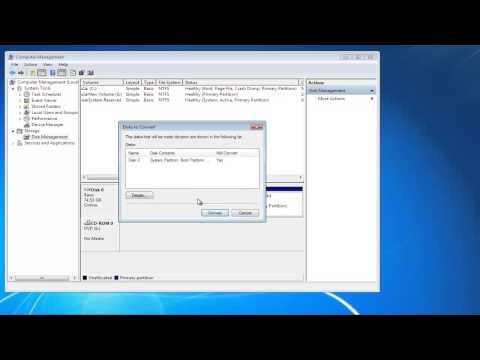
As a result, the computer management window will appear on your screen. Under the storage category, click on the "disk management" option. Over there, right click on the area where it says disk 0 and from the drop down menu, select the "convert to dynamic disk" option.
Step 3: Choose the disk you want to convert
This will open up a dialog box where you can choose the disk you want to convert to dynamic. Once you are done, click on the ok button to proceed further. Next, you'd be shown a list of disks that would be converted to dynamic. Click on the convert button if the disk you selected is present there.
Step 4: Continue with the conversion
You'd be prompted with a warning. You'd be notified that after the disk has been converted to dynamic, you won't be able to start installed operating systems from any volume on these disks with the exception of the current boot volume. Click on the yes button to continue with the conversion procedure.
Step 5: Type has been changed
Once the process has been completed, you'd be taken back to the disk management window. There, you will notice that it says dynamic under the disk you just converted. Furthermore, you can see the type has changed to dynamic from basic for all the volumes present on the disk you just converted. In this manner, converting disk to dynamic from basic can be done.
Don't forget to check out our site howtech.tv/ for more free how-to videos!
youtube.com/ithowtovids - our feed
facebook.com/howtechtv - join us on facebook
plus.google.com/103440382717658277879 - our group in Google+
Follow this tutorial to learn how to convert a disk to dynamic from basic. Currently the disks are of basic type. Learn how to change the type from basic to dynamic. We will cover the full process of converting the disk to dynamic in this detailed tutorial.
Step 1: Manage option
Follow this step by step guide in order to learn how to convert a disk to dynamic.
First of all, go to the start menu and right click the Computer. From the drop down menu, select the manage option.
Step 2: Disk Management Option
As a result, the computer management window will appear on your screen. Under the storage category, click on the "disk management" option. Over there, right click on the area where it says disk 0 and from the drop down menu, select the "convert to dynamic disk" option.
Step 3: Choose the disk you want to convert
This will open up a dialog box where you can choose the disk you want to convert to dynamic. Once you are done, click on the ok button to proceed further. Next, you'd be shown a list of disks that would be converted to dynamic. Click on the convert button if the disk you selected is present there.
Step 4: Continue with the conversion
You'd be prompted with a warning. You'd be notified that after the disk has been converted to dynamic, you won't be able to start installed operating systems from any volume on these disks with the exception of the current boot volume. Click on the yes button to continue with the conversion procedure.
Step 5: Type has been changed
Once the process has been completed, you'd be taken back to the disk management window. There, you will notice that it says dynamic under the disk you just converted. Furthermore, you can see the type has changed to dynamic from basic for all the volumes present on the disk you just converted. In this manner, converting disk to dynamic from basic can be done.
About this tutorial
HOWTECH published this 1:08 video tutorial on October 31, 2013. It has been watched 81,264 times on YouTube.
- Channel
- HOWTECH
- Category
- Howto & Style
- Duration
- 1:08
- Published
- October 31, 2013
- Views
- 81,264
- Likes
- 164
Share
This tutorial in other languages
- FRComment convertir un disque dynamique à
- ESCómo convertir un disco en dinámico
- PTComo converter um disco para dinâmico
- ITCome convertire un disco a dinamico
- DEWie man einen Datenträger zu dynamischen konvertieren
- NLHoe kan ik een schijf naar een dynamische converteren
- RUКак конвертировать диск в динамический
- PLJak przekonwertować dysk na dynamiczny
- JAディスクをダイナミックに変換する方法
- ARكيفية تحويل القرص إلى حيوي
- HIगतिशील करने के लिए एक डिस्क में कनवर्ट करने के लिए कैसे
- IDCara Mengkonversi Disk Dinamis ke