Playback starts YouTube’s embedded player (privacy-enhanced mode).
How to Create An Event Flyer in Just 5 Minutes with Piktochart
ChannelPiktochart VideoDescription from the creator
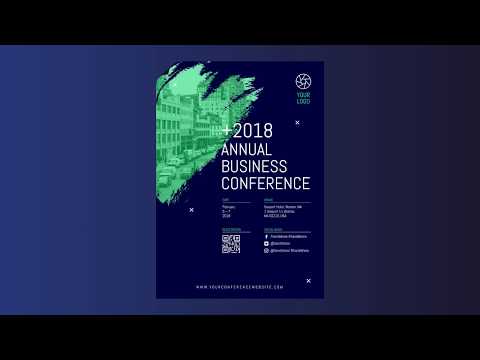
In this quick step-by-step tutorial, we design a beautiful event flyer from scratch, in Piktochart. Here's how:
STEP 1 - BACKGROUND
Set a background color that corresponds to your branding or event color palette. You can type in a specific HEX code to make sure it's on-brand!
STEP 2 - TEXT
Add your text. You can change your font easily afterwards choosing from a list of a variety of Google fonts and easily scale your text. Copy and paste your text to maintain the same font type and color!
STEP 3 - STRUCTURE
Add dividing lines. They can be a great way to break up your visuals and give structure to your compositions and layout. You can also change your line type from dashed or dotted to solid and modify its width.
STEP 4 - ICONS
Add extra elements such as QR codes, social handles & other icons to make it easy for people to contact you or check out the details of the event on social or via a QR code. You can do that easily by browsing through the icon library or searching for a specific one by keyword.
STEP 5 - EXTRA INFO
It's beneficial to add your website’s URL at the bottom of the design so your audience knows how to reach you. You can play around with your letter spacing which adds a really cool effect to your flyer design.
STEP 6 - PHOTO FRAME
In this design, we added a really unique brush shape which we used as a photo frame. To do this, you have to head over to the ‘Graphics’ panel and select ‘Photo Frame’
STEP 7 - IMAGE
Here, we are adding an image to the brush shape. You can do it by heading over to ‘Photos’ where you can choose from a built-in gallery of images. Use the search bar to find a photo you're looking for.
STEP 8 - IMAGE OVERLAY
Here we are overlaying our chosen image with a green image of the exact same shape. We are lowering the opacity to 50% for the photograph to be visible.
EXTRA
If you're using any of our flyer templates, you can easily flip through different, predefined color schemes or create a new one composed of your brand colors. Head over to a feature called ‘Color Schemes’.
SIGN UP FOR FREE
Piktochart is an all-in-one graphic design platform that enables business professionals to create infographics, presentations, reports, and printables online, without any graphic design experience. Create an account for free here: piktochart.com/
STEP 1 - BACKGROUND
Set a background color that corresponds to your branding or event color palette. You can type in a specific HEX code to make sure it's on-brand!
STEP 2 - TEXT
Add your text. You can change your font easily afterwards choosing from a list of a variety of Google fonts and easily scale your text. Copy and paste your text to maintain the same font type and color!
STEP 3 - STRUCTURE
Add dividing lines. They can be a great way to break up your visuals and give structure to your compositions and layout. You can also change your line type from dashed or dotted to solid and modify its width.
STEP 4 - ICONS
Add extra elements such as QR codes, social handles & other icons to make it easy for people to contact you or check out the details of the event on social or via a QR code. You can do that easily by browsing through the icon library or searching for a specific one by keyword.
STEP 5 - EXTRA INFO
It's beneficial to add your website’s URL at the bottom of the design so your audience knows how to reach you. You can play around with your letter spacing which adds a really cool effect to your flyer design.
STEP 6 - PHOTO FRAME
In this design, we added a really unique brush shape which we used as a photo frame. To do this, you have to head over to the ‘Graphics’ panel and select ‘Photo Frame’
STEP 7 - IMAGE
Here, we are adding an image to the brush shape. You can do it by heading over to ‘Photos’ where you can choose from a built-in gallery of images. Use the search bar to find a photo you're looking for.
STEP 8 - IMAGE OVERLAY
Here we are overlaying our chosen image with a green image of the exact same shape. We are lowering the opacity to 50% for the photograph to be visible.
EXTRA
If you're using any of our flyer templates, you can easily flip through different, predefined color schemes or create a new one composed of your brand colors. Head over to a feature called ‘Color Schemes’.
SIGN UP FOR FREE
Piktochart is an all-in-one graphic design platform that enables business professionals to create infographics, presentations, reports, and printables online, without any graphic design experience. Create an account for free here: piktochart.com/
About this tutorial
Piktochart Video published this 5:06 video tutorial on November 2, 2018. It has been watched 75,627 times on YouTube.
- Channel
- Piktochart Video
- Category
- Howto & Style
- Duration
- 5:06
- Published
- November 2, 2018
- Views
- 75,627
- Likes
- 487
Tags
Share
This tutorial in other languages
- FRComment faire pour créer une brochure de l'événement en seulement 5 minutes avec Piktochart
- ESCómo crear un folleto de eventos en sólo 5 minutos con Piktochart
- PTComo criar um Flyer Evento em apenas 5 minutos com Piktochart
- ITCome creare un Flyer evento in soli 5 minuti con Piktochart
- DESo erstellen Sie ein Ereignis-Flyer in nur 5 Minuten mit Piktochart
- NLHoe maak je een gebeurtenis Flyer in slechts 5 minuten met Piktochart
- RUКак создать событие Flyer всего за 5 минут с Piktochart
- PLJak utworzyć wydarzenie wydruku w zaledwie 5 minut z Piktochart
- JAPiktochartでわずか5分でアン・イベントチラシを作成する方法
- ARكيفية إنشاء حدث الطيارة في 5 دقائق فقط مع Piktochart
- HIकैसे सिर्फ 5 Piktochart साथ मिनट में एक घटना फ्लायर बनाने के लिए
- IDCara Membuat Sebuah Event Flyer di Hanya 5 Menit dengan Piktochart