Playback starts YouTube’s embedded player (privacy-enhanced mode).
How to Create and Add Digital Signature in Excel
ChannelExcel, Word and PowerPoint Tutorials from HowtechDescription from the creator
In this tutorial, we will teach you how to create and add a digital signature in Excel.
Don't forget to check out our site howtech.tv/ for more free how-to videos!
youtube.com/ithowtovids - our feed
facebook.com/howtechtv - join us on facebook
plus.google.com/103440382717658277879 - our group in Google+
If any changes are made to the document, the digital signature will turn invalid. This allows you to verify the document's integrity.
In Excel, you can add a digital signature.
This feature provides users with the ability to verify a document's integrity. However, Microsoft cannot warrant a digital signature's legal enforceability. In Excel, digital signatures help the user make sure that there were no changes made to the document. You can track the signature and check if the signature is still valid. The signature will become invalid the minute the signed content is modified.
Step 1 -- Add a digital signature
Follow this step by step guide to learn how to create and add a digital signature in Excel.
First of all, open the excel workbook that you want to add a digital signature to. Once you are there, click on the Microsoft icon available in the extreme top left corner. From the drop down menu, go to prepare and select the "add a digital signature" option.
Step 2 -- Acknowledge the warning message
As a result, a warning message will appear on your screen. It will inform you that while this feature provides users with the ability to verify a document's integrity, Microsoft cannot warrant a digital signature's legal enforceability. Click on the ok button to continue further.
Step 3 -- Create your own digital ID
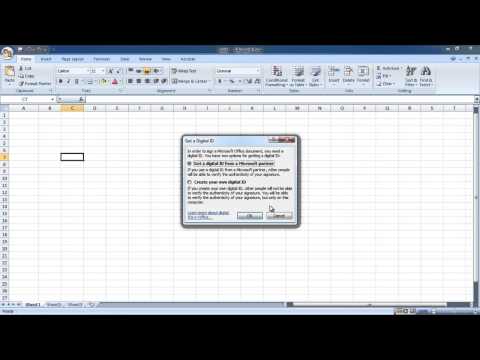
As a result, "Get a Digital ID" window will appear on your screen. Choose the second option which says create your own digital ID. Once you have checked the second option, click on the ok button.
Step 4 -- Information for the ID
Next, you will be asked to enter the information that is to be included in your digital ID. Enter your name, email address and organization before you click on the create button.
Step 5 -- Sign off the document
In the next screen, you can sign off the document and specify the purpose for signing the document.
Step 6 -- Signature Pane
A confirmation message will appear on your screen informing you that your signature has been successfully saved. If you will make any changes to the document, your signature will become invalid. Acknowledge the message and on the right hand side of the excel sheet, a signatures pane will appear.
Step 7 -- View signature details
In this pane, the valid signatures will be listed. Hover over the one you just created and click on the drop down button. From here, you can choose the signature details option. As a result, the signature details will open up. Over here, you can check whether the signature is still intact or changes were made to the document. Click on the view button to view the certificate.
In this manner, you can create and add a digital signature in Excel.
Don't forget to check out our site howtech.tv/ for more free how-to videos!
youtube.com/ithowtovids - our feed
facebook.com/howtechtv - join us on facebook
plus.google.com/103440382717658277879 - our group in Google+
If any changes are made to the document, the digital signature will turn invalid. This allows you to verify the document's integrity.
In Excel, you can add a digital signature.
This feature provides users with the ability to verify a document's integrity. However, Microsoft cannot warrant a digital signature's legal enforceability. In Excel, digital signatures help the user make sure that there were no changes made to the document. You can track the signature and check if the signature is still valid. The signature will become invalid the minute the signed content is modified.
Step 1 -- Add a digital signature
Follow this step by step guide to learn how to create and add a digital signature in Excel.
First of all, open the excel workbook that you want to add a digital signature to. Once you are there, click on the Microsoft icon available in the extreme top left corner. From the drop down menu, go to prepare and select the "add a digital signature" option.
Step 2 -- Acknowledge the warning message
As a result, a warning message will appear on your screen. It will inform you that while this feature provides users with the ability to verify a document's integrity, Microsoft cannot warrant a digital signature's legal enforceability. Click on the ok button to continue further.
Step 3 -- Create your own digital ID
As a result, "Get a Digital ID" window will appear on your screen. Choose the second option which says create your own digital ID. Once you have checked the second option, click on the ok button.
Step 4 -- Information for the ID
Next, you will be asked to enter the information that is to be included in your digital ID. Enter your name, email address and organization before you click on the create button.
Step 5 -- Sign off the document
In the next screen, you can sign off the document and specify the purpose for signing the document.
Step 6 -- Signature Pane
A confirmation message will appear on your screen informing you that your signature has been successfully saved. If you will make any changes to the document, your signature will become invalid. Acknowledge the message and on the right hand side of the excel sheet, a signatures pane will appear.
Step 7 -- View signature details
In this pane, the valid signatures will be listed. Hover over the one you just created and click on the drop down button. From here, you can choose the signature details option. As a result, the signature details will open up. Over here, you can check whether the signature is still intact or changes were made to the document. Click on the view button to view the certificate.
In this manner, you can create and add a digital signature in Excel.
About this tutorial
Excel, Word and PowerPoint Tutorials from Howtech published this 1:36 video tutorial on October 26, 2013. It has been watched 436,199 times on YouTube.
- Category
- Howto & Style
- Duration
- 1:36
- Published
- October 26, 2013
- Views
- 436,199
- Likes
- 355
Tags
Share
This tutorial in other languages
- FRComment créer et ajouter la signature numérique dans Excel
- ESCómo crear y Agregar firma digital en Excel
- PTComo criar e Adicionar Assinatura Digital no Excel
- ITCome creare e Aggiungi la firma digitale in Excel
- DEWie Erstellen und Digitale Signatur hinzufügen in Excel
- NLHoe te maken en Digitale handtekening toevoegen in Excel
- RUКак создать и добавить цифровую подпись в Excel
- PLJak tworzyć i dodawać podpis cyfrowy w programie Excel
- JAExcelでデジタル署名を作成して追加する方法
- ARكيفية إنشاء وإضافة توقيع رقمي في Excel
- HIकैसे बनाएँ और Excel में डिजिटल हस्ताक्षर जोड़ें
- IDCara Membuat dan Menambahkan Digital Signature di Excel