Playback starts YouTube’s embedded player (privacy-enhanced mode).
How to Create Signature in Outlook 2010
ChannelBest Video Tutorials and Help from HowTechDescription from the creator
Don't forget to check out our site howtech.tv/ for more free how-to videos!
youtube.com/ithowtovids - our feed
facebook.com/howtechtv - join us on facebook
plus.google.com/103440382717658277879 - our group in Google+
Ms Outlook manages the emails you send and receive. You can create signatures in Outlook so that you don't have to write your initials when sending emails or replying back to them. Each time you send a mail, you have to put your name at the end of the message. This can be avoided and one can save a lot of time by creating signatures. In this tutorial, we will teach you how to add a hyperlink to your signature in Ms Outlook.
In this tutorial, we will teach you how to create signatures.
Step # 1 -- Go to Mail Options
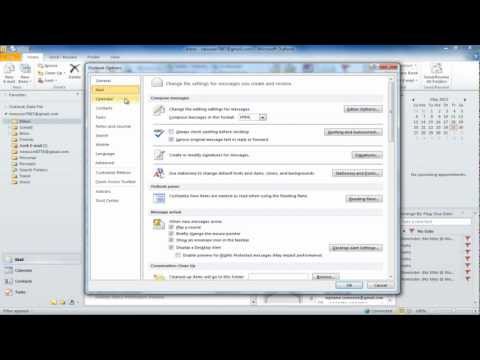
To create a signature, click on the "file" tab and then click on "options" and a new window will appear. In this window, go to the "mail" tab and then click on the "signature" button.
Step # 2 -- Create Signature
To create a new signature in Outlook, click on the "new" button. Give your signature a name for e.g. we used "Personal" in this tutorial.
To create another signature, repeat the same procedure; this time change the name to "business" and use this signature when sending emails to business contacts.
Step # 3 -- Add hyperlink to your signature
If you want to edit your signature, click on the signature button and select the signature you want to edit. In this case, we edited the business signature and added a hyperlink to it. Highlight the text you want to add the hyper link to. In this tutorial, we will add a hyperlink to the name of the company we used in the signature. Click on the hyperlink button and type in the URL of the company. You will notice that the company's name will turn blue once you are done.
Step # 4 -- Set default signature
You can also select the signature that you would like to act as your default signature when you are sending emails to and forth. Choose default signature from here and select the signature you want people to see when you send an email. Similarly, select the signature you want people to see when you are replying back to an email.
Step # 5 -- Choose different signature
Whenever you will click on the new email button, you will notice that your default signature will appear automatically. If you want to choose a different signature, click on the "signature" button in the "include" group and select the one you want. In this way you can work with signatures in Ms Outlook.
About this tutorial
Best Video Tutorials and Help from HowTech published this 1:52 video tutorial on October 26, 2012. It has been watched 98,462 times on YouTube.
- Category
- Howto & Style
- Duration
- 1:52
- Published
- October 26, 2012
- Views
- 98,462
- Likes
- 135
Share
Further reading
-
How to Add an Email Signature in Outlook 2010 | Gimmio
blog.gimm.io
Click in the Edit Signature box and paste (or press CTRL+V) your new or updated email signature. On the right side of the window, select if the email signature should automatically appear for new messages and/or replies…
-
Create signature - Outlook 2010 - Warwick
warwick.ac.uk
To create a signature in Outlook 2010: Go to File (top left of screen) Choose Options (see cursor on first screenshot) Choose Mail (see cursor on second screenshot) Click on the Signatures... button (as highlighted in r…
-
How to create an email signature in Outlook 2010 | InMotion ...
inmotionhosting.com
Inserting the new signature in an email signature. Now that you have created the signature, you must configure it to be added to new emails. If you are not still logged in, log into your Outlook 2010 email client. Open…
This tutorial in other languages
- FRComment faire pour créer la signature dans Outlook 2010
- ESCómo crear la firma en Outlook 2010
- PTComo criar Assinatura no Outlook 2010
- ITCome creare Firma in Outlook 2010
- DESo erstellen Sie Signatur in Outlook 2010
- NLHoe maak je handtekening te maken in Outlook 2010
- RUКак создать подпись в Outlook 2010
- PLJak utworzyć podpis w programie Outlook 2010
- JAOutlook 2010で署名を作成する方法
- ARكيفية إنشاء التوقيع في Outlook 2010
- HIआउटलुक 2010 में हस्ताक्षर बनाने के लिए कैसे
- IDCara Membuat Signature di Outlook 2010