Playback starts YouTube’s embedded player (privacy-enhanced mode).
How to Apply Slide Transitions in a PowerPoint Presentation
ChannelBest Video Tutorials and Help from HowTechDescription from the creator
The Best Online Bookstore: amzn.to/4hlEMZp
In this tutorial, you will learn how to apply slide transition in a PowerPoint presentation.
Don't forget to check out our site howtech.tv/ for more free how-to videos!
youtube.com/ithowtovids - our feed
facebook.com/howtechtv - join us on facebook
plus.google.com/103440382717658277879 - our group in Google+
PowerPoint is a dynamic program which could be used in making different sorts of presentations. To make your presentations more catchy and attractive for the general public, Microsoft PowerPoint features some editing and transition tools. Proper and smooth slide transition is the key to a good presentation. Transitions in PowerPoint are an effective way to express your content in a manageable manner overall. For the same reason in this tutorial, you will learn how to apply slide transition in a PowerPoint presentation.
Step # 1- Go to the "transitions" tab
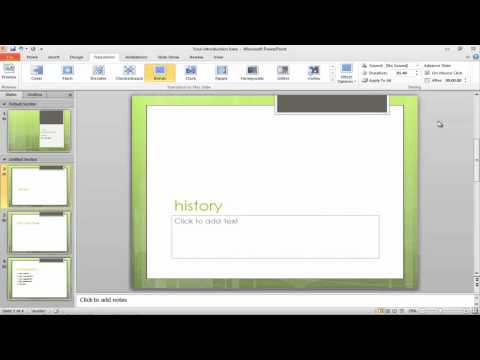
First of all, go to the "transitions" tab located on the top menu. Once you have clicked on the "transitions" tab, you would be displayed with different transition styles to choose from.
Step # 2- Go through the transition options
If you want to go through all of the transition options, there is an arrow on the side bar of the "transition" tab. Click on it and a drop down menu will appear containing all of the slide transition options. You can click on each one of them to see how the effect turns out on the selected slide. You can always scroll down the transition menu to view the transition options available.
Step # 3- Apply a slide transition
Click on a slide transition to apply the slide transition on the selected slide.
Step # 4- View the slide in the full screen mode
Once the slide transition has been applied, press "shift+F5" to view the selected slide in full screen mode. You can actually see how it is going to appear on the projector.
Step # 5- Change transitions settings
A transition setting for a particular effect is limited and pre-set. You can change it as per your requirements and preferences. You can go to "effect options" icon and select the desired direction from the drop down menu. For instance, in this tutorial "blinds" is selected as the transition. The direction is "horizontal" according to "effect options".
Step # 6- Apply transition settings to all slides
Once done, you can click on the "apply to all" option for all the slides to have similar transitions. This option makes your PowerPoint slides appear consistent with one another.
Step # 7- Switch to full screen mode
To check the slideshow transitions for all slides, press "F5" from your keyboard and you can see the slideshow for the entire presentation. To move to the next slide in the slideshow, use "arrow keys" or "spacebar" key on your keyboard. Press the "Esc" key to exit the slideshow.
Step # 8 - Edit transition duration
You can change how fast or slow a slide appears in your presentation by clicking on the "duration" option on the very right corner. Type the time duration you want to apply on a slide effect. You can also set the time by controlling the arrows buttons given there. Click on "Preview" button on the very left corner to see how it looks. If you want to change the transition duration, repeat the procedure until you get what you are looking for.
In this tutorial, you will learn how to apply slide transition in a PowerPoint presentation.
Don't forget to check out our site howtech.tv/ for more free how-to videos!
youtube.com/ithowtovids - our feed
facebook.com/howtechtv - join us on facebook
plus.google.com/103440382717658277879 - our group in Google+
PowerPoint is a dynamic program which could be used in making different sorts of presentations. To make your presentations more catchy and attractive for the general public, Microsoft PowerPoint features some editing and transition tools. Proper and smooth slide transition is the key to a good presentation. Transitions in PowerPoint are an effective way to express your content in a manageable manner overall. For the same reason in this tutorial, you will learn how to apply slide transition in a PowerPoint presentation.
Step # 1- Go to the "transitions" tab
First of all, go to the "transitions" tab located on the top menu. Once you have clicked on the "transitions" tab, you would be displayed with different transition styles to choose from.
Step # 2- Go through the transition options
If you want to go through all of the transition options, there is an arrow on the side bar of the "transition" tab. Click on it and a drop down menu will appear containing all of the slide transition options. You can click on each one of them to see how the effect turns out on the selected slide. You can always scroll down the transition menu to view the transition options available.
Step # 3- Apply a slide transition
Click on a slide transition to apply the slide transition on the selected slide.
Step # 4- View the slide in the full screen mode
Once the slide transition has been applied, press "shift+F5" to view the selected slide in full screen mode. You can actually see how it is going to appear on the projector.
Step # 5- Change transitions settings
A transition setting for a particular effect is limited and pre-set. You can change it as per your requirements and preferences. You can go to "effect options" icon and select the desired direction from the drop down menu. For instance, in this tutorial "blinds" is selected as the transition. The direction is "horizontal" according to "effect options".
Step # 6- Apply transition settings to all slides
Once done, you can click on the "apply to all" option for all the slides to have similar transitions. This option makes your PowerPoint slides appear consistent with one another.
Step # 7- Switch to full screen mode
To check the slideshow transitions for all slides, press "F5" from your keyboard and you can see the slideshow for the entire presentation. To move to the next slide in the slideshow, use "arrow keys" or "spacebar" key on your keyboard. Press the "Esc" key to exit the slideshow.
Step # 8 - Edit transition duration
You can change how fast or slow a slide appears in your presentation by clicking on the "duration" option on the very right corner. Type the time duration you want to apply on a slide effect. You can also set the time by controlling the arrows buttons given there. Click on "Preview" button on the very left corner to see how it looks. If you want to change the transition duration, repeat the procedure until you get what you are looking for.
About this tutorial
Best Video Tutorials and Help from HowTech published this 1:28 video tutorial on October 31, 2012. It has been watched 506,453 times on YouTube.
- Category
- Howto & Style
- Duration
- 1:28
- Published
- October 31, 2012
- Views
- 506,453
- Likes
- 1,968
Tags
Share
This tutorial in other languages
- FRComment appliquer des transitions de diapositives dans une présentation PowerPoint
- ESCómo aplicar transiciones de diapositivas en una presentación de PowerPoint
- PTComo aplicar transições de slide em uma apresentação do PowerPoint
- ITCome applicare transizioni diapositiva in una presentazione di PowerPoint
- DEWie bewerbe ich mich Folienübergänge in einer Powerpoint-Präsentation
- NLHoe te Diaovergangen Breng in een PowerPoint-presentatie
- RUКак Применить смены слайдов в презентации PowerPoint
- PLJak zastosować przejścia slajdów w PowerPoint
- JAパワーポイントのプレゼンテーションにスライドトランジションを適用する方法
- ARكيفية تطبيق التحولات الشرائح في عرض تقديمي ل PowerPoint
- HIकोई PowerPoint प्रस्तुति में स्लाइड संक्रमण आवेदन करने का तरीका
- IDCara Mendaftar Transisi Slide dalam presentasi PowerPoint