Playback starts YouTube’s embedded player (privacy-enhanced mode).
How to Install Google Search Bar in Internet Explorer
ChannelHOWTECHDescription from the creator
In this tutorial you will learn how to install Google search bar in Internet Explorer.
Don't forget to check out our site howtech.tv/ for more free how-to videos!
youtube.com/ithowtovids - our feed
facebook.com/howtechtv - join us on facebook
plus.google.com/103440382717658277879 - our group in Google+
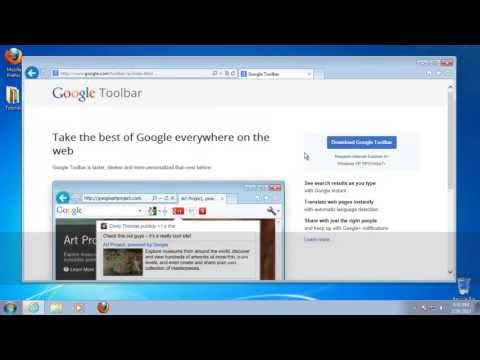
First, access the website where you can download the toolbar. The address is toolbar.google.com.
Step 2: Once you get there, Google automatically resolves your browser, and offers you the easiest install path. For some browsers, Google toolbar might not be available.
Step 3: Click Download Google Toolbar. On the next page, read carefully the Terms of Agreement before clicking Accept.
Step 4: The system will initiate download, and will ask for your permission to run the file. Click Run. The installation will continue.
Alt Text "installing Google toolbar"
Step 5: After the installer finishes downloading itself, it will initiate set-up. Wait patiently for this to end.
Step 6: At the end, the Google Toolbar installer asks you to restart your browser. Do so.
Result: You have successfully installed Google Toolbar.
Don't forget to check out our site howtech.tv/ for more free how-to videos!
youtube.com/ithowtovids - our feed
facebook.com/howtechtv - join us on facebook
plus.google.com/103440382717658277879 - our group in Google+
First, access the website where you can download the toolbar. The address is toolbar.google.com.
Step 2: Once you get there, Google automatically resolves your browser, and offers you the easiest install path. For some browsers, Google toolbar might not be available.
Step 3: Click Download Google Toolbar. On the next page, read carefully the Terms of Agreement before clicking Accept.
Step 4: The system will initiate download, and will ask for your permission to run the file. Click Run. The installation will continue.
Alt Text "installing Google toolbar"
Step 5: After the installer finishes downloading itself, it will initiate set-up. Wait patiently for this to end.
Step 6: At the end, the Google Toolbar installer asks you to restart your browser. Do so.
Result: You have successfully installed Google Toolbar.
About this tutorial
HOWTECH published this 1:07 video tutorial on November 13, 2013. It has been watched 51,251 times on YouTube.
- Channel
- HOWTECH
- Category
- Howto & Style
- Duration
- 1:07
- Published
- November 13, 2013
- Views
- 51,251
- Likes
- 44
Tags
Share
This tutorial in other languages
- FRComment installer Google Search Bar dans Internet Explorer
- ESCómo instalar Google barra de búsqueda en Internet Explorer
- PTComo instalar o Google Search Bar no Internet Explorer
- ITCome installare Google barra di ricerca in Internet Explorer
- DESo installieren Sie Google Search Bar in Internet Explorer
- NLHoe te installeren Google zoekbalk in Internet Explorer
- RUКак установить Google Search Bar в Internet Explorer
- PLJak zainstalować pasek wyszukiwania Google w Internet Explorer
- JAInternet ExplorerでGoogle検索バーをインストールする方法
- ARكيفية تثبيت جوجل شريط البحث في Internet Explorer
- HIInternet Explorer में Google खोज बार स्थापित करने के लिए कैसे
- IDCara Install Google Search Bar di Internet Explorer