Playback starts YouTube’s embedded player (privacy-enhanced mode).
How to kill Process in Linux
ChannelHOWTECHDescription from the creator
Learn how to kill processes in Linux. Find out the command required to kill a process via the terminal application
Don't forget to check out our site howtech.tv/ for more free how-to videos!
youtube.com/ithowtovids - our feed
facebook.com/howtechtv - join us on facebook
plus.google.com/103440382717658277879 - our group in Google+
In this tutorial, we will guide you on how to kill a process in Linux. On your computer system, you may have several processes running in the background. Some might be active while the others might be in sleeping mode (inactive). You might want to kill a specific process in linux because it might be wasting too many system resources. In this tutorial, we will teach you how to kill a process in linux by using the terminal application.
Step 1 -- View process tree in terminal
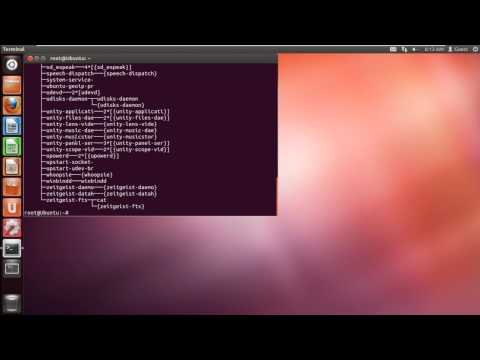
First of all, open the terminal. With the terminal application opened up, let's view the entire process tree. In order to do so, type in the "pstree" command and hit the enter key.
Step 2 -- Use the top command
With that done, let's use the "top" command to see the top running process along with their process ID.
Step 3 -- Linux "kill process" command
To kill a process, you will first have to note down the process id. The process id is important for the linux kill command. For example, we might want to kill the gnome-terminal process. The linux kill command for the gnome-terminal process would be "kill 7381". Type it in and then hit the enter key.
This will automatically kill the process and close the terminal application.
Don't forget to check out our site howtech.tv/ for more free how-to videos!
youtube.com/ithowtovids - our feed
facebook.com/howtechtv - join us on facebook
plus.google.com/103440382717658277879 - our group in Google+
In this tutorial, we will guide you on how to kill a process in Linux. On your computer system, you may have several processes running in the background. Some might be active while the others might be in sleeping mode (inactive). You might want to kill a specific process in linux because it might be wasting too many system resources. In this tutorial, we will teach you how to kill a process in linux by using the terminal application.
Step 1 -- View process tree in terminal
First of all, open the terminal. With the terminal application opened up, let's view the entire process tree. In order to do so, type in the "pstree" command and hit the enter key.
Step 2 -- Use the top command
With that done, let's use the "top" command to see the top running process along with their process ID.
Step 3 -- Linux "kill process" command
To kill a process, you will first have to note down the process id. The process id is important for the linux kill command. For example, we might want to kill the gnome-terminal process. The linux kill command for the gnome-terminal process would be "kill 7381". Type it in and then hit the enter key.
This will automatically kill the process and close the terminal application.
About this tutorial
HOWTECH published this 0:36 video tutorial on November 13, 2013. It has been watched 107,409 times on YouTube.
- Channel
- HOWTECH
- Category
- Howto & Style
- Duration
- 0:36
- Published
- November 13, 2013
- Views
- 107,409
- Likes
- 497
Share
This tutorial in other languages
- FRComment tuer processus sous Linux
- ESCómo matar procesos en Linux
- PTComo matar processo no Linux
- ITCome uccidere processo in Linux
- DEWie zu töten Prozess in Linux
- NLHoe kan ik Process in Linux te doden
- RUКак убить процесс в Linux
- PLJak zabić proces w systemie Linux
- JALinuxでのプロセスを強制終了する方法
- ARكيف تقتل عملية في لينكس
- HIलिनक्स में प्रक्रिया को मारने के लिए कैसे
- IDCara membunuh Proses di Linux