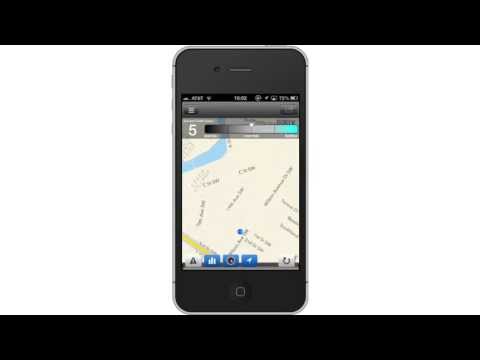
Playback starts YouTube’s embedded player (privacy-enhanced mode).
How to Know Local Traffic Conditions with Traffic iPhone and iPad App
ChanneliPhone, iPad and Android Tutorials from HowTechDescription from the creator
In this tutorial you will learn how to know local traffic conditions with INRIX traffic iPhone App.
Don't forget to check out our site howtech.tv/ for more free how-to videos!
youtube.com/ithowtovids - our feed
facebook.com/howtechtv - join us on facebook
plus.google.com/103440382717658277879 - our group in Google+
This tutorial will show you how to know local traffic conditions with traffic iPhone App. This app gives you accurate traffic, routing , and road alerts to save time on your daily commute. INRIX uses GPS data from over 100 million trucks, cameras, road sensors, and in-car navigation systems to create the best free traffic data available.
Step #1 -- Tap App Store Icon
Step #2 -- Tap the "Search" Tab
By default, you will be sent to the featured tab. Tap the search tab to start searching.
Step #3 -- Type "inrix traffic"
Assisted search results will help you find what you're looking for. Hit search!
Step #4 -- Tap Install
The INRIX App will be the first option shown. Hit install and the app will automatically begin downloading.
Step #5 -- Open INRIX App
Step #6- Create an account
In order to uses all the great functions of this app, you must make an account. All you have to do is enter an email address and a password.
Step #7 -- Tap "Let's go!"
Step #8 -- Use Current Location
A pop up screen will appear asking if the app can use your current location. Tap "Ok".
Step #9 -- Add Home Address
Tap the tab under "Home". You then have a variety of options for entering the address. If you are currently at home, you can select current location.
Step #10 -- Manually type address
Tap the "Address" tab and then enter your address.
Step #10 -- Tap "Save"
This button is blue and is located in the top right corner. Your home address has now been saved. Tap "Save" once again.
Step #11 -- Add Work Address
Tap the tab beneath "Work". Let's assume we are currently at work. Tap the "Current Location" tab and the GPS satellite will determine our exact location.
Step #12 -- Tap World Icon
This icon is located in the top left corner of the screen. This will take us into map mode.
Step #13 -- Select leaving time
Select a leaving time by using the scroll bar at the top of the page.
Step #14 -- Check Traffic Index
Check this by double tapping the clock icon. This will bring up a horizontal rating system which lets you know the traffic index from worse to better.
Step #15 -- Report Incident
If you come across an accident, construction work, police, or a wrong traffic color you can report it by tapping the triangular hazard icon on the bottom navigation bar.
Step #16 -- Tap Compass Icon
Once you do this, the icon will turn blue. As you rotate the device, it lets you know what direction you're facing.
Leave your comments below or contact us by email. This was a Howtech.tv tutorial. Thanks for watching!
Don't forget to check out our site howtech.tv/ for more free how-to videos!
youtube.com/ithowtovids - our feed
facebook.com/howtechtv - join us on facebook
plus.google.com/103440382717658277879 - our group in Google+
This tutorial will show you how to know local traffic conditions with traffic iPhone App. This app gives you accurate traffic, routing , and road alerts to save time on your daily commute. INRIX uses GPS data from over 100 million trucks, cameras, road sensors, and in-car navigation systems to create the best free traffic data available.
Step #1 -- Tap App Store Icon
Step #2 -- Tap the "Search" Tab
By default, you will be sent to the featured tab. Tap the search tab to start searching.
Step #3 -- Type "inrix traffic"
Assisted search results will help you find what you're looking for. Hit search!
Step #4 -- Tap Install
The INRIX App will be the first option shown. Hit install and the app will automatically begin downloading.
Step #5 -- Open INRIX App
Step #6- Create an account
In order to uses all the great functions of this app, you must make an account. All you have to do is enter an email address and a password.
Step #7 -- Tap "Let's go!"
Step #8 -- Use Current Location
A pop up screen will appear asking if the app can use your current location. Tap "Ok".
Step #9 -- Add Home Address
Tap the tab under "Home". You then have a variety of options for entering the address. If you are currently at home, you can select current location.
Step #10 -- Manually type address
Tap the "Address" tab and then enter your address.
Step #10 -- Tap "Save"
This button is blue and is located in the top right corner. Your home address has now been saved. Tap "Save" once again.
Step #11 -- Add Work Address
Tap the tab beneath "Work". Let's assume we are currently at work. Tap the "Current Location" tab and the GPS satellite will determine our exact location.
Step #12 -- Tap World Icon
This icon is located in the top left corner of the screen. This will take us into map mode.
Step #13 -- Select leaving time
Select a leaving time by using the scroll bar at the top of the page.
Step #14 -- Check Traffic Index
Check this by double tapping the clock icon. This will bring up a horizontal rating system which lets you know the traffic index from worse to better.
Step #15 -- Report Incident
If you come across an accident, construction work, police, or a wrong traffic color you can report it by tapping the triangular hazard icon on the bottom navigation bar.
Step #16 -- Tap Compass Icon
Once you do this, the icon will turn blue. As you rotate the device, it lets you know what direction you're facing.
Leave your comments below or contact us by email. This was a Howtech.tv tutorial. Thanks for watching!
About this tutorial
iPhone, iPad and Android Tutorials from HowTech published this 2:52 video tutorial on November 12, 2013. It has been watched 4,289 times on YouTube.
- Category
- Howto & Style
- Duration
- 2:52
- Published
- November 12, 2013
- Views
- 4,289
- Likes
- 5
Tags
Share
This tutorial in other languages
- FRComment connaître les conditions de circulation locales avec le trafic iPhone et iPad App
- ESCómo saber las condiciones del tráfico local con iPhone y iPad App Tráfico
- PTComo saber as condições de tráfego locais com iPhone Tráfego e iPad App
- ITCome sapere locali condizioni del traffico con il traffico iPhone e App per iPad
- DEVerkehrsbedingungen vor Ort mit Verkehr iPhone und iPad App Wie wissen,
- NLHoe om te weten Local Traffic Voorwaarden met Verkeer iPhone en iPad App
- RUКак знать местные условия движения с движением iPhone и IPad App
- PLJak rozpoznać, lokalnych warunków drogowych z ruchu iPhone i iPad App
- JA交通iPhoneやiPadのアプリでローカルトラフィック状況を知る方法
- ARكيف تعرف حالة المرور المحلية مع حركة تطبيق iPhone و iPad
- HIपता करने के लिए कैसे यातायात iPhone और iPad App के साथ स्थानीय यातायात की स्थिति
- IDBagaimana Tahu Kondisi Lalu Lintas lokal dengan iPhone Lalu Lintas dan App iPad