Playback starts YouTube’s embedded player (privacy-enhanced mode).
How to make a drop down menu in Excel 2007
ChannelExcel, Word and PowerPoint Tutorials from HowtechDescription from the creator
Learn how to create a drop down menu in Microsoft Excel 2007
Don't forget to check out our site howtech.tv/ for more free how-to videos!
youtube.com/ithowtovids - our feed
facebook.com/howtechtv - join us on facebook
plus.google.com/103440382717658277879 - our group in Google+
In this video tutorial we will show you how to make a drop down menu in Excel 2007.
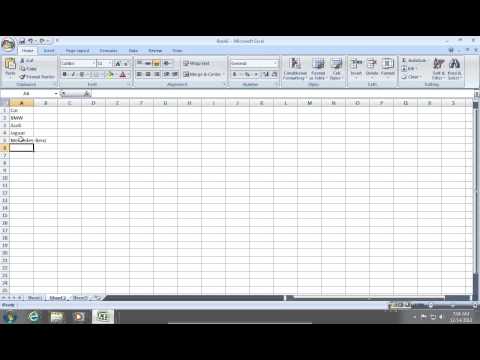
In order to create a drop-down menu, open the Microsoft Excel 2007. Edit your cells on "sheet1", for example "Car", "Year", "Price". After that, go to "Sheet2". Add a list of "Car" names. Then select all cells with the car names.
Change "a1" to "car" in the "name box". Now go back to "sheet1". Select the empty cells under your "Car" column. Go to the "Data" tab. Click on "Data Validation" and choose "Data validation".
In the appeared window set validation criteria to "List".
In the "source", type "=Car" and press "ok".
Now you have created a drop down menu and can use it in your excel cells.
Don't forget to check out our site howtech.tv/ for more free how-to videos!
youtube.com/ithowtovids - our feed
facebook.com/howtechtv - join us on facebook
plus.google.com/103440382717658277879 - our group in Google+
In this video tutorial we will show you how to make a drop down menu in Excel 2007.
In order to create a drop-down menu, open the Microsoft Excel 2007. Edit your cells on "sheet1", for example "Car", "Year", "Price". After that, go to "Sheet2". Add a list of "Car" names. Then select all cells with the car names.
Change "a1" to "car" in the "name box". Now go back to "sheet1". Select the empty cells under your "Car" column. Go to the "Data" tab. Click on "Data Validation" and choose "Data validation".
In the appeared window set validation criteria to "List".
In the "source", type "=Car" and press "ok".
Now you have created a drop down menu and can use it in your excel cells.
About this tutorial
Excel, Word and PowerPoint Tutorials from Howtech published this 1:24 video tutorial on October 31, 2013. It has been watched 69,526 times on YouTube.
- Category
- Howto & Style
- Duration
- 1:24
- Published
- October 31, 2013
- Views
- 69,526
- Likes
- 90
Share
This tutorial in other languages
- FRComment faire un menu déroulant vers le bas dans Excel 2007
- ESCómo hacer un menú desplegable en Excel 2007
- PTComo fazer um menu drop-down no Excel 2007
- ITCome fare un menu a discesa in Excel 2007
- DEWie ein Dropdown-Menü in Excel 2007 machen
- NLHoe maak je een drop-down menu te maken in Excel 2007
- RUКак сделать меню выпадающего списка в Excel 2007
- PLJak zrobić menu rozwijanego w programie Excel 2007
- JAExcel 2007でドロップダウンメニューを作成する方法
- ARكيفية جعل القائمة المنسدلة في Excel 2007
- HIकैसे Excel 2007 में एक बूंद डाउन मेनू बनाने के लिए
- IDCara membuat menu drop down di Excel 2007