Playback starts YouTube’s embedded player (privacy-enhanced mode).
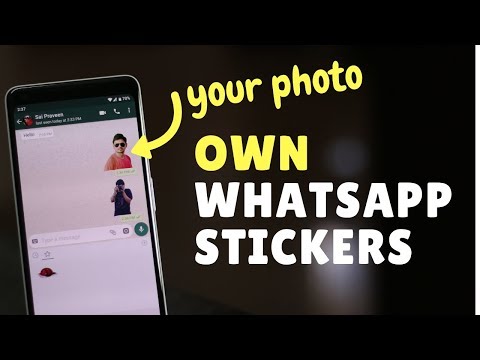
How To Make WhatsApp Stickers With Your Photos?
ChannelTechEmptyDescription from the creator
Guide on How to make WhatsApp Stickers with your Photos. WhatsApp Sticker creation is very simple and there are verious applications to do that. After watching this video, you can able to send your own photos as WhatsApp Stickers to your friends and family members through WhatsApp.
Text Version: techempty.org/?p=731
Unfortunately, as of November 2018, no support is available for iOS users. However, you can save the stickers that were created on an Android smartphone and can send them to your contacts. With that being said, only the Android users can take advantage of this customized WhatsApp stickers. When any of the methods are available for iPhone users, I will drop a video for sure. All you need to do is to stay subscribed.
To make your own WhatsApp stickers with your photos, first of all, choose the photos that you need to convert as WhatsApp stickers. Then open the Play store and search for Sticker Maker and then download it. Once the app installed on your Smartphone, open it then choose ‘Create a new sticker pack’. Here name your sticker pack and the author.
Now open the sticker pack and here we have around 30 spaces to add our own WhatsApp stickers. The first one is the tray icon, and the following spaces are to create your own WhatsApp Stickers with your pictures.
You just need to tap on each space, choose ‘select file’ then go to ‘photos’ and pick the photo that you would like to convert it as WhatsApp sticker. Once you get the photo on the work area, you can pinch to zoom and draw an outline with your finger to select the sticker area. Remember, you need to select the whole area at once.
When you complete outlining the photo, you will be asked to ‘Save the photo’ or to try again. If everything looks good, just tap on ‘Yes, Save Sticker.’
To save the whole pack, you must have a tray icon followed by 3 stickers at least. So create them.
Once all done, tap on ‘Add to WhatsApp’ button. Close the ads if you get any and then confirm the choice by tapping on ‘ADD.’
Finally, open WhatsApp Messenger then choose the contact that you would like to send the created WhatsApp stickers. Now tap on this smiley icon and at the below choose sticker icon then find the created sticker packs here. The one you see at the top is called tray icon. Whatever you keep as a tray icon, you will see it here.
Now tap on the sticker, and it will be sent as a transparent WhatsApp sticker. Cool. Isn’t it.
Subscribe to TechEmpty at youtube.com/user/techempty?sub_confirmation=1
**Stay Connected with Sai Praveen**
Facebook: facebook.com/imsaipraveen
Twitter: twitter.com/praveenhub
Google Plus: plus.google.com/+techempty
Website: techempty.org
Text Version: techempty.org/?p=731
Unfortunately, as of November 2018, no support is available for iOS users. However, you can save the stickers that were created on an Android smartphone and can send them to your contacts. With that being said, only the Android users can take advantage of this customized WhatsApp stickers. When any of the methods are available for iPhone users, I will drop a video for sure. All you need to do is to stay subscribed.
To make your own WhatsApp stickers with your photos, first of all, choose the photos that you need to convert as WhatsApp stickers. Then open the Play store and search for Sticker Maker and then download it. Once the app installed on your Smartphone, open it then choose ‘Create a new sticker pack’. Here name your sticker pack and the author.
Now open the sticker pack and here we have around 30 spaces to add our own WhatsApp stickers. The first one is the tray icon, and the following spaces are to create your own WhatsApp Stickers with your pictures.
You just need to tap on each space, choose ‘select file’ then go to ‘photos’ and pick the photo that you would like to convert it as WhatsApp sticker. Once you get the photo on the work area, you can pinch to zoom and draw an outline with your finger to select the sticker area. Remember, you need to select the whole area at once.
When you complete outlining the photo, you will be asked to ‘Save the photo’ or to try again. If everything looks good, just tap on ‘Yes, Save Sticker.’
To save the whole pack, you must have a tray icon followed by 3 stickers at least. So create them.
Once all done, tap on ‘Add to WhatsApp’ button. Close the ads if you get any and then confirm the choice by tapping on ‘ADD.’
Finally, open WhatsApp Messenger then choose the contact that you would like to send the created WhatsApp stickers. Now tap on this smiley icon and at the below choose sticker icon then find the created sticker packs here. The one you see at the top is called tray icon. Whatever you keep as a tray icon, you will see it here.
Now tap on the sticker, and it will be sent as a transparent WhatsApp sticker. Cool. Isn’t it.
Subscribe to TechEmpty at youtube.com/user/techempty?sub_confirmation=1
**Stay Connected with Sai Praveen**
Facebook: facebook.com/imsaipraveen
Twitter: twitter.com/praveenhub
Google Plus: plus.google.com/+techempty
Website: techempty.org
About this tutorial
TechEmpty published this 4:03 video tutorial on November 12, 2019. It has been watched 2,229,766 times on YouTube.
- Channel
- TechEmpty
- Category
- Howto & Style
- Duration
- 4:03
- Published
- November 12, 2019
- Views
- 2,229,766
- Likes
- 27,598
Tags
Share
This tutorial in other languages
- FRComment faire WhatsApp autocollants avec vos photos?
- ESCómo hacer WhatsApp pegatinas con tus fotos?
- PTComo fazer WhatsApp adesivos com suas fotos?
- ITCome fare WhatsApp Adesivi con le vostre foto?
- DEWie man WhatsApp Aufkleber mit Ihren Fotos?
- NLHow To Make WhatsApp Stickers met uw foto's?
- RUКак сделать WhatsApp наклейки с фотографиями?
- PLJak zrobić WhatsApp Naklejki ze zdjęciami?
- JAどのようにあなたの写真でのWhatsAppのステッカーを作るには?
- ARكيفية جعل ال WhatsApp ملصقات وصور لديك؟
- HIकैसे के साथ अपने तस्वीरें WhatsApp स्टिकर बनाने के लिए?
- IDCara Membuat WhatsApp Stiker Dengan Foto Anda?