Playback starts YouTube’s embedded player (privacy-enhanced mode).
How to Pair JBL Flip 4 with Bluetooth Device
ChannelMax DaltonDescription from the creator
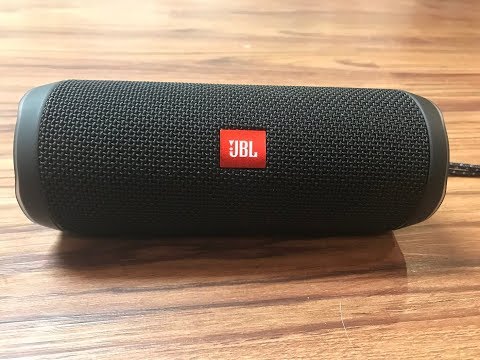
This video walks you through how to pair a Bluetooth device with a JBL Flip 4 Bluetooth speaker.
See more videos by Max here: youtube.com/c/MaxDalton
Interested in upgrading? Check out the latest JBL Speakers: (affiliate) amzn.to/2YomKvG
JBL Flip 5 (affiliate): amzn.to/3onW7po
JBL Charge 5 (affiliate): amzn.to/3uYOaJL
Video Transcript:
Hi. I'm Max Dalton, and in this video I'm going to talk through how to pair a JBL Flip 4 speaker with a Bluetooth device.
The JBL Flip 4 is an incredibly powerful and durable Bluetooth speaker. The device supports Bluetooth 4.2, offers up to 12 hours of playback, lets you easily access Siri or Google Now, lets you connect multiple JBL Bluetooth speakers together, and much more. However, none of that does you any good if you don't have a device paired with it. This article walks you through how to pair another Bluetooth device with the JBL Flip 4 Bluetooth speaker, which can be done in a matter of minutes.
And now, the steps to pair your JBL Flip 4 speaker with other Bluetooth devices.
Step 1. Ensure that the JBL Flip 4 Bluetooth speaker is powered on. If the speaker is turned on, you'll see a blue backlight behind the outline of the Power button. Additionally, check to ensure that the light behind the Power button isn't flashing.
Step 2. Press the "Bluetooth" button along the top of the speaker. The Bluetooth button looks like three triangles clustered together. The JBL Flip 4 will immediately make a pinging sound, and the Power button's blue backlight will start flashing, indicating that the device is in discovery mode. The speaker will remain in discovery mode until it either runs out of battery life or you power it down.
Step 3. Ensure that the ability to connect to a Bluetooth device is enabled on the device you want to connect to the JBL speaker, and then view the list of available Bluetooth devices you can connect to. For example, on an iPhone, you would navigate to "Settings" and then "Bluetooth" to display the Bluetooth screen, and then slide the toggle to the right of Bluetooth to the right side of the screen to ensure it is enabled.
Step 4. You should see JBL Flip 4 in the list of available devices to connect to. Tap "JBL Flip 4." The device should immediately show as connected on your device screen. Additionally, the JBL Flip 4 will indicate it has been successfully paired with a Bluetooth device when it makes short sound and the backlight for the Power button stops flashing. Congratulations! You've successfully paired your JBL Flip 4 speaker with a Bluetooth device.
DISCLAIMER: This video and description contains affiliate links, which means that if you click on one of the product links, I’ll receive a small commission. This help support the channel and allows us to continue to make videos like this. Thank you for the support!
See more videos by Max here: youtube.com/c/MaxDalton
Interested in upgrading? Check out the latest JBL Speakers: (affiliate) amzn.to/2YomKvG
JBL Flip 5 (affiliate): amzn.to/3onW7po
JBL Charge 5 (affiliate): amzn.to/3uYOaJL
Video Transcript:
Hi. I'm Max Dalton, and in this video I'm going to talk through how to pair a JBL Flip 4 speaker with a Bluetooth device.
The JBL Flip 4 is an incredibly powerful and durable Bluetooth speaker. The device supports Bluetooth 4.2, offers up to 12 hours of playback, lets you easily access Siri or Google Now, lets you connect multiple JBL Bluetooth speakers together, and much more. However, none of that does you any good if you don't have a device paired with it. This article walks you through how to pair another Bluetooth device with the JBL Flip 4 Bluetooth speaker, which can be done in a matter of minutes.
And now, the steps to pair your JBL Flip 4 speaker with other Bluetooth devices.
Step 1. Ensure that the JBL Flip 4 Bluetooth speaker is powered on. If the speaker is turned on, you'll see a blue backlight behind the outline of the Power button. Additionally, check to ensure that the light behind the Power button isn't flashing.
Step 2. Press the "Bluetooth" button along the top of the speaker. The Bluetooth button looks like three triangles clustered together. The JBL Flip 4 will immediately make a pinging sound, and the Power button's blue backlight will start flashing, indicating that the device is in discovery mode. The speaker will remain in discovery mode until it either runs out of battery life or you power it down.
Step 3. Ensure that the ability to connect to a Bluetooth device is enabled on the device you want to connect to the JBL speaker, and then view the list of available Bluetooth devices you can connect to. For example, on an iPhone, you would navigate to "Settings" and then "Bluetooth" to display the Bluetooth screen, and then slide the toggle to the right of Bluetooth to the right side of the screen to ensure it is enabled.
Step 4. You should see JBL Flip 4 in the list of available devices to connect to. Tap "JBL Flip 4." The device should immediately show as connected on your device screen. Additionally, the JBL Flip 4 will indicate it has been successfully paired with a Bluetooth device when it makes short sound and the backlight for the Power button stops flashing. Congratulations! You've successfully paired your JBL Flip 4 speaker with a Bluetooth device.
DISCLAIMER: This video and description contains affiliate links, which means that if you click on one of the product links, I’ll receive a small commission. This help support the channel and allows us to continue to make videos like this. Thank you for the support!
About this tutorial
Max Dalton published this 2:40 video tutorial on October 29, 2018. It has been watched 1,047,283 times on YouTube.
- Channel
- Max Dalton
- Category
- Howto & Style
- Duration
- 2:40
- Published
- October 29, 2018
- Views
- 1,047,283
- Likes
- 3,565
Tags
Share
This tutorial in other languages
- FRComment appairer JBL Motorisé 4 avec un appareil Bluetooth
- ESCómo Par JBL Voltear 4 con dispositivo Bluetooth
- PTComo Par JBL Virar 4 com dispositivo Bluetooth
- ITCome coppia JBL flip 4 con dispositivo Bluetooth
- DEWie man Pair JBL Flip 4 mit Bluetooth-Gerät
- NLHoe te Pair JBL Flip 4 met een Bluetooth-apparaat
- RUКак парного JBL Флип 4 с устройством Bluetooth
- PLJak sparować JBL Klapki 4 z urządzeniem Bluetooth
- JAどのようにBluetoothデバイスとのペアJBLフリップ4へ
- ARكيفية زوج JBL الوجه 4 مع جهاز بلوتوث
- HIकैसे जोड़ी JBL के लिए ब्लूटूथ डिवाइस के साथ 4 फ्लिप
- IDCara Pair JBL Balik 4 dengan Bluetooth Device