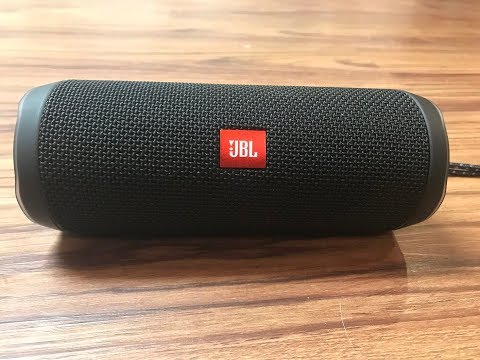
Playback starts YouTube’s embedded player (privacy-enhanced mode).
How to Factory Reset JBL Flip 4 Bluetooth Speaker
ChannelMax DaltonDescription from the creator
This video walks you through how to factory reset the JBL Flip 4 Bluetooth speaker.
See more videos by Max here: youtube.com/c/MaxDalton
Interested in upgrading?
Check out the latest JBL Speakers (affiliate): amzn.to/2YomKvG
JBL Flip 5 (affiliate): amzn.to/3orQJBS
JBL Charge 5 (affiliate): amzn.to/3uYOaJL
Video Transcript:
Hi. I'm Max Dalton, and in this video I'm going to talk through how to factory reset a JBL Flip 4 Bluetooth speaker.
There are plenty of good reasons to want to restore your JBL Flip 4 Bluetooth speaker to its default factory settings. Maybe there is someone whose device is currently paired with the speaker who you don't want to be able to use any longer. Maybe your getting ready to sell it. Or, maybe your experiencing problems with your device and you just want to start with a clean slate to see if that solves the problem. Regardless of your reason, you can reset your JBL Flip 4 Bluetooth speaker to its original factory settings in a matter of seconds.
And now, the steps to factory reset the JBL Flip 4 Bluetooth speaker.
Step 1. Turn the JBL Flip 4 speaker on. You can tell the device is on when the Power button has a blue backlight.
Step 2. Hold both the "Volume Up" and "Play" buttons down until the device turns off by itself. You can tell the device has powered down when the blue backlight behind the Power button is no longer on, and when you hear the standard power down sound. At this point, you have successfully reset the JBL Flip 4 to its factory default settings.
Step 3. Press the "Power" button again to power the Bluetooth speaker back on. The device will automatically be in discovery mode, which is indicated by the pinging sound it makes shortly after you turn it on, and by the blinking of the backlight behind the Power button. At this point, there are no devices paired with your JBL Flip 4 speaker, and you'll need to either pair a device with it or connect a device to it using a 3.5mm audio cable for it to play any audio.
DISCLAIMER: This video and description contains affiliate links, which means that if you click on one of the product links, I’ll receive a small commission. This help support the channel and allows us to continue to make videos like this. Thank you for the support!
See more videos by Max here: youtube.com/c/MaxDalton
Interested in upgrading?
Check out the latest JBL Speakers (affiliate): amzn.to/2YomKvG
JBL Flip 5 (affiliate): amzn.to/3orQJBS
JBL Charge 5 (affiliate): amzn.to/3uYOaJL
Video Transcript:
Hi. I'm Max Dalton, and in this video I'm going to talk through how to factory reset a JBL Flip 4 Bluetooth speaker.
There are plenty of good reasons to want to restore your JBL Flip 4 Bluetooth speaker to its default factory settings. Maybe there is someone whose device is currently paired with the speaker who you don't want to be able to use any longer. Maybe your getting ready to sell it. Or, maybe your experiencing problems with your device and you just want to start with a clean slate to see if that solves the problem. Regardless of your reason, you can reset your JBL Flip 4 Bluetooth speaker to its original factory settings in a matter of seconds.
And now, the steps to factory reset the JBL Flip 4 Bluetooth speaker.
Step 1. Turn the JBL Flip 4 speaker on. You can tell the device is on when the Power button has a blue backlight.
Step 2. Hold both the "Volume Up" and "Play" buttons down until the device turns off by itself. You can tell the device has powered down when the blue backlight behind the Power button is no longer on, and when you hear the standard power down sound. At this point, you have successfully reset the JBL Flip 4 to its factory default settings.
Step 3. Press the "Power" button again to power the Bluetooth speaker back on. The device will automatically be in discovery mode, which is indicated by the pinging sound it makes shortly after you turn it on, and by the blinking of the backlight behind the Power button. At this point, there are no devices paired with your JBL Flip 4 speaker, and you'll need to either pair a device with it or connect a device to it using a 3.5mm audio cable for it to play any audio.
DISCLAIMER: This video and description contains affiliate links, which means that if you click on one of the product links, I’ll receive a small commission. This help support the channel and allows us to continue to make videos like this. Thank you for the support!
About this tutorial
Max Dalton published this 2:00 video tutorial on October 28, 2018. It has been watched 1,063,947 times on YouTube.
- Channel
- Max Dalton
- Category
- Howto & Style
- Duration
- 2:00
- Published
- October 28, 2018
- Views
- 1,063,947
- Likes
- 5,238
Tags
Share
This tutorial in other languages
- FRComment Réinit.d'usine JBL Motorisé 4 Haut-parleur Bluetooth
- ESCómo Rest.Predeterm JBL tirón 4 Altavoz Bluetooth
- PTComo Factory Reset JBL Virar 4 Speaker Bluetooth
- ITCome Factory Reset JBL flip 4 Bluetooth Speaker
- DEWie man Factory Reset JBL Flip 4 Bluetooth-Lautsprecher
- NLHoe kan Factory Reset JBL Flip 4 Bluetooth Speaker
- RUКак Factory Reset JBL Флип 4 Bluetooth Speaker
- PLJak Fabryki Wyczyść JBL Klapki 4 głośniki Bluetooth
- JA工場にJBLフリップ4のBluetoothスピーカーをリセットする方法
- ARكيفية إعادة تعيين مصنع JBL الوجه 4 سماعات بلوتوث
- HIकैसे फैक्टरी पर रीसेट JBL फ्लिप 4 ब्लूटूथ स्पीकर
- IDCara Factory Reset JBL Balik 4 Speaker Bluetooth