Playback starts YouTube’s embedded player (privacy-enhanced mode).
How To Safely Eject USB Devices From Windows 7
ChannelEddie Z EZBreakoutsDescription from the creator
For more info on trading computers, get our buyers guide here:
eztradingcomputers.net/
In this video, I want to show you how to safely eject your USB hard drive flash media device or general USB device.
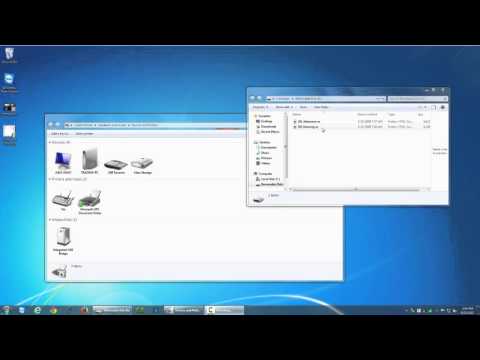
First, you can see on my screen that I have a removable USB flash drive with a few power point files that I stored here. Now I want to eject them from my Windows 7 machine without any damage to the drive. This can be quite tricky because, if you're like me, you forget where the USB eject icon is.
1. In my taskbar I have a USB icon.
2. Click on the icon to open the device or eject it from your computer.
USB Icon Missing From Tool Bar?
Your USB device or icon might be located within the tool bar menu. However, if you find that the USB icon is not shown, Click on the up arrow to the left of the lower left tool bar icons. You’ll see the USB icon.
You can easily pin this to your tool bar with this quick step:
1. Left click on the USB icon and drag it down to your tool bar.
2. Now it's located in the taskbar that's much easier to locate later.
Once you have selected the USB icon and clicked eject, you will get a message that tells you it's safe to remove the physical drive, flash USB drive, or hard drive. You could safely remove that once you click eject or you can actually open devices and printers from this same menu.
This is already open and you can see here's my USB storage devices. One of them says mass storage. That’s just a generic term, but that's my USB flash drive with my PowerPoint presentations on it. I right-click on the device icon and I am able to click eject just as I would from the taskbar. You will now get a message in the taskbar that it's safe to remove the hardware. That’s all you need to do to safely remove your USB flash storage, hard drive, or any other USB device from your Windows 7 computer.
eztradingcomputers.net/
In this video, I want to show you how to safely eject your USB hard drive flash media device or general USB device.
First, you can see on my screen that I have a removable USB flash drive with a few power point files that I stored here. Now I want to eject them from my Windows 7 machine without any damage to the drive. This can be quite tricky because, if you're like me, you forget where the USB eject icon is.
1. In my taskbar I have a USB icon.
2. Click on the icon to open the device or eject it from your computer.
USB Icon Missing From Tool Bar?
Your USB device or icon might be located within the tool bar menu. However, if you find that the USB icon is not shown, Click on the up arrow to the left of the lower left tool bar icons. You’ll see the USB icon.
You can easily pin this to your tool bar with this quick step:
1. Left click on the USB icon and drag it down to your tool bar.
2. Now it's located in the taskbar that's much easier to locate later.
Once you have selected the USB icon and clicked eject, you will get a message that tells you it's safe to remove the physical drive, flash USB drive, or hard drive. You could safely remove that once you click eject or you can actually open devices and printers from this same menu.
This is already open and you can see here's my USB storage devices. One of them says mass storage. That’s just a generic term, but that's my USB flash drive with my PowerPoint presentations on it. I right-click on the device icon and I am able to click eject just as I would from the taskbar. You will now get a message in the taskbar that it's safe to remove the hardware. That’s all you need to do to safely remove your USB flash storage, hard drive, or any other USB device from your Windows 7 computer.
About this tutorial
Eddie Z EZBreakouts published this 2:26 video tutorial on October 28, 2015. It has been watched 139,236 times on YouTube.
- Channel
- Eddie Z EZBreakouts
- Category
- Howto & Style
- Duration
- 2:26
- Published
- October 28, 2015
- Views
- 139,236
- Likes
- 405
Tags
Share
This tutorial in other languages
- FRComment en toute sécurité Eject périphériques USB à partir de Windows 7
- ESCómo Expulsar de forma segura los dispositivos USB de Windows 7
- PTComo com segurança ejeção de dispositivos USB do Windows 7
- ITCome in modo sicuro espulsione USB dispositivi di Windows 7
- DEWie sicher Auswerfen USB-Geräte von Windows 7
- NLHoe veilig Eject USB-apparaten van Windows 7
- RUКак безопасно Eject USB устройства от Windows 7
- PLJak bezpiecznie Eject USB Urządzenia z Windows 7
- JAWindowsからのどのように安全に取り出しUSBデバイス7
- ARكيفية بأمان إخراج أجهزة USB من ويندوز 7
- HIकैसे विंडोज 7 से करने के लिए सुरक्षित रूप से निकालें USB डिवाइस
- IDCara Aman Eject USB Devices Dari Windows 7