Playback starts YouTube’s embedded player (privacy-enhanced mode).
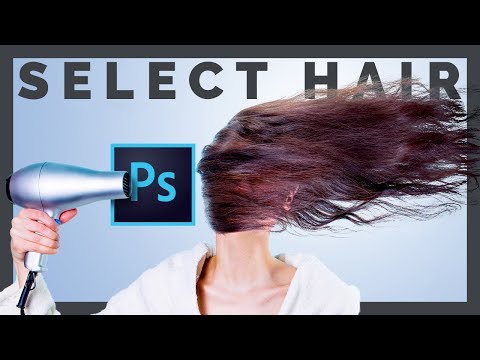
How to Select Hair in Photoshop and Change Background
ChannelPiXimperfectDescription from the creator
Let's Explore some Hidden Tips and Tricks for Hair Selection and Masking in Photoshop! Cutting out hair is one of the most challenging tasks that we face in Photoshop. But, with the release of Adobe Photoshop 2015.5 it has become easier than ever. Besides the "Select and Mask" feature I have got 3 more Tricks for hair selection in Photoshop.
To be honest, making hair in Photoshop does have some limitations. No matter how fine you are with your selection. Doesn't matter even if you use the pen tool which might take years, you still won't be able to extract black hair from a black background. There is no machine or software or plug-in ever built that can do a perfect hair mask in Photoshop or any other software. Photoshop can never differentiate between a detailed tree and a hair. You need to make sure while taking or choosing the image that the color of the hair is in contrast with the background. Doesn't matter whether the background is a professional studio setup, a sky or even a wall, it just has to be contrasting with the hair.
With the method mentioned in the video, especially using the new Select and Mask feature and 3 more Awesome tips, hair cutting in Photoshop becomes faster, easier and most importantly precise. Gone are the days when you had to select everything using the pen tool because now-a-days the automating quick selection tool is more accurate than ever.
One more limiting thing with hair making in Photoshop is that, after cutting out the hair, the mask does not go with every background. Suppose you clicked a picture of the model on white background. There is no way in the history of mankind (or womankind) that you can place the selection on a black background. If you do so you will start to see fringes on the outlines of her hair. Why? because by the laws of Physics, diffraction happens and some of the light from the background (which is white) gets inside her hair. Thus impossible to remove.
In the end, removing the background from hair is easy but it is much easier if you get it right while shooting the image. You might say that I'm cheating by using a white background and yes I am. After all, there is NO WAY Photoshop can distinguish between a hair and a fur.
Hope this video helped you. Keep Creating!
To be honest, making hair in Photoshop does have some limitations. No matter how fine you are with your selection. Doesn't matter even if you use the pen tool which might take years, you still won't be able to extract black hair from a black background. There is no machine or software or plug-in ever built that can do a perfect hair mask in Photoshop or any other software. Photoshop can never differentiate between a detailed tree and a hair. You need to make sure while taking or choosing the image that the color of the hair is in contrast with the background. Doesn't matter whether the background is a professional studio setup, a sky or even a wall, it just has to be contrasting with the hair.
With the method mentioned in the video, especially using the new Select and Mask feature and 3 more Awesome tips, hair cutting in Photoshop becomes faster, easier and most importantly precise. Gone are the days when you had to select everything using the pen tool because now-a-days the automating quick selection tool is more accurate than ever.
One more limiting thing with hair making in Photoshop is that, after cutting out the hair, the mask does not go with every background. Suppose you clicked a picture of the model on white background. There is no way in the history of mankind (or womankind) that you can place the selection on a black background. If you do so you will start to see fringes on the outlines of her hair. Why? because by the laws of Physics, diffraction happens and some of the light from the background (which is white) gets inside her hair. Thus impossible to remove.
In the end, removing the background from hair is easy but it is much easier if you get it right while shooting the image. You might say that I'm cheating by using a white background and yes I am. After all, there is NO WAY Photoshop can distinguish between a hair and a fur.
Hope this video helped you. Keep Creating!
About this tutorial
PiXimperfect published this 15:17 video tutorial on November 7, 2017. It has been watched 173,299 times on YouTube.
- Channel
- PiXimperfect
- Category
- Howto & Style
- Duration
- 15:17
- Published
- November 7, 2017
- Views
- 173,299
- Likes
- 3,623
Tags
Share
This tutorial in other languages
- FRComment choisir des cheveux dans Photoshop et le changement de fond
- ESCómo seleccionar pelo en Photoshop y Cambiar fondo
- PTComo selecionar cabelo em Photoshop e Mudança Background
- ITCome selezionare capelli in Photoshop e Change Background
- DESo wählen Sie Haar in Photoshop und Hintergrund ändern
- NLHoe te kiezen Hair in Photoshop en Achtergrond wijzigen
- RUКак выбрать волос в Photoshop и изменение фона
- PLJak wybrać do włosów w Photoshop i Zmień tło
- JAPhotoshopや変更の背景に髪を選択する方法
- ARكيفية اختيار الشعر في فوتوشوب وتغيير الخلفية
- HIमें फ़ोटोशॉप और पृष्ठभूमि बदलें बाल का चयन कैसे
- IDCara Memilih Rambut di Photoshop dan Change Background