Playback starts YouTube’s embedded player (privacy-enhanced mode).
How to Send an Email to Undisclosed Recipients from Gmail
ChannelInternet Services and Social Networks Tutorials from HowTechDescription from the creator
In this tutorial, you'll learn how to send e-mail to Undisclosed Recipients from Gmail.
Don't forget to check out our site howtech.tv/ for more free how-to videos!
youtube.com/ithowtovids - our feed
Facebook.com/howtechtv - join us on Facebook
plus.google.com/103440382717658277879 - our group in Google+
Step # 1 -- Setting up the Undisclosed Recipients
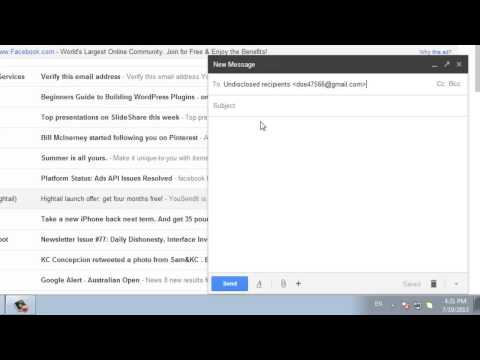
Open your Gmail and click "Compose Mail" to create a new message. In the "To:" field, you'll need to type "Undisclosed recipients "[email protected]". "youremailhere" meaning your Gmail address.
Step # 2 -- Adding recipients to the e-mail
Now, click "Add Bcc" and type all desired recipients of the e-mail into the "Bcc:" field, separating each contact with a comma. Once you've added all of the recipients to the Bcc field and have your undisclosed recipient's information in the "To:" field, go ahead and write a message subject and body. Click "Send" to send the e-mail.
Step # 3 -- Checking the Email
Here we have sent it to an email address that we also can access so we will just check to make sure that it works. Navigate to this email address and open the email. When you look to see more information about where the email was sent you can see in the "to" field that it says "Undisclosed recipients". This is a valuable way to protect the privacy of the people that you are sending the email to.
That's it, you now know how to send an e-mail to Undisclosed Recipients from Gmail.
Don't forget to check out our site howtech.tv/ for more free how-to videos!
youtube.com/ithowtovids - our feed
Facebook.com/howtechtv - join us on Facebook
plus.google.com/103440382717658277879 - our group in Google+
Step # 1 -- Setting up the Undisclosed Recipients
Open your Gmail and click "Compose Mail" to create a new message. In the "To:" field, you'll need to type "Undisclosed recipients "[email protected]". "youremailhere" meaning your Gmail address.
Step # 2 -- Adding recipients to the e-mail
Now, click "Add Bcc" and type all desired recipients of the e-mail into the "Bcc:" field, separating each contact with a comma. Once you've added all of the recipients to the Bcc field and have your undisclosed recipient's information in the "To:" field, go ahead and write a message subject and body. Click "Send" to send the e-mail.
Step # 3 -- Checking the Email
Here we have sent it to an email address that we also can access so we will just check to make sure that it works. Navigate to this email address and open the email. When you look to see more information about where the email was sent you can see in the "to" field that it says "Undisclosed recipients". This is a valuable way to protect the privacy of the people that you are sending the email to.
That's it, you now know how to send an e-mail to Undisclosed Recipients from Gmail.
About this tutorial
Internet Services and Social Networks Tutorials from HowTech published this 1:10 video tutorial on November 7, 2013. It has been watched 323,796 times on YouTube.
- Category
- Howto & Style
- Duration
- 1:10
- Published
- November 7, 2013
- Views
- 323,796
- Likes
- 733
Tags
Share
This tutorial in other languages
- FRComment envoyer un e-mail à des destinataires Undisclosed de Gmail
- ESCómo enviar un correo electrónico a destinatarios no revelados desde Gmail
- PTComo enviar um e-mail para destinatários Undisclosed do Gmail
- ITCome inviare una e-mail a destinatari Undisclosed da Gmail
- DEWie E-Mail an Undisclosed Empfänger von Google Mail senden
- NLHoe stel ik een e-mail naar Undisclosed Ontvangers van Gmail
- RUКак отправить письмо нераскрытых реципиентов из Gmail
- PLJak wysłać email do nieujawnionego adresata z Gmaila
- JAどのようにGmailから非公開の受信者に電子メールを送信します
- ARكيفية إرسال بريد إلكتروني إلى المستلمين لم يكشف عنه من Gmail
- HIकैसे Gmail से अज्ञात प्राप्तकर्ताओं के लिए एक ईमेल भेजने के
- IDCara Kirim Email ke Penerima Undisclosed dari Gmail