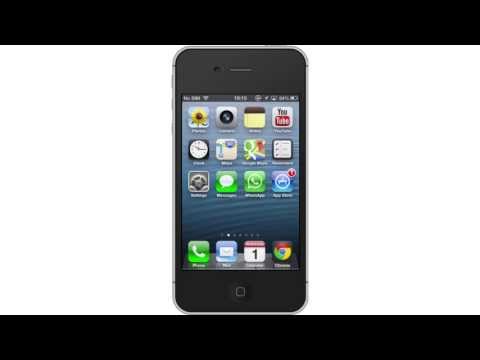
Playback starts YouTube’s embedded player (privacy-enhanced mode).
How to Turn Off Autocorrect on iPhone
ChanneliPhone, iPad and Android Tutorials from HowTechDescription from the creator
This tutorial will show you how to turn off autocorrect on iPhone.
Don't forget to check out our site howtech.tv/ for more free how-to videos!
youtube.com/ithowtovids - our feed
facebook.com/howtechtv - join us on facebook
plus.google.com/103440382717658277879 - our group in Google+
In this tutorial you will learn how to turn off autocorrect on the iPhone. Autocorrect will correct your misspellings into what it thinks is correct. However, sometimes it will correct it to the wrong word. To avoid this, we want to turn off autocorrect.
Step #1 -- Tap Settings App Icon
Once you do this, scroll down until you can see the "General" tab.
Step #2 -- Tap "General" Tab
Then scroll down until you can see the "Keyboard" tab.
Step #3 -- Tap "Keyboard" Tab
Once you do this, you will be sent to the next page where we can edit our autocorrect settings.
Step #4 -- Turn Autocorrect Off
To turn off autocorrect, tap the "on" button. Autocorrect has now been successfully turned off. Now you'll notice when you misspell words, auto correct will not correct you. It will let you spell it exactly like you type it.
Leave your comments below or contact us by email. This was a Howtech.tv tutorial. Thanks for watching!
Don't forget to check out our site howtech.tv/ for more free how-to videos!
youtube.com/ithowtovids - our feed
facebook.com/howtechtv - join us on facebook
plus.google.com/103440382717658277879 - our group in Google+
In this tutorial you will learn how to turn off autocorrect on the iPhone. Autocorrect will correct your misspellings into what it thinks is correct. However, sometimes it will correct it to the wrong word. To avoid this, we want to turn off autocorrect.
Step #1 -- Tap Settings App Icon
Once you do this, scroll down until you can see the "General" tab.
Step #2 -- Tap "General" Tab
Then scroll down until you can see the "Keyboard" tab.
Step #3 -- Tap "Keyboard" Tab
Once you do this, you will be sent to the next page where we can edit our autocorrect settings.
Step #4 -- Turn Autocorrect Off
To turn off autocorrect, tap the "on" button. Autocorrect has now been successfully turned off. Now you'll notice when you misspell words, auto correct will not correct you. It will let you spell it exactly like you type it.
Leave your comments below or contact us by email. This was a Howtech.tv tutorial. Thanks for watching!
About this tutorial
iPhone, iPad and Android Tutorials from HowTech published this 0:59 video tutorial on November 15, 2013. It has been watched 2,770 times on YouTube.
- Category
- Howto & Style
- Duration
- 0:59
- Published
- November 15, 2013
- Views
- 2,770
- Likes
- 14
Tags
Share
This tutorial in other languages
- FRComment désactiver la correction automatique sur l'iPhone
- ESCómo desactivar la autocorrección en el iPhone
- PTComo desativar Autocorrect no iPhone
- ITCome disattivare Correzione automatica su iPhone
- DESo deaktivieren Sie Autocorrect auf dem iPhone
- NLHoe kan uitschakelen Autocorrect op de iPhone
- RUКак отключить автокоррекцию на iPhone
- PLJak wyłączyć Autokorekta na iPhone
- JAiPhoneオートコレクトをオフにする方法
- ARكيفية إيقاف التصحيح التلقائي على اي فون
- HIiPhone पर बंद स्वतः सुधार चालू करने के लिए कैसे
- IDCara Turn Off Autocorrect pada iPhone