Playback starts YouTube’s embedded player (privacy-enhanced mode).
How to Turn off Windows Firewall in Windows 7
ChannelHOWTECHDescription from the creator
Learn how to adjust firewall settings in Windows 7. Learn how to disable the firewall for private and public networks.
Don't forget to check out our site howtech.tv/ for more free how-to videos!
youtube.com/ithowtovids - our feed
facebook.com/howtechtv - join us on facebook
plus.google.com/103440382717658277879 - our group in Google+
In this tutorial, we will guide you on how to turn off the firewall in windows 7. In Windows 7, the windows firewall protects the user's computer against spyware and malicious viruses. The firewall may at times restrict certain programs from accessing the internet. In order to work with any such program, the user might have to disable the firewall.
Step 1: Open Windows Firewall
In Windows 7 to access the windows firewall, the user will have to open the control panel. One can access the control panel from the start menu. Simply go to the "start" button and click on the control panel option available there.
In the control panel, change the view to large icons. In this way, you will be able to easily locate the windows firewall icon at the lower bottom of the window. Click on it in order to open it.
Step 2: Turn Windows Firewall on or off
In the new window, click on the "turn windows firewall on or off" option; you will find this option towards the left of your screen.
Step 3: Customize Settings
In the customize window, click on the radio button available for the turn off option in order to disable the firewall for home and work networks. Once you are done, click on the ok button to exit the customize window.
Step 4: Turn off firewall for public networks
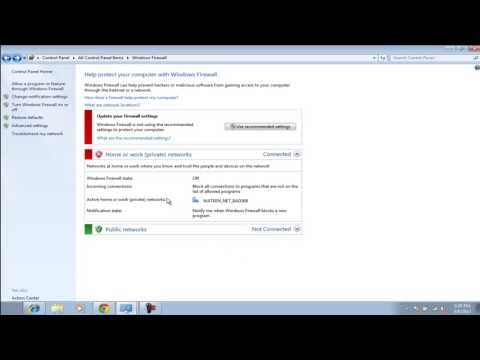
In the windows firewall window, you will see the notification that the firewall is not using the recommended settings. In order to turn off the firewall for public networks as well, simply go back to the customize window and check the turn off option for public networks. Once you are done, click on the ok button to exit the window.
Step 5: View Firewall status
You will see that both the networks will be marked in red warning you that the firewall is turned off. Hope you found this detailed "how to turn off windows firewall in windows 7" tutorial useful.
Don't forget to check out our site howtech.tv/ for more free how-to videos!
youtube.com/ithowtovids - our feed
facebook.com/howtechtv - join us on facebook
plus.google.com/103440382717658277879 - our group in Google+
In this tutorial, we will guide you on how to turn off the firewall in windows 7. In Windows 7, the windows firewall protects the user's computer against spyware and malicious viruses. The firewall may at times restrict certain programs from accessing the internet. In order to work with any such program, the user might have to disable the firewall.
Step 1: Open Windows Firewall
In Windows 7 to access the windows firewall, the user will have to open the control panel. One can access the control panel from the start menu. Simply go to the "start" button and click on the control panel option available there.
In the control panel, change the view to large icons. In this way, you will be able to easily locate the windows firewall icon at the lower bottom of the window. Click on it in order to open it.
Step 2: Turn Windows Firewall on or off
In the new window, click on the "turn windows firewall on or off" option; you will find this option towards the left of your screen.
Step 3: Customize Settings
In the customize window, click on the radio button available for the turn off option in order to disable the firewall for home and work networks. Once you are done, click on the ok button to exit the customize window.
Step 4: Turn off firewall for public networks
In the windows firewall window, you will see the notification that the firewall is not using the recommended settings. In order to turn off the firewall for public networks as well, simply go back to the customize window and check the turn off option for public networks. Once you are done, click on the ok button to exit the window.
Step 5: View Firewall status
You will see that both the networks will be marked in red warning you that the firewall is turned off. Hope you found this detailed "how to turn off windows firewall in windows 7" tutorial useful.
About this tutorial
HOWTECH published this 1:18 video tutorial on November 11, 2013. It has been watched 222,996 times on YouTube.
- Channel
- HOWTECH
- Category
- Howto & Style
- Duration
- 1:18
- Published
- November 11, 2013
- Views
- 222,996
- Likes
- 990
Share
This tutorial in other languages
- FRComment désactiver Pare-feu Windows dans Windows 7
- ESCómo desactivar el Firewall de Windows en Windows 7
- PTComo Desativar o Firewall do Windows no Windows 7
- ITCome disattivare Windows Firewall in Windows 7
- DEWie aus dem Windows-Firewall in Windows Turn 7
- NLHoe maak je Windows Firewall uitschakelen in Windows 7
- RUКак отключить брандмауэр Windows в ОС Windows 7
- PLJak wyłączyć Zaporę systemu Windows w systemie Windows 7
- JAWindowsでWindowsファイアウォールオフにする方法7
- ARكيفية إيقاف تشغيل جدار حماية Windows في ويندوز 7
- HIकैसे Windows में Windows फ़ायरवॉल बंद कर दें करने के लिए 7
- IDCara Mematikan Windows Firewall di Windows 7