Playback starts YouTube’s embedded player (privacy-enhanced mode).
How to Update Flash Player in Windows
ChannelInternet Services and Social Networks Tutorials from HowTechDescription from the creator
In this tutorial, we will teach you how to update Flash Player in Windows.
Don't forget to check out our site howtech.tv/ for more free how-to videos!
youtube.com/ithowtovids - our feed
facebook.com/howtechtv - join us on facebook
plus.google.com/103440382717658277879 - our group in Google+
Learn how to update the flash player version on your computer by following this step by step guide.
Follow this step by step guide to learn how to upgrade your flash player.
Step 1 -- Open Control Panel
First of all, go to the start button and from the start menu, click on the control panel option.
Step 2 -- Open Flash Player Manager
You will find flash player in the control panel if you have it installed on your computer. Simply click on it in order to open the flash player manager.
Step 3 -- Player Download center option
As a result, the adobe flash player web page will open up in your default browser. Once the web page loads, click on the player download center option. From here, you'd be able to download the flash player update for windows.
Step 4 -- Download flash player
In the next page, you will be displayed with your system information and details about the flash player. For the purpose of this tutorial, we will uncheck the optional McAfee Security scan as we just want to install the flash player. Once you are done, click on the download now button. In this manner, you will be able to download the flash player update for windows.
Step 5 -- Run button
A new web page will open where you can see the screenshots of the installation. A dialog box will appear on your screen. Click on the save file button to download the exe file. Once the download has finished, click open it. You might be given a security warning when opening the exe file. Click on the run button to proceed with the installation.
Step 6 -- Choose an update option
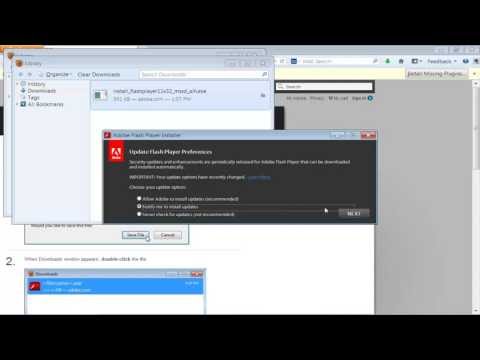
As a result, the Adobe Flash Player installer will open up. It will take a few moments to initialize. You can then choose one of the update options. For the purpose of this tutorial, we will select the "notify me to install updates" option. Once you are done selecting, click on the next button to continue further. As a result, the downloading will begin. You can monitor the progress of the download here.
Once the download has completed, go to the control panel and open flash player from there. In the flash player settings manager, go to the advanced tab and you will be able to view the flash plug-in version that you just upgraded to.
In this manner, you can update the Flash player in windows.
Don't forget to check out our site howtech.tv/ for more free how-to videos!
youtube.com/ithowtovids - our feed
facebook.com/howtechtv - join us on facebook
plus.google.com/103440382717658277879 - our group in Google+
Learn how to update the flash player version on your computer by following this step by step guide.
Follow this step by step guide to learn how to upgrade your flash player.
Step 1 -- Open Control Panel
First of all, go to the start button and from the start menu, click on the control panel option.
Step 2 -- Open Flash Player Manager
You will find flash player in the control panel if you have it installed on your computer. Simply click on it in order to open the flash player manager.
Step 3 -- Player Download center option
As a result, the adobe flash player web page will open up in your default browser. Once the web page loads, click on the player download center option. From here, you'd be able to download the flash player update for windows.
Step 4 -- Download flash player
In the next page, you will be displayed with your system information and details about the flash player. For the purpose of this tutorial, we will uncheck the optional McAfee Security scan as we just want to install the flash player. Once you are done, click on the download now button. In this manner, you will be able to download the flash player update for windows.
Step 5 -- Run button
A new web page will open where you can see the screenshots of the installation. A dialog box will appear on your screen. Click on the save file button to download the exe file. Once the download has finished, click open it. You might be given a security warning when opening the exe file. Click on the run button to proceed with the installation.
Step 6 -- Choose an update option
As a result, the Adobe Flash Player installer will open up. It will take a few moments to initialize. You can then choose one of the update options. For the purpose of this tutorial, we will select the "notify me to install updates" option. Once you are done selecting, click on the next button to continue further. As a result, the downloading will begin. You can monitor the progress of the download here.
Once the download has completed, go to the control panel and open flash player from there. In the flash player settings manager, go to the advanced tab and you will be able to view the flash plug-in version that you just upgraded to.
In this manner, you can update the Flash player in windows.
About this tutorial
Internet Services and Social Networks Tutorials from HowTech published this 1:44 video tutorial on November 8, 2013. It has been watched 128,875 times on YouTube.
- Category
- Howto & Style
- Duration
- 1:44
- Published
- November 8, 2013
- Views
- 128,875
- Likes
- 228
Share
This tutorial in other languages
- FRComment mettre à jour Flash Player dans Windows
- ESCómo actualizar Flash Player en Windows
- PTComo atualizar o Flash Player no Windows
- ITCome aggiornare Flash Player in Windows
- DEWie Aktualisieren von Flash Player in Windows
- NLHoe updaten Flash Player in Windows
- RUКак обновить Flash Player в Windows,
- PLJak zaktualizować Flash Player w Windows
- JAどのようにWindowsでの更新のFlash Playerへ
- ARكيفية تحديث مشغل فلاش في ويندوز
- HIकैसे Windows में फ़्लैश प्लेयर अद्यतन करने के लिए
- IDCara Perbarui Flash Player pada Windows