The creator does not allow this video to be played on other websites. You can watch it directly on YouTube.
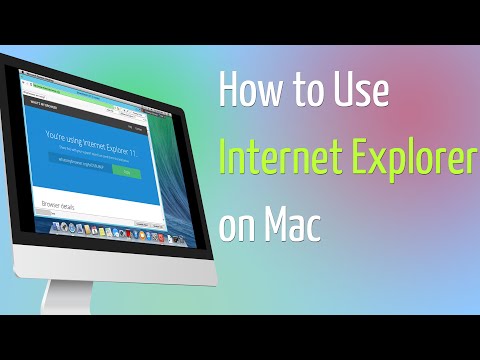
How to Use Internet Explorer on Mac
ChannelMac OS X Tutorials and App reviews from HowTechDescription from the creator
In this tutorial you will learn how to use Internet Explorer on Mac.
The earlier versions of OS X were friendly to Internet Explorer, but, starting from OS X 7 and further, it's not like that anymore.
There are, however, ways to still use Internet Explorer on newer versions on OS X. Here's how to do it the easy way.
Don't forget to check out our site howtech.tv/ for more free how-to videos!
youtube.com/ithowtovids - our feed
facebook.com/howtechtv - join us on facebook
plus.google.com/103440382717658277879 - our group in Google+
Step 1. The app that completely allows you to have a Windows experience while using your Mac is called Parallels Desktop. Before you proceed, make sure that you have a version of Windows either burned on a DVD or saved on a USB.
You can download the app from the link you can see on your screen. The app does not come for free, but allows you a 14-day trial. Register for your trial and start downloading the Parallels Desktop installation package.
Step 2. Click on it and start installing the app on your computer. The installation window will guide you through the whole process. Just don't forget your Windows serial number and password:)
Step 3. Great! Now you can use your virtual machine. Log in to your Windows. Depending on your Windows version, you can invoke your Internet Explorer in different ways. Since we use Windows 8, it's right on our Start Screen.
Result: Enjoy browsing with Internet Explorer on your Mac!
The earlier versions of OS X were friendly to Internet Explorer, but, starting from OS X 7 and further, it's not like that anymore.
There are, however, ways to still use Internet Explorer on newer versions on OS X. Here's how to do it the easy way.
Don't forget to check out our site howtech.tv/ for more free how-to videos!
youtube.com/ithowtovids - our feed
facebook.com/howtechtv - join us on facebook
plus.google.com/103440382717658277879 - our group in Google+
Step 1. The app that completely allows you to have a Windows experience while using your Mac is called Parallels Desktop. Before you proceed, make sure that you have a version of Windows either burned on a DVD or saved on a USB.
You can download the app from the link you can see on your screen. The app does not come for free, but allows you a 14-day trial. Register for your trial and start downloading the Parallels Desktop installation package.
Step 2. Click on it and start installing the app on your computer. The installation window will guide you through the whole process. Just don't forget your Windows serial number and password:)
Step 3. Great! Now you can use your virtual machine. Log in to your Windows. Depending on your Windows version, you can invoke your Internet Explorer in different ways. Since we use Windows 8, it's right on our Start Screen.
Result: Enjoy browsing with Internet Explorer on your Mac!
About this tutorial
Mac OS X Tutorials and App reviews from HowTech published this 1:29 video tutorial on November 12, 2014. It has been watched 20,725 times on YouTube.
- Category
- Howto & Style
- Duration
- 1:29
- Published
- November 12, 2014
- Views
- 20,725
- Likes
- 13
Tags
Share
This tutorial in other languages
- FRComment utiliser Internet Explorer sur Mac
- ESCómo utilizar Internet Explorer en Mac
- PTComo usar o Internet Explorer no Mac
- ITCome Utilizzare Internet Explorer su Mac
- DEWie benutzt man den Internet Explorer auf dem Mac
- NLHoe te gebruiken Internet Explorer op de Mac
- RUКак использовать Internet Explorer на Mac
- PLJak korzystać z przeglądarki Internet Explorer na Mac
- JAどのようにMac上でInternet Explorerを使用します
- ARكيفية استخدام Internet Explorer على نظام التشغيل Mac
- HIकैसे मैक पर इंटरनेट एक्सप्लोरर का उपयोग करने के लिए
- IDCara Gunakan Internet Explorer pada Mac