Playback starts YouTube’s embedded player (privacy-enhanced mode).
How to Zoom in Internet Explorer
ChannelHOWTECHDescription from the creator
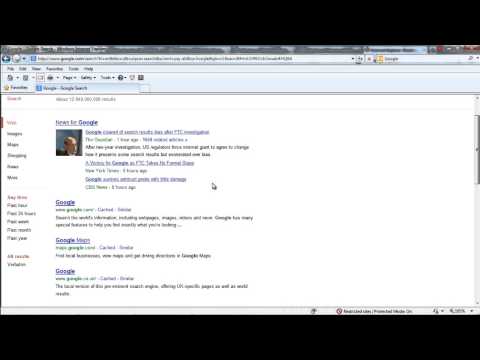
Learn how to zoom in or zoom out of a webpage. Furthermore, learn how to set a custom zoom level as per your preference
Don't forget to check out our site howtech.tv/ for more free how-to videos!
youtube.com/ithowtovids - our feed
facebook.com/howtechtv - join us on facebook
plus.google.com/103440382717658277879 - our group in Google+
In this tutorial, we will show you how to zoom in IE. Webpages are easier to see and explore with the advanced accessibility options available in Internet Explorer. The new and improved features include the Zoom option. Each user has different preferences. Some might have difficulty reading the text available on the website with the default 100% zoom level. One might want to increase the zoom level to make it easier to read. In this tutorial, we will teach you how to adjust the zoom options in IE.
Step 1 -- Zoom In
To get started, move to the menu on top and click on the "View" tab. Once done, a new menu will appear on the screen. Over here, move to the "Zoom" category and you will see a number of values with which you can zoom in and out of the webpage.
In this tutorial, we chose 125% from the menu and the browser automatically zooms in the webpage according to the percentage selected.
Step 2 -- Zooming options on the status bar
You can also zoom in or zoom out of the webpage by using the "ctrl +" and "ctrl -" shortcut keys respectively. Similarly, you can press the control key on your keyboard and use the mouse wheel to zoom in and out of the webpage.
On the bottom right hand side of the browser, you will see the status bar. Click on the drop down arrow next to the percentage and a new menu will appear on the screen. Over there, you will find the different percentages by which you can zoom into the webpage.
Step 3 -- Custom Zoom option
The custom option right at the bottom allows you to set the percentage manually. Once you click on that option, a new window will appear on the screen. Over here, input the value by which you want to zoom in or out. In this tutorial, we will type in "150" and click on the "Ok" button. In this way, the webpage automatically be zoomed to 150%.
Don't forget to check out our site howtech.tv/ for more free how-to videos!
youtube.com/ithowtovids - our feed
facebook.com/howtechtv - join us on facebook
plus.google.com/103440382717658277879 - our group in Google+
In this tutorial, we will show you how to zoom in IE. Webpages are easier to see and explore with the advanced accessibility options available in Internet Explorer. The new and improved features include the Zoom option. Each user has different preferences. Some might have difficulty reading the text available on the website with the default 100% zoom level. One might want to increase the zoom level to make it easier to read. In this tutorial, we will teach you how to adjust the zoom options in IE.
Step 1 -- Zoom In
To get started, move to the menu on top and click on the "View" tab. Once done, a new menu will appear on the screen. Over here, move to the "Zoom" category and you will see a number of values with which you can zoom in and out of the webpage.
In this tutorial, we chose 125% from the menu and the browser automatically zooms in the webpage according to the percentage selected.
Step 2 -- Zooming options on the status bar
You can also zoom in or zoom out of the webpage by using the "ctrl +" and "ctrl -" shortcut keys respectively. Similarly, you can press the control key on your keyboard and use the mouse wheel to zoom in and out of the webpage.
On the bottom right hand side of the browser, you will see the status bar. Click on the drop down arrow next to the percentage and a new menu will appear on the screen. Over there, you will find the different percentages by which you can zoom into the webpage.
Step 3 -- Custom Zoom option
The custom option right at the bottom allows you to set the percentage manually. Once you click on that option, a new window will appear on the screen. Over here, input the value by which you want to zoom in or out. In this tutorial, we will type in "150" and click on the "Ok" button. In this way, the webpage automatically be zoomed to 150%.
About this tutorial
HOWTECH published this 1:13 video tutorial on November 9, 2013. It has been watched 16,282 times on YouTube.
- Channel
- HOWTECH
- Category
- Howto & Style
- Duration
- 1:13
- Published
- November 9, 2013
- Views
- 16,282
- Likes
- 24
Share
This tutorial in other languages
- FRComment Zoom dans Internet Explorer
- ESCómo hacer zoom en Internet Explorer
- PTComo Zoom no Internet Explorer
- ITCome Zoom in Internet Explorer
- DEWie im Internet Explorer Zoom
- NLHoe te zoomen in Internet Explorer
- RUКак Увеличить Internet Explorer
- PLJak Powiększanie Internet Explorer
- JAInternet Explorerでズームする方法
- ARكيفية التكبير في Internet Explorer
- HIकैसे इंटरनेट एक्सप्लोरर में ज़ूम करने के लिए
- IDCara Memperbesar Internet Explorer