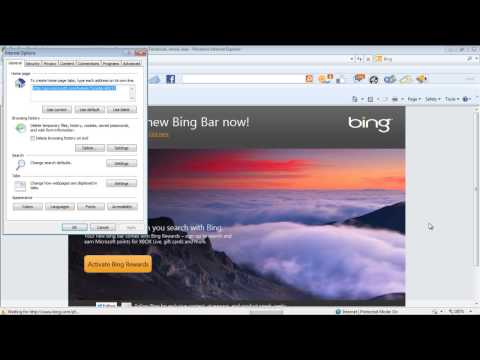
Playback starts YouTube’s embedded player (privacy-enhanced mode).
How to Add a Toolbar to Internet Explorer
ChannelHOWTECHDescription from the creator
Toolbar in internet explorer can be easily downloaded and added, to understand this look at the eight step process given below.
Step 1 -- Download toolbar
First of all, open internet explorer and let's download a toolbar first. In this tutorial, we will be downloading the bing toolbar. For that, let's visit bing.com/bar.
Once the webpage opens up, simply click on the download now button.
Step 2 -- Run the download
With that done, a notification window will open up. Over here, click on the Run button so that as soon as the file is downloaded, it will automatically run the installer.
Step 3 -- Finish installation
The bing toolbar automatically installs itself, so you will just have to wait till the processing is completed.
Once the installation is complete, simply click on the Finish button to close the installer.
Step 4 -- View the toolbar
With that done, internet explorer will open automatically and on top you can see the bing tool bar appearing in the browser.
Step 5 -- Disable the toolbar
After you add a toolbar to internet explorer you can even disable the toolbar from the browser. For that, go to the tool menu and click on internet options.
Step 6 -- Go to the "manage add-ons" option
Once the new window opens up, go to the program option then click on the manage add-ons option.
Step 7 -- Select the added toolbar
Over here, let's select the newly added bing toolbar and click on the disable button appearing towards the bottom of the window.
Step 8 -- Disable the toolbar alternatively
Now once you restart the browser, the bing tool bar will be disabled. An alternate way to disable the bing toolbar is by clicking on the cross icon within the toolbar. This will open up a new window, from where you can select the disable option and click on OK to save the changes made.
In this way, by following the steps above another toolbar in internet explorer apart from bing can also be added or disabled.
About this tutorial
HOWTECH published this 1:15 video tutorial on October 26, 2013. It has been watched 67,193 times on YouTube.
- Channel
- HOWTECH
- Category
- Howto & Style
- Duration
- 1:15
- Published
- October 26, 2013
- Views
- 67,193
- Likes
- 84
Share
Further reading
-
The menu bar and the toolbar are missing in Internet Explorer ...
support.microsoft.com
For Windows Explorer, in Windows XP Home Edition, you may have to re-enable the Address bar in Windows Explorer. To do this, follow these steps: Open Windows Explorer. Right-click a blank area of the toolbar or the menu…
-
How To Customize the Internet Explorer Toolbar - dummies
dummies.com
4 When you’re finished, click Close to save your new toolbar settings. The new tools appear. Click the double-arrow button on the right of the toolbar to display any tools that IE can’t fit onscreen. You can use the Mov…
-
3 Ways to Add Toolbars to Your Browsers - wikiHow
wikihow.com
Once at the Internet Explorer window, click on the gear icon in the upper-right corner of the window. This will show you some options, but most importantly, it will show you the different toolbars that you can activate…
This tutorial in other languages
- FRComment ajouter une barre d'outils pour Internet Explorer
- ESCómo agregar una barra de herramientas para Internet Explorer
- PTComo adicionar uma barra de ferramentas para o Internet Explorer
- ITCome aggiungere una barra degli strumenti di Internet Explorer
- DEWie eine Toolbar für Internet Explorer hinzufügen
- NLHoe maak je een Toolbar toevoegen aan Internet Explorer
- RUКак добавить панель инструментов для Internet Explorer
- PLJak dodać pasek narzędzi do przeglądarki Internet Explorer
- JAInternet Explorerのツールバーを追加する方法
- ARكيفية إضافة شريط أدوات إلى Internet Explorer
- HIकैसे इंटरनेट एक्सप्लोरर के लिए टूलबार जोड़ें
- IDBagaimana menambahkan Toolbar untuk Internet Explorer