La riproduzione carica il player incorporato di YouTube (modalità privacy avanzata).
Come cambiare la font di sistema predefinita in Windows 10
CanaleMDTechVideosDescrizione dell’autore
Come cambiare la font di sistema predefinita in Windows 10
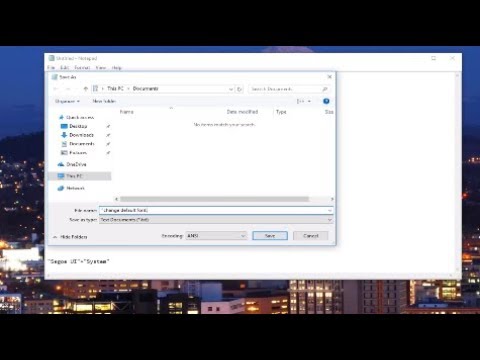
Incolla questo testo in Blocco Note:
Windows Registry Editor Version 5.00
[HKEY_LOCAL_MACHINE\SOFTWARE\Microsoft\Windows NT\CurrentVersion\Fonts]
"Segoe UI (TrueType)"=""
"Segoe UI Bold (TrueType)"=""
"Segoe UI Bold Italic (TrueType)"=""
"Segoe UI Italic (TrueType)"=""
"Segoe UI Light (TrueType)"=""
"Segoe UI Semibold (TrueType)"=""
"Segoe UI Symbol (TrueType)"=""
[HKEY_LOCAL_MACHINE\SOFTWARE\Microsoft\Windows NT\CurrentVersion\FontSubstitutes]
"Segoe UI"="NOME FONT DESIDERATA"
Windows 10 utilizza la font Segoe UI come predefinita per tutto il sistema. Questa font viene usata per icone, menu, testo nella barra del titolo, Esplora file e molto altro.
Se vuoi utilizzare una font diversa, puoi sostituire quella predefinita con quella che preferisci.
Questa guida ti mostrerà come cambiare la font di sistema predefinita in Windows 10 per tutti gli utenti.
È necessario essere connessi come amministratore per poter modificare la font di sistema in Windows 10.
Questa procedura funziona su computer, laptop, desktop e tablet che utilizzano il sistema operativo Windows 10 (Home, Professional, Enterprise, Education) su qualsiasi hardware supportato, come quelli di Dell, HP, Acer, Asus, Toshiba, Lenovo e Samsung.
Incolla questo testo in Blocco Note:
Windows Registry Editor Version 5.00
[HKEY_LOCAL_MACHINE\SOFTWARE\Microsoft\Windows NT\CurrentVersion\Fonts]
"Segoe UI (TrueType)"=""
"Segoe UI Bold (TrueType)"=""
"Segoe UI Bold Italic (TrueType)"=""
"Segoe UI Italic (TrueType)"=""
"Segoe UI Light (TrueType)"=""
"Segoe UI Semibold (TrueType)"=""
"Segoe UI Symbol (TrueType)"=""
[HKEY_LOCAL_MACHINE\SOFTWARE\Microsoft\Windows NT\CurrentVersion\FontSubstitutes]
"Segoe UI"="NOME FONT DESIDERATA"
Windows 10 utilizza la font Segoe UI come predefinita per tutto il sistema. Questa font viene usata per icone, menu, testo nella barra del titolo, Esplora file e molto altro.
Se vuoi utilizzare una font diversa, puoi sostituire quella predefinita con quella che preferisci.
Questa guida ti mostrerà come cambiare la font di sistema predefinita in Windows 10 per tutti gli utenti.
È necessario essere connessi come amministratore per poter modificare la font di sistema in Windows 10.
Questa procedura funziona su computer, laptop, desktop e tablet che utilizzano il sistema operativo Windows 10 (Home, Professional, Enterprise, Education) su qualsiasi hardware supportato, come quelli di Dell, HP, Acer, Asus, Toshiba, Lenovo e Samsung.
Informazioni su questo tutorial
MDTechVideos ha pubblicato questo video tutorial di 3:03 il 1 novembre 2017. È stato visto 540.235 volte su YouTube.
- Canale
- MDTechVideos
- Categoria
- Scienza e tecnologia
- Durata
- 3:03
- Pubblicato
- 1 novembre 2017
- Visualizzazioni
- 540.235
- Mi piace
- 4.241
Condividi
Questo tutorial in altre lingue
- ENHow To Change Default System Font In Windows 10
- FRComment faire pour modifier par défaut du système polices dans Windows 10
- ESCómo cambiar la fuente por defecto del sistema en Windows 10
- PTComo mudar padrão do sistema fonte no Windows 10
- DESo ändern Standardsystemschriftart in Windows 10
- NLHow To Change Default System Font In Windows 10
- RUКак изменить систему по умолчанию шрифта в Windows 10
- PLJak zmienić domyślny system czcionki w systemie Windows 10
- JA変更は、システムフォントでのWindows 10のデフォルトの方法
- ARكيفية تغيير النظام الافتراضي الخط في نظام التشغيل Windows 10
- HIकैसे बदलें डिफ़ॉल्ट Windows 10 सिस्टम फ़ॉन्ट में
- IDCara Ganti Default Lihat Sistem Font Pada Windows 10