Playback starts YouTube’s embedded player (privacy-enhanced mode).
HOW TO ADD FAVORITES FOLDER IN OUTLOOK 2010, 2013, 2019
ChannelRay Tube FixesDescription from the creator
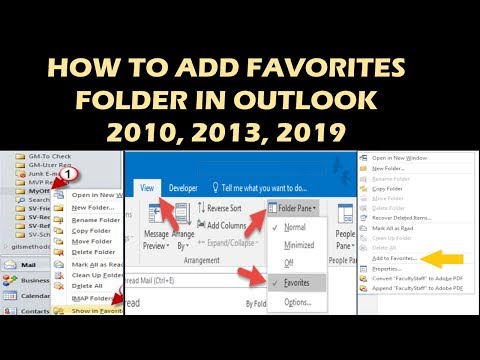
There are several ways to add or remove folders to Favorites. Pick the way that’s most convenient for you.
Click a folder and drag it to Favorites. (You can’t remove a folder this way.)
Right-click the folder you want to add or remove, and then click Show in Favorites or Remove from Favorites.
In the Folder Pane, click the folder you want to add, and then click Folder. In the Favorites group, click Show in Favorites. The ribbon command is highlighted when the selected folder appears in Favorites.
When a folder is added to Favorites, it’s a shortcut to the folder. The actual folder and its content remains at the original location in the folder list. Removing a folder from Favorites doesn’t delete the folder or contents—it removes only the shortcut that appears in Favorites.
By default, when a folder is added to Favorites, it appears at the bottom of the list. To re-arrange the folders, drag the folder to the new position in the Favorites list.
Important: Ensure you remove folders from the Favorites instead of deleting them. When you remove a folder from Favorites, the original folder in the folder list remains. Deleting a folder from Favorites deletes the folder and its contents from Outlook.
About this tutorial
Ray Tube Fixes published this 1:28 video tutorial on October 26, 2019. It has been watched 38,208 times on YouTube.
- Channel
- Ray Tube Fixes
- Category
- Science & Technology
- Duration
- 1:28
- Published
- October 26, 2019
- Views
- 38,208
- Likes
- 122
Tags
Share
Further reading
-
Add or remove folders in Favorites - Outlook
support.microsoft.com
Add or remove folders to Favorites. To add or remove folders in the Favorites section, do one of the following: In the Navigation Pane, click the folder that you want to add, and then on the Folder tab, in the Favorites…
-
Turn on or off Favorites - Outlook
support.microsoft.com
Favorites, located at the top of the Folder Pane, contain shortcuts to folders you frequently use. No folders are added or removed when you turn on or off Favorites—it only changes whether the section appears in the Fol…
-
How to restore or show favorites folder in Outlook Navigation ...
extendoffice.com
Restore or show favorites folder in Outlook 2010 and 2013. In Outlook 2010, you can show Favorites folder as follows. 1. Please click View > Navigation Pane > Favorites. See screenshot: In Outlook 2013, please click Vie…
This tutorial in other languages
- FRCOMMENT AJOUTER FAVORIS 2010 PERSPECTIVES EN CHEMISE, 2013, 2019
- ESCómo agregar carpeta Favoritos en Outlook 2010, 2013, 2019
- PTCOMO ADICIONAR FAVORITOS pasta no Outlook 2010, 2013, 2019
- ITCOME AGGIUNGERE FAVORITI cartella in Outlook 2010, 2013, 2019
- DEHOW TO ADD FAVORITEN-Ordner in Outlook 2010, 2013, 2019
- NLHOE favorieten toevoegen maken in Outlook 2010, 2013, 2019
- RUКАК Неточность FOLDER В Outlook 2010, 2013, 2019
- PLJAK DODAĆ folderu Ulubione w programie Outlook 2010, 2013, 2019
- JA2019でOutlook 2010、2013、[お気に入り]フォルダを追加する方法
- ARHOW TO ADD مجلد المفضلة في Outlook 2010، 2013، 2019
- HIमें Outlook 2010, 2013, 2019 फ़ोल्डर पसंदीदा जोड़ने के बारे में
- IDCARA ADD FAVORIT FOLDER DI OUTLOOK 2010, 2013, 2019