Playback starts YouTube’s embedded player (privacy-enhanced mode).
How to Add Songs to an iPod
ChannelHowcastDescription from the creator
Full Playlist: youtube.com/playlist?list=PLLALQuK1NDrjsCtybZK6…
-
-
Watch more How to Use an IPod videos: howcast.com/videos/273973-How-to-Add-Songs-to-a…
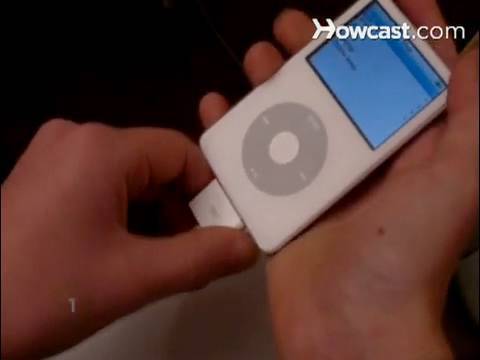
Enjoy your favorite music everywhere you go by putting it on your iPod.
Step 1: Open iTunes and connect your iPod
Open iTunes on your computer and connect your iPod to a USB port.
Step 2: Choose iPod under "Devices"
Select your iPod from the left-hand column in iTunes under the Devices heading.
Step 3: Select the Summary tab
Select the Summary tab in the main window of iTunes.
Step 4: Check Manually Manage Music and Videos
Check the box under Options that says Manually manage music and videos, and then click Apply.
Step 5: Choose the location of the music file
In your Library, find the location of the music file you want to add.
Tip
You must import CD tracks into iTunes before you can add them to your iPod.
Step 6: Click and drag
Select the music file you want to add and drag it to the iPod icon under Devices on the left-hand side of iTunes.
Step 7: Disconnect your iPod
Eject and disconnect your iPod, and enjoy your favorite tunes.
Did You Know?
Did you know? The Apple 1 computer sold for $666.66 in 1976.
-
-
Watch more How to Use an IPod videos: howcast.com/videos/273973-How-to-Add-Songs-to-a…
Enjoy your favorite music everywhere you go by putting it on your iPod.
Step 1: Open iTunes and connect your iPod
Open iTunes on your computer and connect your iPod to a USB port.
Step 2: Choose iPod under "Devices"
Select your iPod from the left-hand column in iTunes under the Devices heading.
Step 3: Select the Summary tab
Select the Summary tab in the main window of iTunes.
Step 4: Check Manually Manage Music and Videos
Check the box under Options that says Manually manage music and videos, and then click Apply.
Step 5: Choose the location of the music file
In your Library, find the location of the music file you want to add.
Tip
You must import CD tracks into iTunes before you can add them to your iPod.
Step 6: Click and drag
Select the music file you want to add and drag it to the iPod icon under Devices on the left-hand side of iTunes.
Step 7: Disconnect your iPod
Eject and disconnect your iPod, and enjoy your favorite tunes.
Did You Know?
Did you know? The Apple 1 computer sold for $666.66 in 1976.
About this tutorial
Howcast published this 1:21 video tutorial on October 31, 2010. It has been watched 1,119,261 times on YouTube.
- Channel
- Howcast
- Category
- Science & Technology
- Duration
- 1:21
- Published
- October 31, 2010
- Views
- 1,119,261
- Likes
- 4,552
Tags
Share
This tutorial in other languages
- FRComment ajouter des chansons à un iPod
- ESCómo agregar canciones a un iPod
- PTComo adicionar músicas para um iPod
- ITCome aggiungere brani a un iPod
- DEWie Hinzufügen Songs auf einen iPod
- NLHoe te Songs toevoegen aan een iPod
- RUКак добавить песни на IPod
- PLJak dodać utwory do iPoda
- JAiPodに曲を追加する方法
- ARكيفية إضافة أغاني لأجهزة أي بود
- HIकैसे एक आइपॉड के लिए गीत जोड़ें
- IDBagaimana Tambahkan Lagu ke iPod