Playback starts YouTube’s embedded player (privacy-enhanced mode).
How to allow pop ups in iPhone | How to allow pop us in Safari
ChanneliOSTutorialandTips iOSDescription from the creator
Some of the queries below are also answered by this video:
How to allow pop ups in safari
How to allow pop ups on iPad
How do I allow pop ups in Chrome
How do I allow pop ups
How do I disable pop up blocker on Chrome
How to allow pop ups on iPhone 7/8/xr
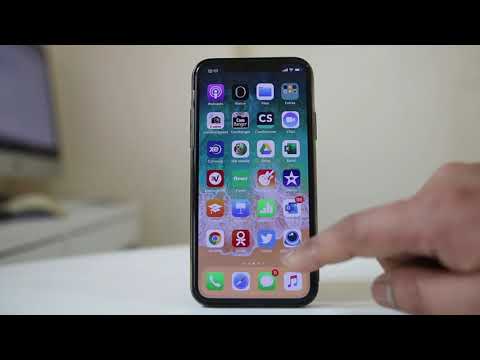
Some of the websites will require popups to display the login page like the banking websites. So, in this video today we will see how to allow pop ups for the browsers in iPhone.
1. To allow pop ups in safari, open “Settings”.
2. Scroll down and open “Safari”.
3. Disable “Block pop ups”.
4. Now you have enabled pop ups in Safari.
5. To allow pop ups in chrome, open “Chrome”.
6. Now tap on the three dotted icons at the bottom.
7. Select “Settings”.
8. Select “Content settings”.
9. Now select “Block pop ups”.
10. Disable “Block pop-ups”.
11. Now you have enabled pop-ups in chrome.
Subscribe to my channel: youtube.com/channel/UCpUnZAmY1mBoJUMKr07crVw
Watch some of our popular videos
How to turn off two factor authentication for iPhone
youtube.com/edit?o=U&video_id=fws_-HW0Xwk
Turn off do not disturb while driving
youtube.com/edit?o=U&video_id=NlKhZU1_VjU
Set time limit for your childern in iPad or iPhone
youtube.com/edit?o=U&video_id=HOpRWeQO1fc
What if you forget apple id and password both
youtube.com/edit?o=U&video_id=M3xSD8lTIBg
How to allow pop ups in safari
How to allow pop ups on iPad
How do I allow pop ups in Chrome
How do I allow pop ups
How do I disable pop up blocker on Chrome
How to allow pop ups on iPhone 7/8/xr
Some of the websites will require popups to display the login page like the banking websites. So, in this video today we will see how to allow pop ups for the browsers in iPhone.
1. To allow pop ups in safari, open “Settings”.
2. Scroll down and open “Safari”.
3. Disable “Block pop ups”.
4. Now you have enabled pop ups in Safari.
5. To allow pop ups in chrome, open “Chrome”.
6. Now tap on the three dotted icons at the bottom.
7. Select “Settings”.
8. Select “Content settings”.
9. Now select “Block pop ups”.
10. Disable “Block pop-ups”.
11. Now you have enabled pop-ups in chrome.
Subscribe to my channel: youtube.com/channel/UCpUnZAmY1mBoJUMKr07crVw
Watch some of our popular videos
How to turn off two factor authentication for iPhone
youtube.com/edit?o=U&video_id=fws_-HW0Xwk
Turn off do not disturb while driving
youtube.com/edit?o=U&video_id=NlKhZU1_VjU
Set time limit for your childern in iPad or iPhone
youtube.com/edit?o=U&video_id=HOpRWeQO1fc
What if you forget apple id and password both
youtube.com/edit?o=U&video_id=M3xSD8lTIBg
About this tutorial
iOSTutorialandTips iOS published this 1:31 video tutorial on October 27, 2019. It has been watched 414,354 times on YouTube.
- Channel
- iOSTutorialandTips iOS
- Category
- Science & Technology
- Duration
- 1:31
- Published
- October 27, 2019
- Views
- 414,354
- Likes
- 2,291
Tags
Share
This tutorial in other languages
- FRComment permettre pop ups dans iPhone | Comment nous permettre à la pop dans Safari
- ESCómo permitir las ventanas emergentes en iPhone | Cómo permitir que nos pop en Safari
- PTComo permitir pop-ups no iPhone | Como permitir-nos pop em Safari
- ITCome consentire pop up in iPhone | Come per permetterci di pop in Safari
- DEWie Pop-ups in iPhone ermöglichen | Wie man es uns ermöglichen, in Safari Pop
- NLHoe kan ik pop-ups in de iPhone mogelijk te maken | Hoe om pop ons in Safari
- RUКак разрешить всплывающие окна в iPhone | Как разрешить поп нам в Safari
- PLJak zezwolić okienek pop w iPhone | Jak zezwolić na pop nam w Safari
- JAiPhoneでポップアップを許可する方法| Safariで私たちをポップできるようにする方法
- ARكيفية السماح النوافذ المنبثقة في اي فون | كيفية السماح البوب لنا في سفاري
- HIकैसे iPhone में पॉप अप अनुमति देने के लिए | कैसे सफारी में पॉप अनुमति देने के लिए
- IDBagaimana mengizinkan pop up di iPhone | Bagaimana mengizinkan pop kami di Safari