Playback starts YouTube’s embedded player (privacy-enhanced mode).
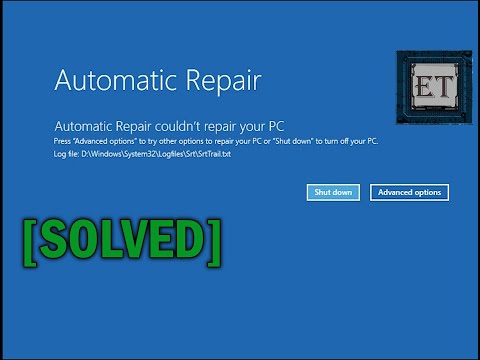
How to Fix Automatic Repair Loop in Windows 10 - Startup Repair Couldn’t Repair Your PC
ChannelEasyTechsIn brief
If your Windows 10 PC is stuck in an automatic repair loop, this tutorial walks you through four practical fixes—from simple restarts to restoring a previous registry backup. It’s ideal for users who’ve encountered startup issues after updates or system changes.
Key steps
- Select the ‘Restart’ option when prompted by the automatic repair screen.
- Use the regback command to revert to the last known good registry configuration.
- Create a Windows 10 bootable USB to perform a system restore if needed.
Questions & answers
What causes the automatic repair loop in Windows 10?
The loop often occurs after incompatible updates or changes to system settings/applications.
Do I need a bootable USB for all fixes?
No, only if the first three methods fail and you need to restore the system.
Description from the creator
- Get genuine Windows keys at 𝑷𝒓𝒊𝒎𝒆 𝑻𝒆𝒄𝒉 𝑴𝒂𝒓𝒕. Use ET20 for 20% OFF, links below:
✅ Windows 10 Pro key: bit.ly/3gCu6VK
✅ Windows 11 Pro key: bit.ly/31jyHdg
✅ Office 2019 Pro Plus key: bit.ly/2G8nLoq
✅ Office 2021 Pro Plus key: bit.ly/3q4P089
✅ Other Software Products: bit.ly/3r03TYu
This video shows how you can fix startup error with automatic repair loop in Windows10.
- For updated instructions, you can read the text version of this tutorial on our website: easytechstutorials.com/how-to-fix-automatic-rep…
- How To Make A Windows 10 Bootable USB For FREE: youtube.com/watch?v=abpAPQH1RsI
▬▬▬▬▬▬▬▬▬▬▬▬▬▬▬▬▬▬▬▬▬▬▬▬▬▬▬▬▬▬▬▬▬▬▬▬▬▬▬▬▬▬
🧰 𝐀𝐃𝐃𝐈𝐓𝐈𝐎𝐍𝐀𝐋 𝐓𝐎𝐎𝐋𝐒 𝐀𝐍𝐃 𝐒𝐄𝐑𝐕𝐈𝐂𝐄𝐒 𝐈 𝐑𝐄𝐂𝐎𝐌𝐌𝐄𝐍𝐃
✅ An awesome data recovery tool I use to recover lost or deleted files:
💠 Windows Data Recovery: bit.ly/3MTYg94
💠 Mac Data Recovery: bit.ly/43O2NAu
► 20% Discount Coupon - 𝑬𝒂𝒔𝒚𝑻𝒆𝒄𝒉𝒔
✅ Properly Transfer/Migrate Your Windows Apps from One PC to Another:
💠 EaseUS Todo PCTrans Pro: bit.ly/3quGm59
► 20% Discount Coupon - 𝑬𝒂𝒔𝒚𝑻𝒆𝒄𝒉𝒔
✅ Securely Erase Files, Folders & Volumes Permanently:
💠 Windows BitRaser File Eraser: bit.ly/3Ngzf9r
💠 Mac BitRaser File Eraser: bit.ly/3OYx1wA
► 10% Discount Coupon - 𝑬𝒂𝒔𝒚𝑻𝒆𝒄𝒉𝒔
▬▬▬▬▬▬▬▬▬▬▬▬▬▬▬▬▬▬▬▬▬▬▬▬▬▬▬▬▬▬▬▬▬▬▬▬▬▬▬▬▬▬
Disclaimer: Some of these links go to my website and some are affiliate links where I earn a small commission if you purchase, at no additional cost to you.
▬▬▬▬▬▬▬▬▬▬▬▬▬▬▬▬▬▬▬▬▬▬▬▬▬▬▬▬▬▬▬▬▬▬▬▬▬▬▬▬▬▬
🛠 𝐎𝐓𝐇𝐄𝐑 𝐑𝐄𝐋𝐀𝐓𝐄𝐃 𝐈𝐒𝐒𝐔𝐄𝐒 𝐀𝐍𝐃 𝐒𝐎𝐋𝐔𝐓𝐈𝐎𝐍𝐒
► Learn How to Speed Up Your Windows 10 Performance: youtube.com/watch?v=_a_lhFuYLMo&feature=emb…
► Fix Windows Blue Screen (BSoD) (0xc000000f) A Required Device isn't Connected: youtube.com/watch?v=T5Nm1OE5ciU&feature=emb…
► Learn How to Troubleshoot a Laptop That Won’t Turn On: youtube.com/watch?v=Tj3lwjxvKt8&feature=you…
► How To Fix Slow Startup on Windows 10 by Adjusting Your Settings: easytechstutorials.com/how-to-fix-slow-startup-…
► Learn How to Reset Windows 10 Back to Factory Settings Without Installation Disc: easytechstutorials.com/how-to-reset-windows-10-…
► [SOLVED] Your PC Ran Into a Problem and Needs to Restart: Here's what to do: easytechstutorials.com/solved-your-pc-ran-into-…
▬▬▬▬▬▬▬▬▬▬▬▬▬▬▬▬▬▬▬▬▬▬▬▬▬▬▬▬▬▬▬▬▬▬▬▬▬▬▬▬▬▬
🔔 𝐒𝐔𝐁𝐒𝐂𝐑𝐈𝐁𝐄: goo.gl/dDSBNL
▬▬▬▬▬▬▬▬▬▬▬▬▬▬▬▬▬▬▬▬▬▬▬▬▬▬▬▬▬▬▬▬▬▬▬▬▬▬▬▬▬▬
🗣 𝐅𝐎𝐋𝐋𝐎𝐖 𝐔𝐒 𝐎𝐍 𝐒𝐎𝐂𝐈𝐀𝐋 𝐌𝐄𝐃𝐈𝐀
► Twitter: twitter.com/easy_techs?lang=en
► Facebook: facebook.com/OfficialEasyTechs/
► Reddit: reddit.com/user/EasyTechs
▬▬▬▬▬▬▬▬▬▬▬▬▬▬▬▬▬▬▬▬▬▬▬▬▬▬▬▬▬▬▬▬▬▬▬▬▬▬▬▬▬▬
👨👩👧👦 𝐒𝐔𝐏𝐏𝐎𝐑𝐓 𝐔𝐒 𝐎𝐍 𝐏𝐀𝐓𝐑𝐄𝐎𝐍: patreon.com/easytechs
▬▬▬▬▬▬▬▬▬▬▬▬▬▬▬▬▬▬▬▬▬▬▬▬▬▬▬▬▬▬▬▬▬▬▬▬▬▬▬▬▬▬
👁 𝐀𝐁𝐎𝐔𝐓 𝐓𝐇𝐈𝐒 𝐕𝐈𝐃𝐄𝐎
In this tutorial I will be showing you a number of ways to fix Windows 10 startup problems either in the form of Automatic Repair Loop, Your PC did not start correctly, infinite booting or some other similar start-up problems you might be experiencing with Windows 10. This could happen after Windows has installed certain updates that it finds incompatible with the software distribution or after you make certain changes to your system settings or certain applications you have installed on your PC. If you’re able to figure out the event that led to this problem, then you wouldn’t need to try all fixes, you could simply pick the method that is more likely to solve your problem and implement it.
Method 1: Use the suggested restart option
Method 2: Using the start-up repair tool.
Method 3: Use the registry backup command called regback. This command replaces your registry configuration with the last known good configuration you have on your PC, so basically changing your registry configuration to the configuration of your most recent successful bootup.
If all fixes fail, then you can consider running a system restore, for that you will need to make a bootable USB with Windows 10 installation files, I have included that in this video: youtube.com/watch?v=T5Nm1OE5ciU.
▬▬▬▬▬▬▬▬▬▬▬▬▬▬▬▬▬▬▬▬▬▬▬▬▬▬▬▬▬▬▬▬▬▬▬▬▬▬▬▬▬▬
🎶🎶 𝐁𝐀𝐂𝐊𝐆𝐑𝐎𝐔𝐍𝐃 𝐌𝐔𝐒𝐈𝐂
Music: Tobu - Roots [NCS Release]
youtu.be/7wNb0pHyGuI
#bluescreen #automaticrepair #startuprepair #windowsstartuperror #repairloop
About this tutorial
EasyTechs published this 7:27 video tutorial on October 25, 2019. It has been watched 14,269,883 times on YouTube.
- Channel
- EasyTechs
- Category
- Science & Technology
- Duration
- 7:27
- Published
- October 25, 2019
- Views
- 14,269,883
- Likes
- 123,654
Tags
Share
Further reading
-
How to Fix the Windows 10 Automatic Repair Loop
techviral.net
Sometimes the ‘Windows 10 Automatic Repair Couldn’t repair your PC’ loop also occurs because of some corrupted files. You can use Command Prompt to find and delete the problematic file to fix the issue from appearing ag…
-
Fix the Windows 10 Automatic Repair Loop when Startup Repair ...
addictivetips.com
Windows 10 has an automatic repair tool. If you fail to boot to your desktop three times in a row, or one too many times out of order, Windows 10 may attempt to run a repair on your system. Windows 10 can, on its own, f…
-
Quick Fix: Windows 10 Preparing Automatic Repair Loop - EaseUS
easeus.com
Step 4. Type exit. In the "Choose an option" screen, choose "Turn off your PC" and then start your computer. Method 2. Perform System Restore. If you have created a Windows restore point before the Automatic Repair loop…
This tutorial in other languages
- FRComment réparer automatique de réparation en boucle dans Windows 10 - Réparation de démarrage Impossible réparer votre PC
- ESCómo arreglar automática de reparación de bucle en Windows 10 - Reparación de inicio no podría reparar sus PC
- PTComo corrigir Automatic Repair laço no Windows 10 - Startup Repair Não foi possível reparar o seu PC
- ITCome risolvere automatica riparazione Loop in Windows 10 - Ripristino all'avvio Impossibile riparare il PC
- DEWie Fix Automatische Reparatur-Schleife in Windows 10 - Starthilfe nicht Ihren PC reparieren kann
- NLHow To Fix Automatic Repair Loop in Windows 10 - Startup Repair Kan uw pc niet herstellen
- RUКак исправить автоматический Loop Repair в Windows 10 - Startup Repair Не удалось отремонтировать Ваш компьютер
- PLJak naprawić automatyczna naprawa pętli w systemie Windows 10 - Startup Repair Nie udało się naprawić swój komputer
- JAWindowsの10での自動修復ループを修正する方法 - スタートアップ修復は、あなたのPCを修復できませんでした
- ARكيفية إصلاح تلقائي إصلاح حلقة في نظام التشغيل Windows 10 - إصلاح بدء التشغيل لا يمكن إصلاح جهاز الكمبيوتر الخاص بك
- HIस्वत: मरम्मत लूप को कैसे सुधारें Windows 10 में - स्टार्टअप मरम्मत अपने पीसी मरम्मत नहीं की जा सकी
- IDCara Perbaiki Automatic Repair Loop Windows 10 - Startup Repair Tidak bisa Perbaikan PC Anda