Playback starts YouTube’s embedded player (privacy-enhanced mode).
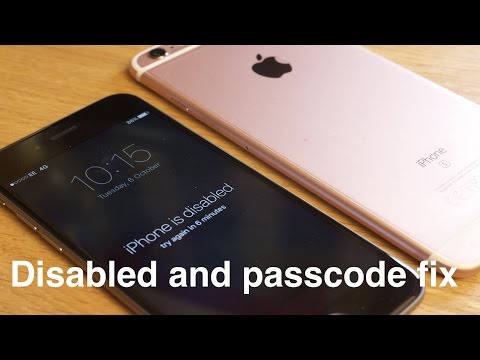
How to remove/reset any disabled or Password locked iPhones 6S & 6 Plus/5s/5c/5/4s/4/iPad or iPod
ChannelTech CuriousIn brief
You’ll restore a disabled or passcode-locked iPhone (6S, 6 Plus, 5s, 5c, 5, 4s, 4) or iPod/iPad to factory settings using recovery mode. This method erases all data but bypasses the lockscreen. It’s best for those without iCloud access or a working Home button.
Key steps
- Turn off the device by holding Sleep/Wake, then sliding to power off.
- Hold the Home button while plugging the device into your computer.
- Keep holding Home until the Connect to iTunes screen appears.
- Open iTunes and confirm the recovery mode alert.
- Click OK, then choose to restore and update the device.
Questions & answers
Will this erase all my data?
Yes, restoring in recovery mode wipes the device completely.
Description from the creator
This tool (bit.ly/31wXQLW) can help remove disabled or password locks on iPhone/iPad & iPod
The iPad specific video can be seen here - youtube.com/watch?v=oDOY6bwhqU8&feature=you…
Video on how check for iCloud on your device here - youtube.com/watch?v=-LLAx7ccoCE
If your home or power button doesn't work, watch this video on how to do it without - youtube.com/watch?v=-v5gE8cMZeg
This will erase the device and its passcode.
1. Disconnect all cables from your device.
2. Hold down the Sleep/Wake button, then "slide to power off" to turn off your device.
3. Press and hold the Home button and plug the device into your computer. If your device doesn't turn on automatically, turn it on. Don't release the Home button.
4. Continue holding the Home button until you see the Connect to iTunes screen.
5. If iTunes doesn't open automatically, open it. iTunes will alert you that it has detected a device in recovery mode.
6. Click OK. Then restore & update the device.
If your device doesn't go into recovery mode, try steps 1–4 again.
Thank you for watching, please feel free to comment, like the video or subscribe to my channel. I appreciate any support you can give.
- Karlos
About this tutorial
Tech Curious published this 5:07 video tutorial on October 25, 2015. It has been watched 10,358,472 times on YouTube.
- Channel
- Tech Curious
- Category
- Science & Technology
- Duration
- 5:07
- Published
- October 25, 2015
- Views
- 10,358,472
- Likes
- 76,942
Share
Further reading
-
How to Remove and Unlock the Disabled or Passcode Locked ...
applelives.com
1.) Your PC or Mac will say “iTunes has detected an iPhone in recovery mode. You must restore the iPhone before it can be used with iTunes”. Click “OK.” 2.) Click the “Restore iPhone” button on the right side. Your PC o…
-
If you forgot the passcode on your iPhone, or your iPhone is ...
support.apple.com
Press and hold the Side (or Top) button until the power off slider appears. Drag the slider to turn off your iPhone. Then connect your iPhone to your computer while holding the Home button. Keep holding the Home button…
-
[2020]How to Reset iPhone 6 When Locked without Password ...
imyfone.com
Quickly Unlock iPhone Lock Screen: It removes lock screen from iPhone/iPad/iPod touch without passcode when it's locked, disabled or screen-broken. All types of screen lock are supported, like 4/6-digit passcode, Face I…
This tutorial in other languages
- FRComment supprimer / réinitialiser les personnes handicapées ou mot de passe verrouillé iPhones 6S & 6 Plus / 5s / 5c / 5/4 / 4S / iPad ou iPod
- ESCómo eliminar / reiniciar los discapacitados o contraseña bloqueado iPhones 6S y 6 Plus / 5s / 5c / 5 / 4s / 4 / iPad o iPod
- PTComo remover / redefinir qualquer desativado ou senha bloqueada iPhones 6S e 6 Plus / 5s / 5e / 5 / 4s / 4 / iPad ou iPod
- ITCome rimuovere / ripristinare qualsiasi disabile o password bloccato iPhones 6S e 6 Plus / 5s / 5c / 5 / 4s / 4 / iPad o iPod
- DESo entfernen Sie / Reset jede deaktiviert oder Passwort gesperrt iPhones 6S & 6 Plus / 5s / 5c / 5 / 4s / 4 / iPad oder iPod
- NLHoe te verwijderen / resetten uitgeschakelde of wachtwoord vergrendelde iPhones 6S & 6 Plus / 5s / 5c / 5 / 4s / 4 / iPad of iPod
- RUКак удалить / восстановить отключенные или пароль заблокирован айфонов 6S & 6 Plus / 5s / 5c / 5 / 4S / 4 / IPad или IPod
- PLJak usunąć / reset każdy niepełnosprawny lub hasło zablokowane iPhone'ów 6S i 6 Plus / 5s / 5c / 5 / 4S / 4 / iPad lub iPod
- JA削除するにはどのように/任意の無効化またはパスワードがされたiPhone&6S 6プラス/ 5S / 5C / 5 / 4S / 4 / iPadやiPodのロックリセット
- ARكيفية إزالة / إعادة تعيين أي تعطيل أو كلمة المرور مقفل فون 6S و6 زائد / 5S / 5C / 5/4 / 4S / باد أو آي بود
- HIदूर करने के लिए कैसे / किसी भी विकलांग या पासवर्ड आईफ़ोन 6S और 6 प्लस / 5s / 5c / 5 / 4s / 4 / iPad या iPod बंद कर दिया रीसेट
- IDBagaimana menghapus / me-reset setiap cacat atau Password terkunci iPhone 6S & 6 Plus / 5s / 5c / 5 / 4s / 4 / iPad atau iPod