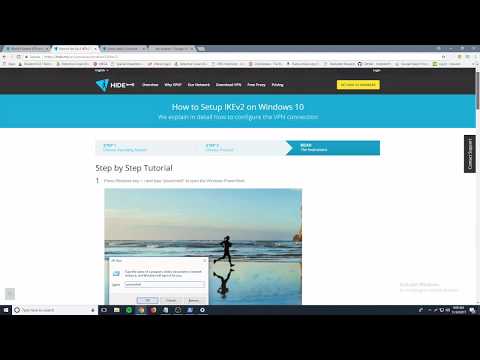
Playback starts YouTube’s embedded player (privacy-enhanced mode).
How To Setup Hide.me VPN For Windows 10 | Hide.me Windows
ChannelVidsoulDescription from the creator
A Virtual Private Network (VPN) server can allow you to securely access your internet from everywhere in the world.
VPN Windows 10 - There are plenty of free VPN for pc available in market. The one i'm using are Hide.me (www.hide.me) and Tunnelbear (www.tunnelbear.com)
If you want to use tunnel bear just download their free software and connect any server that is a OpenVPN. OpenVPN uses SSL/TLS for it's secure protocol which secures data at the Transport level, while IKEv2/IPSec secures data at the IP level.
So for best secure connection we will use IKEv2 connection that is available in hide.me VPN service.
In this video i will show you how to setup vpn for windows 10
Note: - VPNs cannot make online connections completely anonymous, but they can usually increase privacy and security. For complete anonymous connection you should used Paid Socks 5 proxy server.
Follow the steps to setup VPN for windows 10
Step 1. Open hide.me
Create a free account on this site member.hide.me/en/user/login
Step 2: On dashboard navigate to setup
On this screen Choose operating system
Step 3: On another screen you need to choose protocol. IKEv2 is more secure than another. So we will use this protocol.
Step 4: I next screen. Press Windows key + r and type "power-shell" to open the Windows Power Shell.
We need to run following command to configure the VPN connection.
Add- Vpn Connection -Name "hide.me IKEv2" -ServerAddress "free-nl.hide.me" -TunnelType "Ikev2" -RememberCredential
There are three location so choose as u want. To change location just replae "free-nl.hide.me" to
Singapore - free-sg.hide.me
Canada - free-ca.hide.me
Netherlands - free-nl.hide.me ( that's default)
Step 5: From your desktop screen, click on the Network icon which can be found at the bottom right hand corner of your screen and click on Network Settings.
Navigate to V P N and click on Add A V P N Connection. You will one vpn name hide.me just connect and fill up login details that you had use in creating account.
You will your location and ip is change complete the vpn setup for windows 10.
VPN Windows 10 - There are plenty of free VPN for pc available in market. The one i'm using are Hide.me (www.hide.me) and Tunnelbear (www.tunnelbear.com)
If you want to use tunnel bear just download their free software and connect any server that is a OpenVPN. OpenVPN uses SSL/TLS for it's secure protocol which secures data at the Transport level, while IKEv2/IPSec secures data at the IP level.
So for best secure connection we will use IKEv2 connection that is available in hide.me VPN service.
In this video i will show you how to setup vpn for windows 10
Note: - VPNs cannot make online connections completely anonymous, but they can usually increase privacy and security. For complete anonymous connection you should used Paid Socks 5 proxy server.
Follow the steps to setup VPN for windows 10
Step 1. Open hide.me
Create a free account on this site member.hide.me/en/user/login
Step 2: On dashboard navigate to setup
On this screen Choose operating system
Step 3: On another screen you need to choose protocol. IKEv2 is more secure than another. So we will use this protocol.
Step 4: I next screen. Press Windows key + r and type "power-shell" to open the Windows Power Shell.
We need to run following command to configure the VPN connection.
Add- Vpn Connection -Name "hide.me IKEv2" -ServerAddress "free-nl.hide.me" -TunnelType "Ikev2" -RememberCredential
There are three location so choose as u want. To change location just replae "free-nl.hide.me" to
Singapore - free-sg.hide.me
Canada - free-ca.hide.me
Netherlands - free-nl.hide.me ( that's default)
Step 5: From your desktop screen, click on the Network icon which can be found at the bottom right hand corner of your screen and click on Network Settings.
Navigate to V P N and click on Add A V P N Connection. You will one vpn name hide.me just connect and fill up login details that you had use in creating account.
You will your location and ip is change complete the vpn setup for windows 10.
About this tutorial
Vidsoul published this 4:01 video tutorial on October 28, 2018. It has been watched 5,455 times on YouTube.
- Channel
- Vidsoul
- Category
- Science & Technology
- Duration
- 4:01
- Published
- October 28, 2018
- Views
- 5,455
- Likes
- 20
Tags
Share
This tutorial in other languages
- FRComment configurer VPN Hide.me Pour Windows 10 | Hide.me de Windows
- ESCómo configuración Para Hide.me VPN para Windows 10 | Hide.me de Windows
- PTComo Setup Para Hide.me VPN para Windows 10 | Hide.me do Windows
- ITCome impostazione Per Hide.me VPN per Windows 10 | Hide.me di Windows
- DESo richten Sie Hide.me VPN für Windows 10 | Hide.me von Windows
- NLHow To Setup Hide.me VPN voor Windows 10 | Hide.me Windows
- RUКак Настройка Для Hide.me VPN для Windows 10 | Hide.me для Windows
- PLJak skonfigurować Hide.me VPN dla systemu Windows 10 | Hide.me Okna
- JAどのようにするにはセットアップHide.me VPNのWindows 10の場合| Hide.me Windowsの
- ARكيف الإعداد لHide.me VPN لنظام التشغيل Windows 10 | Hide.me ويندوز
- HIकैसे सेटअप Hide.me वीपीएन Windows 10 के लिए | Hide.me विंडोज
- IDCara Setup Hide.me VPN Untuk Windows 10 | Hide.me Windows