Playback starts YouTube’s embedded player (privacy-enhanced mode).
How to Take a Panoramic Picture | iPhone Tips
ChannelHowcastDescription from the creator
Watch more iPhone Tips & Tricks videos: howcast.com/videos/515266-How-to-Take-a-Panoram…
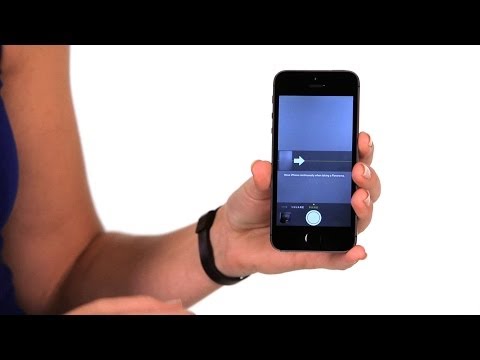
Lacy here, I'm going to tell you how to take a panoramic picture with your iPhone. So, first thing you wanna do, is open your camera app. And when it opens up, it's gonna open up to the regular photo setting. You wanna slide over, and it'll go to the 'square' setting. And then again, to get to the 'panoramic' picture setting. Once you're here, you'll see that it says "move iPhone continuously when taking a panorama".
That's exactly what you're gonna do. So you wanna start out at the far left of what you wanna a picture of. Then you're gonna press the camera shutter button, and you're gonna move it around from left to right. And your goal is to keep the arrow that shows up nice and flat on the line. Once you've gotten all the way to the right, press the shutter again, and then you can view your picture by tapping on the bottom left-hand corner, where the camera roll is. And there it is. You can also rotate your phone to see it bigger. And that's how you take a panoramic picture.
Lacy here, I'm going to tell you how to take a panoramic picture with your iPhone. So, first thing you wanna do, is open your camera app. And when it opens up, it's gonna open up to the regular photo setting. You wanna slide over, and it'll go to the 'square' setting. And then again, to get to the 'panoramic' picture setting. Once you're here, you'll see that it says "move iPhone continuously when taking a panorama".
That's exactly what you're gonna do. So you wanna start out at the far left of what you wanna a picture of. Then you're gonna press the camera shutter button, and you're gonna move it around from left to right. And your goal is to keep the arrow that shows up nice and flat on the line. Once you've gotten all the way to the right, press the shutter again, and then you can view your picture by tapping on the bottom left-hand corner, where the camera roll is. And there it is. You can also rotate your phone to see it bigger. And that's how you take a panoramic picture.
About this tutorial
Howcast published this 1:11 video tutorial on November 8, 2014. It has been watched 816,555 times on YouTube.
- Channel
- Howcast
- Category
- Science & Technology
- Duration
- 1:11
- Published
- November 8, 2014
- Views
- 816,555
- Likes
- 4,353
Tags
Share
This tutorial in other languages
- FRComment prendre une photo panoramique | Conseils iPhone
- ESCómo tomar una imagen panorámica | Consejos iPhone
- PTComo tirar uma fotografia panorâmica | Dicas iPhone
- ITCome prendere una panoramica Immagine | iPhone Tips
- DEWie ein Panoramabild nehmen | iPhone Tipps
- NLHoe moet u een panoramisch beeld | iPhone Tips
- RUКак сделать панорамное изображение | iPhone Советы
- PLJak zrobić zdjęcie panoramiczne | iPhone Porady
- JAパノラマ写真を撮る方法| iPhoneのヒント
- ARكيفية اتخاذ بانورامي صورة | نصائح فون
- HIकैसे एक नयनाभिराम चित्र लेने के लिए | iPhone युक्तियाँ
- IDCara Ambil Panoramic Gambar | Tips iPhone