Playback starts YouTube’s embedded player (privacy-enhanced mode).
How to View Browsing History for Google Chrome, Mozilla Firefox, Opera, Edge, Internet Explorer ????⏳????
ChannelHetman Software: Data Recovery for WindowsChapters
Description from the creator
Learn how to view and analyze browsing history, search history, bookmarks, downloads, saved browser data, and other traces of online activity with Hetman Internet Spy.
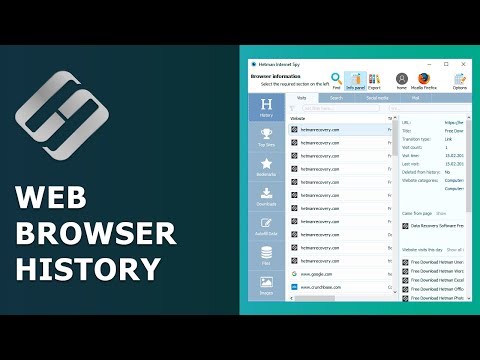
In this video, we show how browser history is stored and how to examine browser profiles created by Google Chrome, Mozilla Firefox, Opera, Microsoft Edge, and Internet Explorer. You’ll also see how Hetman Internet Spy organizes locally stored browser information and helps you analyze data from different users and browser profiles on the computer.
How to View User Actions on a Windows PC: hetmanrecovery.com/recovery_news/how-to-view-us…
Content:
0:00 - Intro;
1:00 - Hetman Internet Spy Program
3:09 - History tab
3:46 - Subsections "History"
5:30 - Passwords Tab
6:32 - Sessions Tab
6:44 - Popular sites tab
6:50 - Tree of bookmarks created in the browser
7:00 - Downloads tab
7:11 - Addresses tab
7:21 - Files tab
7:41 - Pictures tab
7:59 - Export Wizard
With Hetman Internet Spy, you can examine:
• Browsing history and visited websites
• Search queries
• Bookmarks and favorite websites
• Download history
• Recently used browser sessions
• Frequently visited websites
• Locally stored login and password information when it is available in an unencrypted form
• Browser cache and website images
• Browser database and profile files
• Data belonging to multiple browser profiles
• Browser files that may remain after a browser has been uninstalled
The program automatically searches standard browser-profile locations on the current system and presents the detected information in a convenient interface. Advanced users can also inspect the underlying browser database and configuration files.
You’ll also learn how to switch between detected users and browsers and how to export available analysis results for further examination or reporting.
Important: Hetman Internet Spy analyzes browser data that is still present in browser profile files on the computer. If browsing history has been cleared and the corresponding records are no longer present in those files, the program cannot reconstruct them. Incognito or Private Browsing modes normally avoid saving standard browsing history, so such activity may not be available for analysis.
Use browser-analysis software only on computers and user data that you own or are authorized to inspect.
Download and learn more about Hetman Internet Spy on the official Hetman Software website.
Subscribe to the Hetman Software YouTube channel for more tutorials about browser data analysis, data recovery, storage systems, RAID, NAS, virtual machines, and file systems.
If you have questions about Hetman Internet Spy, leave them in the comments.
#BrowserHistory #GoogleChrome #MozillaFirefox #MicrosoftEdge #Opera #InternetSpy #BrowsingHistory #SearchHistory #HetmanSoftware
In this video, we show how browser history is stored and how to examine browser profiles created by Google Chrome, Mozilla Firefox, Opera, Microsoft Edge, and Internet Explorer. You’ll also see how Hetman Internet Spy organizes locally stored browser information and helps you analyze data from different users and browser profiles on the computer.
How to View User Actions on a Windows PC: hetmanrecovery.com/recovery_news/how-to-view-us…
Content:
0:00 - Intro;
1:00 - Hetman Internet Spy Program
3:09 - History tab
3:46 - Subsections "History"
5:30 - Passwords Tab
6:32 - Sessions Tab
6:44 - Popular sites tab
6:50 - Tree of bookmarks created in the browser
7:00 - Downloads tab
7:11 - Addresses tab
7:21 - Files tab
7:41 - Pictures tab
7:59 - Export Wizard
With Hetman Internet Spy, you can examine:
• Browsing history and visited websites
• Search queries
• Bookmarks and favorite websites
• Download history
• Recently used browser sessions
• Frequently visited websites
• Locally stored login and password information when it is available in an unencrypted form
• Browser cache and website images
• Browser database and profile files
• Data belonging to multiple browser profiles
• Browser files that may remain after a browser has been uninstalled
The program automatically searches standard browser-profile locations on the current system and presents the detected information in a convenient interface. Advanced users can also inspect the underlying browser database and configuration files.
You’ll also learn how to switch between detected users and browsers and how to export available analysis results for further examination or reporting.
Important: Hetman Internet Spy analyzes browser data that is still present in browser profile files on the computer. If browsing history has been cleared and the corresponding records are no longer present in those files, the program cannot reconstruct them. Incognito or Private Browsing modes normally avoid saving standard browsing history, so such activity may not be available for analysis.
Use browser-analysis software only on computers and user data that you own or are authorized to inspect.
Download and learn more about Hetman Internet Spy on the official Hetman Software website.
Subscribe to the Hetman Software YouTube channel for more tutorials about browser data analysis, data recovery, storage systems, RAID, NAS, virtual machines, and file systems.
If you have questions about Hetman Internet Spy, leave them in the comments.
#BrowserHistory #GoogleChrome #MozillaFirefox #MicrosoftEdge #Opera #InternetSpy #BrowsingHistory #SearchHistory #HetmanSoftware
About this tutorial
Hetman Software: Data Recovery for Windows published this 9:38 video tutorial on November 8, 2018. It has been watched 58,250 times on YouTube.
- Category
- Science & Technology
- Duration
- 9:38
- Published
- November 8, 2018
- Views
- 58,250
- Likes
- 106
Tags
Share
This tutorial in other languages
- FRComment Voir l'historique de navigation pour Google Chrome, Mozilla Firefox, Opera, Edge, Internet Explorer ???? ???? ⏳
- ESCómo ver el historial de exploración para Google Chrome, Mozilla Firefox, Opera, Borde, Internet Explorer ???? ⏳ ????
- PTComo visualizar o histórico de navegação para o Google Chrome, Mozilla Firefox, Opera, Edge, Internet Explorer ???? ⏳ ????
- ITCome Visualizza cronologia esplorazioni per Google Chrome, Mozilla Firefox, Opera, Riva, Internet Explorer ???? ⏳ ????
- DESo zeigen Browsing History für Google Chrome, Mozilla Firefox, Opera, Edge Internet Explorer ???? ⏳ ????
- NLHoe te bekijken Browsing History voor Google Chrome, Mozilla Firefox, Opera, Edge, Internet Explorer ???? ⏳ ????
- RUКак Просмотр История просмотра для Google Chrome, Mozilla Firefox, Opera, Edge, Internet Explorer ???? ⏳ ????
- PLJak widoku przeglądania historii dla Google Chrome, Mozilla Firefox, Opera, EDGE, Internet Explorer ???? ⏳ ????
- JAどのようにGoogle Chromeの表示閲覧の履歴、Mozilla Firefoxの、オペラ、エッジ、Internet Explorerの????⏳に????
- ARكيفية عرض تاريخ التصفح لجوجل كروم، وموزيلا فايرفوكس، أوبرا، الحافة، وإنترنت إكسبلورر ؟؟؟؟ ⏳ ؟؟؟؟
- HIकैसे गूगल क्रोम के लिए देखें ब्राउज़िंग इतिहास, मोज़िला फ़ायरफ़ॉक्स, ओपेरा, एज, इंटरनेट एक्सप्लोरर ???? ⏳ को ????
- IDCara Lihat Browsing History untuk Google Chrome, Mozilla Firefox, Opera, Edge, Internet Explorer ???? ⏳ ????