Playback starts YouTube’s embedded player (privacy-enhanced mode).
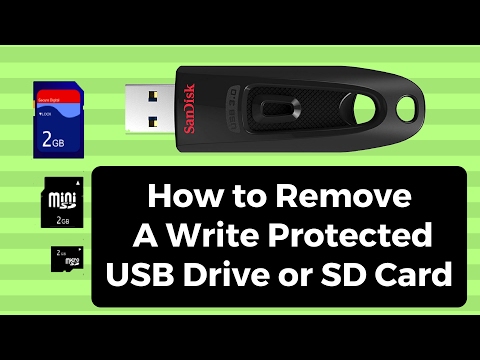
How to Remove A Write Protected USB Drive or SD Card
ChannelBritec09Description from the creator
How to Remove A Write Protected USB Drive or SD Card
How to Remove A Write Protected SD Card or Micro SD Card
If for some unknown reason you get a error " The Disk is Write Protected"Error on your USB device or SD or Micro SD Card, I am going to try and show you a way to fix this common issue. If the Write Protected feature is enabled, it will block you from using the device. r deletion of a file on a disc. The are different types of symptoms you could be suffering. Attempting to copy or delete files on a USB flash drive, trying to access the drive is another problem where you receive Write Protected. I show you how to fix Write Protected USB
We are going to use diskpart to fix our issue.
1. diskpart
2. list disk
3. select disk (then number of your drive) example: select disk 3
4. attribute disk clear readonly
5. clean
6. create partition primary
7. format=fat32 quick or format=fat32
8.exit
Need help with computer problems? join my forum
briteccomputers.co.uk/forum
How to Remove A Write Protected SD Card or Micro SD Card
If for some unknown reason you get a error " The Disk is Write Protected"Error on your USB device or SD or Micro SD Card, I am going to try and show you a way to fix this common issue. If the Write Protected feature is enabled, it will block you from using the device. r deletion of a file on a disc. The are different types of symptoms you could be suffering. Attempting to copy or delete files on a USB flash drive, trying to access the drive is another problem where you receive Write Protected. I show you how to fix Write Protected USB
We are going to use diskpart to fix our issue.
1. diskpart
2. list disk
3. select disk (then number of your drive) example: select disk 3
4. attribute disk clear readonly
5. clean
6. create partition primary
7. format=fat32 quick or format=fat32
8.exit
Need help with computer problems? join my forum
briteccomputers.co.uk/forum
About this tutorial
Britec09 published this 5:16 video tutorial on November 7, 2017. It has been watched 164,966 times on YouTube.
Tags
Share
This tutorial in other languages
- FRComment supprimer un lecteur écriture protégée USB ou carte SD
- ESCómo quitar un Comentario USB protegido duro o la tarjeta SD
- PTComo remover um protegido contra gravação drive USB ou cartão SD
- ITCome rimuovere una scrittura Protetta unità USB o scheda SD
- DEWie ein schreibgeschütztes USB-Stick oder SD-Karte entfernen
- NLHoe te verwijderen A Write Protected USB-drive of SD-kaart
- RUКак удалить защищен от записи USB Drive или SD-карты
- PLJak usunąć zabezpieczony przed zapisem dysku USB lub karty SD
- JA書き込み保護されたUSBドライブまたはSDカードを削除する方法
- ARكيفية إزالة الكتابة محرك USB المحمية أو بطاقة SD
- HIएक लिखें संरक्षित USB ड्राइव या एसडी कार्ड निकालने के लिए कैसे
- IDCara Hapus Sebuah Write Protected Drive USB atau SD Card