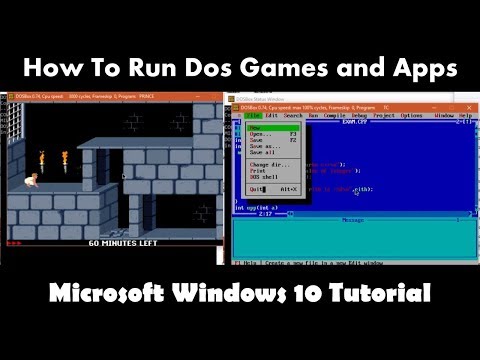
Playback starts YouTube’s embedded player (privacy-enhanced mode).
How To Run Dos Programs in Windows 10 - 64 Bit using DosBox Tutorial
ChannelThe TeacherDescription from the creator
In this tutorial, we'll show you how to run old DOS-based applications in the 64-Bit Edition of Windows 10. Despite the advancements in operating systems, there may be some legacy DOS applications or games you don't want to part with. We've got you covered with a step-by-step guide.
Key Points:
1. Determine Your Windows 10 Edition: Before you proceed, ensure you know whether you're using a 32-bit or 64-bit edition of Windows 10. To find out, right-click on the Start button, click "System," and check the system section for your Windows 10 edition.
2. Download Dosbox: To run DOS applications on a 64-bit edition of Windows 10, you'll need to download and install a third-party application called "Dosbox." This is a popular solution for running DOS applications on modern systems.
3. Installation of Dosbox: After downloading Dosbox, install the program. The first time you run it, you'll see a command prompt window. Don't worry; we'll guide you through what to do next.
4. Mounting Folders: In Dosbox, you need to mount the folders from your local drive that contain the DOS applications you want to run. You can't mount an entire local drive; you can only mount folders or subfolders. For example, if you have folders named "TURBOC" and "POP" on your local drive, you'd use a command like this:
```
Mount C C:\TURBOC
```
This command creates a new C drive in Dosbox and mounts the "TURBOC" folder from your local drive onto it.
5. Accessing Mounted Folders: Once you've mounted a folder, you can access it in Dosbox by typing "C:" (or the drive letter you used) and hitting the Enter key. To see the contents of the mounted folder, you can use the "DIR" command.
6. Folder Structure: Dosbox may interpret folder structures differently than your local drive. So, be aware of how Dosbox sees your folders. If there's a conflict in paths within your application or game's configuration settings, you may need to adjust the folder structure.
7. Handling Multiple Folders: You can't mount another folder into the same mounted drive in Dosbox. If you want to mount another folder, you have two options: mount it to a different drive in Dosbox, or unmount the current drive and then mount the new folder.
8. Alternative Drive Mounting: If your application's configuration doesn't conflict with other drives, you can also mount a folder as a different drive. For example:
```
Mount D C:\POP
```
This command mounts the "POP" folder from your local drive as drive D in Dosbox.
9. Running Applications: Once you've mounted the necessary folders, you can access your favorite DOS-based applications or games within Dosbox on your Windows 10 64-Bit Edition.
10. Conclusion: We hope this tutorial helps you run your cherished DOS applications in Windows 10. If you found this video useful, don't forget to give it a thumbs up, leave your comments, and share it with your friends.
By following these steps, you can enjoy your old DOS-based applications and games on a 64-bit edition of Windows 10 using Dosbox.
Download DosBox: dosbox.com/download.php?main=1
📝 Learn More, Visit:
theteacherpoint.com/run-dos-programs-in-windows…
Information Applies to the following 64 Bit Editions of Windows:
Windows 7 / 8 / 8.1 (64 Bit Versions)
✅ Recommend Playlists:
🔹 Microsoft Windows 10 Tutorial Series Playlist
youtube.com/playlist?list=PLwBNdcufIBPsrwYTVtug…
🌻 A Microsoft Windows 10 Tutorial By The Teacher
#windows #windows #dosbox #windowstutorial #windowstips
Key Points:
1. Determine Your Windows 10 Edition: Before you proceed, ensure you know whether you're using a 32-bit or 64-bit edition of Windows 10. To find out, right-click on the Start button, click "System," and check the system section for your Windows 10 edition.
2. Download Dosbox: To run DOS applications on a 64-bit edition of Windows 10, you'll need to download and install a third-party application called "Dosbox." This is a popular solution for running DOS applications on modern systems.
3. Installation of Dosbox: After downloading Dosbox, install the program. The first time you run it, you'll see a command prompt window. Don't worry; we'll guide you through what to do next.
4. Mounting Folders: In Dosbox, you need to mount the folders from your local drive that contain the DOS applications you want to run. You can't mount an entire local drive; you can only mount folders or subfolders. For example, if you have folders named "TURBOC" and "POP" on your local drive, you'd use a command like this:
```
Mount C C:\TURBOC
```
This command creates a new C drive in Dosbox and mounts the "TURBOC" folder from your local drive onto it.
5. Accessing Mounted Folders: Once you've mounted a folder, you can access it in Dosbox by typing "C:" (or the drive letter you used) and hitting the Enter key. To see the contents of the mounted folder, you can use the "DIR" command.
6. Folder Structure: Dosbox may interpret folder structures differently than your local drive. So, be aware of how Dosbox sees your folders. If there's a conflict in paths within your application or game's configuration settings, you may need to adjust the folder structure.
7. Handling Multiple Folders: You can't mount another folder into the same mounted drive in Dosbox. If you want to mount another folder, you have two options: mount it to a different drive in Dosbox, or unmount the current drive and then mount the new folder.
8. Alternative Drive Mounting: If your application's configuration doesn't conflict with other drives, you can also mount a folder as a different drive. For example:
```
Mount D C:\POP
```
This command mounts the "POP" folder from your local drive as drive D in Dosbox.
9. Running Applications: Once you've mounted the necessary folders, you can access your favorite DOS-based applications or games within Dosbox on your Windows 10 64-Bit Edition.
10. Conclusion: We hope this tutorial helps you run your cherished DOS applications in Windows 10. If you found this video useful, don't forget to give it a thumbs up, leave your comments, and share it with your friends.
By following these steps, you can enjoy your old DOS-based applications and games on a 64-bit edition of Windows 10 using Dosbox.
Download DosBox: dosbox.com/download.php?main=1
📝 Learn More, Visit:
theteacherpoint.com/run-dos-programs-in-windows…
Information Applies to the following 64 Bit Editions of Windows:
Windows 7 / 8 / 8.1 (64 Bit Versions)
✅ Recommend Playlists:
🔹 Microsoft Windows 10 Tutorial Series Playlist
youtube.com/playlist?list=PLwBNdcufIBPsrwYTVtug…
🌻 A Microsoft Windows 10 Tutorial By The Teacher
#windows #windows #dosbox #windowstutorial #windowstips
About this tutorial
The Teacher published this 5:13 video tutorial on November 7, 2016. It has been watched 258,076 times on YouTube.
- Channel
- The Teacher
- Category
- Education
- Duration
- 5:13
- Published
- November 7, 2016
- Views
- 258,076
- Likes
- 853
Tags
Share
This tutorial in other languages
- FRComment faire pour exécuter les programmes DOS sous Windows 10 - 64 bit en utilisant DOSBox Tutorial
- ESCómo ejecutar programas DOS en Windows 10 - 64 bits utilizando DOSBox Tutorial
- PTComo executar programas do DOS no Windows 10-64 Bit usando DosBox Tutorial
- ITCome eseguire programmi DOS in Windows 10-64 bit utilizzando DosBox Tutorial
- DEHow To Run DOS-Programme in Windows 10 bis 64 Bit mit DOSBox Tutorial
- NLHow To Run Dos programma's in Windows 10-64 Bit behulp DosBox Tutorial
- RUКак запустить Dos программ в Windows 10 - 64 Bit с помощью DOSBox Учебник
- PLJak uruchomić Dos programy w systemie Windows 10 - 64 bitów za pomocą DOSBox Tutorial
- JAどのようにWindowsの10でするために実行ドスプログラム - DOSBOXチュートリアルを使用して64ビット
- ARكيفية تشغيل برامج دوس في ويندوز 10-64 بت باستخدام DosBox دروس
- HIकैसे करने के लिए भागो डॉस कार्यक्रम Windows 10 में - 64 बिट से DOSBox ट्यूटोरियल का उपयोग कर
- IDCara Jalankan Program Dos pada Windows 10-64 Bit menggunakan DosBox Tutorial