Playback starts YouTube’s embedded player (privacy-enhanced mode).
How to Attach File to iPhone and iPad Email
ChanneliPhone, iPad and Android Tutorials from HowTechDescription from the creator
In this tutorial you will learn how to attach a photo or video file to an iPhone email.
Don't forget to check out our site howtech.tv/ for more free how-to videos!
youtube.com/ithowtovids - our feed
facebook.com/howtechtv - join us on facebook
plus.google.com/103440382717658277879 - our group in Google+
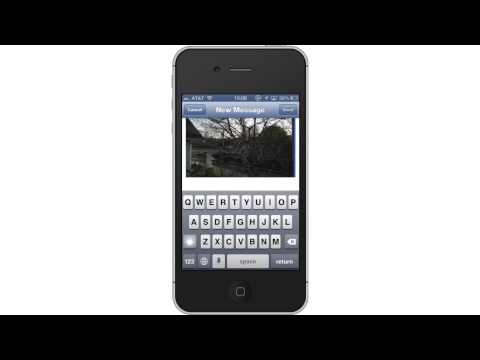
This tutorial will show you how to attach file to iPhone email. This process is very helpful when you're on the move and need to attach multimedia content.
Step #1 -- Compose Email
Tap the compose email icon in the bottom right corner of the screen.
Step #2 -- Tap and hold
Tap and hold in the content section of the email and a pop up menu will appear. Select "Insert Photo or Video".
Step #3 -- Select Camera Roll
Navigate to wherever the content you want to send is.
Step #4 -- Tap thumbnail
Tap the thumbnail of the image you wish to include in your email.
Step #5 -- Tap Choose
Tapping this blue icon will confirm your selection. You will now see your photo load into the content section of the email.
Step #6 -- Tap and hold
Like before, tap and hold in the content section until the pop up screen appears.
Step #7 -- Tap "Insert Photo or Video"
Step #8 -- Locate Content
Choose camera roll, and all of your content will show on the screen.
Step #9 -- Tap Thumbnail
Tap the thumbnail of the video you wish to select. You will know it's a video by the time mark located on top of the thumbnail. The video will then compress itself to fit in the email.
Step #11 -- See Results
You will then see an icon that represents your video. When the recipient receives the email, they simply click on the icon and it downloads or plays automatically.
Leave your comments below or contact us by email. This was a Howtech.tv tutorial. Thanks for watching!
Don't forget to check out our site howtech.tv/ for more free how-to videos!
youtube.com/ithowtovids - our feed
facebook.com/howtechtv - join us on facebook
plus.google.com/103440382717658277879 - our group in Google+
This tutorial will show you how to attach file to iPhone email. This process is very helpful when you're on the move and need to attach multimedia content.
Step #1 -- Compose Email
Tap the compose email icon in the bottom right corner of the screen.
Step #2 -- Tap and hold
Tap and hold in the content section of the email and a pop up menu will appear. Select "Insert Photo or Video".
Step #3 -- Select Camera Roll
Navigate to wherever the content you want to send is.
Step #4 -- Tap thumbnail
Tap the thumbnail of the image you wish to include in your email.
Step #5 -- Tap Choose
Tapping this blue icon will confirm your selection. You will now see your photo load into the content section of the email.
Step #6 -- Tap and hold
Like before, tap and hold in the content section until the pop up screen appears.
Step #7 -- Tap "Insert Photo or Video"
Step #8 -- Locate Content
Choose camera roll, and all of your content will show on the screen.
Step #9 -- Tap Thumbnail
Tap the thumbnail of the video you wish to select. You will know it's a video by the time mark located on top of the thumbnail. The video will then compress itself to fit in the email.
Step #11 -- See Results
You will then see an icon that represents your video. When the recipient receives the email, they simply click on the icon and it downloads or plays automatically.
Leave your comments below or contact us by email. This was a Howtech.tv tutorial. Thanks for watching!
About this tutorial
iPhone, iPad and Android Tutorials from HowTech published this 1:33 video tutorial on November 14, 2013. It has been watched 6,210 times on YouTube.
- Category
- Howto & Style
- Duration
- 1:33
- Published
- November 14, 2013
- Views
- 6,210
- Likes
- 2
Tags
Share
This tutorial in other languages
- FRComment Joindre un fichier pour Email iPhone et iPad
- ESCómo adjuntar archivos para iPhone y iPad de correo electrónico
- PTComo anexar arquivo para iPhone e iPad Email
- ITCome allegare file per iPhone e iPad e-mail
- DEWie man Datei anhängen auf iPhone und iPad E-Mail
- NLHoe te bestand te hechten aan iPhone en iPad e-mail
- RUКак прикрепить файл к iPhone и IPad Email
- PLJak dołączyć plik do iPhone i iPad Email
- JAiPhoneやiPad電子メールにファイルを添付する方法
- ARكيفية إرفاق ملف إلى iPhone و iPad البريد الإلكتروني
- HIकैसे करने के लिए iPhone और iPad ईमेल फ़ाइल अनुलग्न करने के लिए
- IDCara Lampirkan File untuk iPhone dan iPad Email