Playback starts YouTube’s embedded player (privacy-enhanced mode).
How to Delete Email on iPad and iPhone
ChanneliPhone, iPad and Android Tutorials from HowTechDescription from the creator
itunes.apple.com/ru/app/howtech/id652132258?mt=8 - 4000 FREE TUTORIALS on your iPhone!
play.google.com/store/apps/details?id=tv.howtech - 4000 FREE TUTORIALS on your Android phone!
In this video tutorial we will show you how to delete an email on an iPad.
Don't forget to check out our site howtech.tv/ for more free how-to videos!
youtube.com/ithowtovids - our feed
facebook.com/howtechtv - join us on facebook
plus.google.com/1034403827176... - our group in Google+
In this tutorial you are going to learn how to delete email on iPad.
Step # 1 -- Navigating to an Email
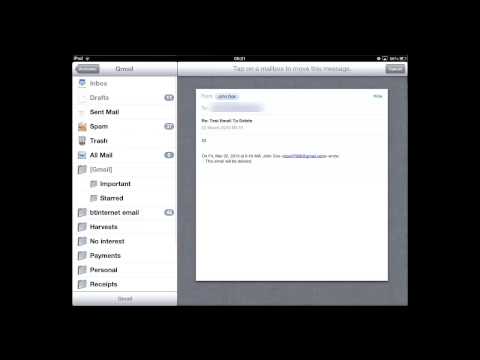
Generally the iPad when being used with Gmail will prefer to either archive your emails or move them to the temporary trash folder, rather than delete them completely. To get past this touch the "Mail" icon on the home screen then click on the email that you want to delete. The email will load to the right and you need to touch the icon that looks like a folder with an arrow on it.
Step # 2 -- Deleting the Email from Trash
A menu will appear on the left and you need to click the "Trash" icon. The email will be moved to this folder, but it hasn't yet been permanently deleted. Touch "Inbox" in the top left of the screen then touch "Gmail". Open "Trash" and you will see the email in here, swipe you finger from left to right across the message and a red "Delete" button will appear. Touch this and the message will be permanently deleted from your system and that is how to delete email on iPad.
play.google.com/store/apps/details?id=tv.howtech - 4000 FREE TUTORIALS on your Android phone!
In this video tutorial we will show you how to delete an email on an iPad.
Don't forget to check out our site howtech.tv/ for more free how-to videos!
youtube.com/ithowtovids - our feed
facebook.com/howtechtv - join us on facebook
plus.google.com/1034403827176... - our group in Google+
In this tutorial you are going to learn how to delete email on iPad.
Step # 1 -- Navigating to an Email
Generally the iPad when being used with Gmail will prefer to either archive your emails or move them to the temporary trash folder, rather than delete them completely. To get past this touch the "Mail" icon on the home screen then click on the email that you want to delete. The email will load to the right and you need to touch the icon that looks like a folder with an arrow on it.
Step # 2 -- Deleting the Email from Trash
A menu will appear on the left and you need to click the "Trash" icon. The email will be moved to this folder, but it hasn't yet been permanently deleted. Touch "Inbox" in the top left of the screen then touch "Gmail". Open "Trash" and you will see the email in here, swipe you finger from left to right across the message and a red "Delete" button will appear. Touch this and the message will be permanently deleted from your system and that is how to delete email on iPad.
About this tutorial
iPhone, iPad and Android Tutorials from HowTech published this 1:00 video tutorial on November 15, 2013. It has been watched 63,090 times on YouTube.
- Category
- Howto & Style
- Duration
- 1:00
- Published
- November 15, 2013
- Views
- 63,090
- Likes
- 34
Share
This tutorial in other languages
- FRComment supprimer Email sur iPad et iPhone
- ESCómo eliminar correo electrónico en el iPad y el iPhone
- PTComo Excluir e-mail no iPad e iPhone
- ITCome eliminare e-mail su iPad e iPhone
- DESo löschen Sie E-Mail auf dem iPad und iPhone
- NLHoe te verwijderen e-mail op iPad en iPhone
- RUКак удалить почту на IPad и iPhone
- PLJak usunąć e-mail na iPad i iPhone
- JAiPadやiPhone上で電子メールを削除する方法
- ARكيفية حذف البريد الإلكتروني على جهاز iPad و iPhone
- HIiPad और iPhone पर ईमेल को हटाएं कैसे
- IDCara Hapus Email pada iPad dan iPhone