Playback starts YouTube’s embedded player (privacy-enhanced mode).
How to Automatically Login to Windows 8 Without Entering a Password
Channelhowtwos101Description from the creator
This video will show you how to easily make it so that Windows 8 doesn't require a password on login, it just boots straight to the Windows 8 Metro Screen (check out my next video on how to make it boot directly to the desktop instead). This doesn't require any extra software, and is easy enough for anyone to do it.
All you have to do, is move your mouse into the upper right hand corner, and click on the search option that appears.
Next, type netplwiz. The program won't show up until you've typed the whole thing, so make sure to type all the letters correctly.
Click on the netplwiz option that pops up. This will open a window on the Windows 8 Desktop.
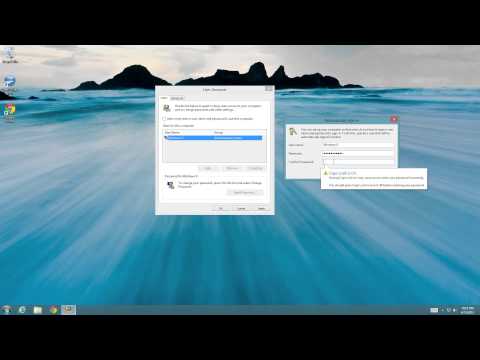
In the netplwiz window that pops up, uncheck the box for "Users must enter a user name and password to use this computer." Then hit apply at the bottom.
A window will pop up asking for the user name and password of the account you want to automatically log in to when Windows 8 boots. Put in the username of the account you want to use, and then enter the password in the next two boxes. If you incorrectly enter the password, it will make you enter it again.
Then just hit ok, and the next time you restart the computer, it will auto login.
Check out my facebook at: facebook.com/pages/All-How-2s/198429346974010
or my twitter: twitter.com/AllHow2s
Or my website where I have a lot of other great tutorials (such as how to take a screenshot, or how to get the start button back on Windows 8): www.allhow2s.com
All you have to do, is move your mouse into the upper right hand corner, and click on the search option that appears.
Next, type netplwiz. The program won't show up until you've typed the whole thing, so make sure to type all the letters correctly.
Click on the netplwiz option that pops up. This will open a window on the Windows 8 Desktop.
In the netplwiz window that pops up, uncheck the box for "Users must enter a user name and password to use this computer." Then hit apply at the bottom.
A window will pop up asking for the user name and password of the account you want to automatically log in to when Windows 8 boots. Put in the username of the account you want to use, and then enter the password in the next two boxes. If you incorrectly enter the password, it will make you enter it again.
Then just hit ok, and the next time you restart the computer, it will auto login.
Check out my facebook at: facebook.com/pages/All-How-2s/198429346974010
or my twitter: twitter.com/AllHow2s
Or my website where I have a lot of other great tutorials (such as how to take a screenshot, or how to get the start button back on Windows 8): www.allhow2s.com
About this tutorial
howtwos101 published this 2:20 video tutorial on November 15, 2013. It has been watched 95,893 times on YouTube.
- Channel
- howtwos101
- Category
- Howto & Style
- Duration
- 2:20
- Published
- November 15, 2013
- Views
- 95,893
- Likes
- 349
Tags
Share
This tutorial in other languages
- FRComment se connecte automatiquement à Windows 8 sans entrer un mot de passe
- ESCómo acceder automáticamente a Windows 8 sin introducir una contraseña
- PTComo Entrar automaticamente para o Windows 8 sem digitar uma senha
- ITCome di accedere automaticamente a Windows 8 senza inserire una password
- DEWie automatisch Anmeldung zu Windows 8 ohne Passworteingabe
- NLHoe in te loggen automatisch aan Windows 8 zonder een wachtwoord
- RUКак автоматически войти в Windows 8 без ввода пароля
- PLJak automatycznie Logowanie do systemu Windows 8 bez wprowadzania hasła
- JA自動的にパスワードを入力せずにWindowsの8にログインする方法
- ARكيفية تسجيل الدخول تلقائيا إلى ويندوز 8 بدون إدخال كلمة مرور
- HIकैसे स्वचालित रूप से एक पासवर्ड दर्ज किए बिना Windows 8 के लिए लॉग इन करने के लिए
- IDCara otomatis Login ke Windows 8 Tanpa Memasuki Password