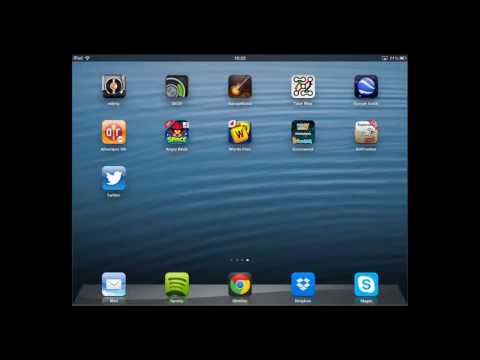
Playback starts YouTube’s embedded player (privacy-enhanced mode).
How to Cancel Twitter Account on iPad and iPhone
ChanneliPhone, iPad and Android Tutorials from HowTechDescription from the creator
This tutorial will show you how to delete a twitter account from an iPad.
Don't forget to check out our site howtech.tv/ for more free how-to videos!
youtube.com/ithowtovids - our feed
facebook.com/howtechtv - join us on facebook
plus.google.com/103440382717658277879 - our group in Google+
In this tutorial you are going to learn how to remove a twitter account from an iPad. Please note this does not close your twitter account itself. To do this you need to go onto the main site.
Step # 1 -- Finding the Account Settings
From the home screen of your iPad click on "Settings". Once the settings area has opened scroll down the menu on the left and touch the "Twitter" option. More options related to Twitter will appear on the right and you need to touch your username.
Step # 2 -- Removing the Account
On the next page touch "Delete Account", a confirmation box will appear, you just need to touch "Delete" and the account will be removed from the iPad. To confirm this let's go back to the home screen then open the Twitter app. As you can see we are no longer signed into our account and that is how to remove a Twitter account from an iPad.
Don't forget to check out our site howtech.tv/ for more free how-to videos!
youtube.com/ithowtovids - our feed
facebook.com/howtechtv - join us on facebook
plus.google.com/103440382717658277879 - our group in Google+
In this tutorial you are going to learn how to remove a twitter account from an iPad. Please note this does not close your twitter account itself. To do this you need to go onto the main site.
Step # 1 -- Finding the Account Settings
From the home screen of your iPad click on "Settings". Once the settings area has opened scroll down the menu on the left and touch the "Twitter" option. More options related to Twitter will appear on the right and you need to touch your username.
Step # 2 -- Removing the Account
On the next page touch "Delete Account", a confirmation box will appear, you just need to touch "Delete" and the account will be removed from the iPad. To confirm this let's go back to the home screen then open the Twitter app. As you can see we are no longer signed into our account and that is how to remove a Twitter account from an iPad.
About this tutorial
iPhone, iPad and Android Tutorials from HowTech published this 0:46 video tutorial on November 2, 2013. It has been watched 24,578 times on YouTube.
- Category
- Howto & Style
- Duration
- 0:46
- Published
- November 2, 2013
- Views
- 24,578
- Likes
- 32
Share
This tutorial in other languages
- FRComment annuler compte Twitter sur iPad et iPhone
- ESCómo cancelar la cuenta de Twitter el IPAD y el iPhone
- PTComo cancelar Twitter conta no iPad e iPhone
- ITCome cancellare account Twitter su iPad e iPhone
- DEWie auf Abbrechen Twitter Account auf iPad und iPhone
- NLHoe te annuleren Twitter Account op iPad en iPhone
- RUКак отменить щебетать счета на IPad и iPhone
- PLJak anulować konto Twitter na iPad i iPhone
- JAiPadやiPhone上でTwitterのアカウントをキャンセルする方法
- ARكيفية الغاء تويتر حساب على جهاز iPad و iPhone
- HIरद्द करने के लिए कैसे ट्विटर खाता iPad और iPhone पर
- IDCara Batal Twitter Account pada iPad dan iPhone