Playback starts YouTube’s embedded player (privacy-enhanced mode).
How to Change any Document into a PDF File
Channelhowtwos101Description from the creator
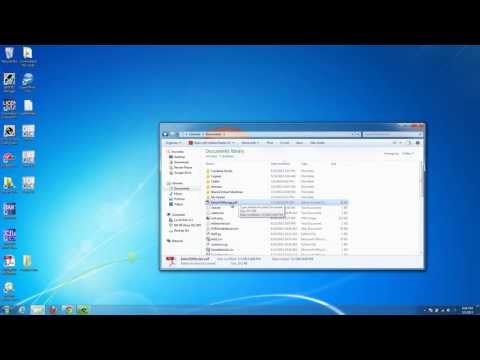
This video will show you how to change any document into a pdf file. It works extremely simply, and the only program you need is CutePDF, which can be downloaded from ninite.com.
Just go to www.ninite.com, choose the CutePDF option, hit get installer, and then download and run the installer.
Once it is done installing, just go to the file that you want to make into a PDF. It can be a web page, a picture, a Word Document, anything that can be printed. Once there, just select the option to print it (will be in the file dropdown menu for most softwares, or press ctrl and p).
When the box pops up that asks where you want to print to, select CutePDF from the list of printers. Then just hit print. After a second a window will pop up that asks where you want to save it, and what you would like to name the file, and where you want to save it. Name the file whatever you want, and move to the folder you want to save it in, and then hit save. After this, the document will be a PDF file.
I use this mostly for priniting receipts, flight itineraries, and directions. It can be extremely useful.
Check out my facebook at: facebook.com/pages/All-How-2s/198429346974010
or my twitter: twitter.com/AllHow2s
Or my website where I have a lot of other great tutorials (such as how to take a screenshot, or how to get the start button back on Windows 8): www.allhow2s.com
Just go to www.ninite.com, choose the CutePDF option, hit get installer, and then download and run the installer.
Once it is done installing, just go to the file that you want to make into a PDF. It can be a web page, a picture, a Word Document, anything that can be printed. Once there, just select the option to print it (will be in the file dropdown menu for most softwares, or press ctrl and p).
When the box pops up that asks where you want to print to, select CutePDF from the list of printers. Then just hit print. After a second a window will pop up that asks where you want to save it, and what you would like to name the file, and where you want to save it. Name the file whatever you want, and move to the folder you want to save it in, and then hit save. After this, the document will be a PDF file.
I use this mostly for priniting receipts, flight itineraries, and directions. It can be extremely useful.
Check out my facebook at: facebook.com/pages/All-How-2s/198429346974010
or my twitter: twitter.com/AllHow2s
Or my website where I have a lot of other great tutorials (such as how to take a screenshot, or how to get the start button back on Windows 8): www.allhow2s.com
About this tutorial
howtwos101 published this 4:11 video tutorial on October 29, 2013. It has been watched 254,758 times on YouTube.
- Channel
- howtwos101
- Category
- Howto & Style
- Duration
- 4:11
- Published
- October 29, 2013
- Views
- 254,758
- Likes
- 889
Tags
Share
This tutorial in other languages
- FRComment faire pour modifier tout document dans un fichier PDF
- ESCómo cambiar cualquier documento en un archivo PDF
- PTComo alterar qualquer documento em um arquivo PDF
- ITCome modificare qualsiasi documento in un file PDF
- DEWie jedes Dokument in eine PDF-Datei ändern
- NLHoe een document wijzigen in een PDF-bestand
- RUКак изменить любой документ в PDF-файл
- PLJak zmienić dowolnego dokumentu do pliku PDF
- JAPDFファイルに任意のドキュメントを変更する方法
- ARكيفية تغيير أي وثيقة إلى ملف PDF
- HIकैसे PDF फाइल में किसी भी दस्तावेज़ को बदलें
- IDCara Mengubah Dokumen apapun ke File PDF