Playback starts YouTube’s embedded player (privacy-enhanced mode).
How to Change Start Screen Background in Windows 8
ChannelHOWTECHDescription from the creator
Windows 8 is not preferred by some users because of its lack of customization options. How to bypass this limitation? You'll have to use third-party apps like Decor8 that we're going to feature in this tutorial. This program allows you to use any of the backgrounds of your choice for start screen customization. Make sure you have your custom background picture prepared - we're going to need it.
Don't forget to check out our site howtech.tv/ for more free how-to videos!
youtube.com/ithowtovids - our feed
facebook.com/howtechtv - join us on facebook
plus.google.com/103440382717658277879 - our group in Google+
Step 1. Go to the link that you see on screen (www.stardock.com/products/decor8) and download Decor8 - which normally costs a small fee, but offers a free trial period of 30 days. Install and launch it on your computer. We're starting a fun trial!
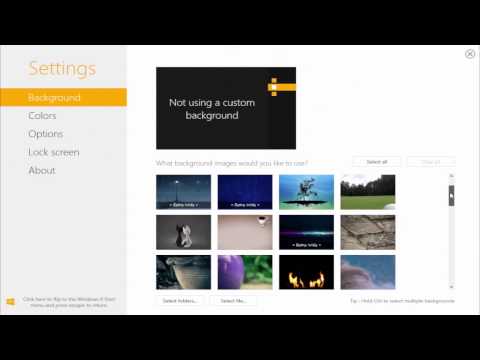
Step 2. On the left of the program window you can see the "Settings" menu, that has several submenus: "Background" submenu allows different background image manipulations, "Colors" submenu helps the user to change default Microsoft color schemes that were created for start screen, "Options" submenu customizes the start screen even further - we're going to cover that in "How to disable start screen parallax scrolling in Windows 8". "Lock Screen" allows choosing the image for lock screen and "About" has the information on your current Decor8 version.
Step 3. Right now we're going to focus on "Background" submenu. As you can see, it has a lot of nice backgrounds with a Windows 8 look. If you decide to go with one of them, simply click the chosen background image thumbnail. You'll see your choice marked with a tick.
Step 4. You can also tick several background images - to do so you'll have to hold the Control key. That will activate the background-changing feature on the right of the program window. From the drop-down under "How often should the background change?" choose the appropriate timeframe.
Step 5. The second drop-down menu on the upper right side adjusts the attributes of your start screen. You can also adjust „Fade", „Blur", „Color" and „Contrast" attributes of the screen by using the part of the menu in the upper right of the program window.
Step 6. To choose your own custom image or images for the screen background, click "Select file" at the bottom of the screen. Choose the image from your computer - it will than appear marked by a tick among other background images. Use the options that we have described earlier to tweak the attributes of that image.
Result: Enjoy your newly customized start screen background!
This was a HowTech tutorial. Like us on Facebook, love us forever or leave us a comment here in the fields below :) Thanks for watching!
Don't forget to check out our site howtech.tv/ for more free how-to videos!
youtube.com/ithowtovids - our feed
facebook.com/howtechtv - join us on facebook
plus.google.com/103440382717658277879 - our group in Google+
Step 1. Go to the link that you see on screen (www.stardock.com/products/decor8) and download Decor8 - which normally costs a small fee, but offers a free trial period of 30 days. Install and launch it on your computer. We're starting a fun trial!
Step 2. On the left of the program window you can see the "Settings" menu, that has several submenus: "Background" submenu allows different background image manipulations, "Colors" submenu helps the user to change default Microsoft color schemes that were created for start screen, "Options" submenu customizes the start screen even further - we're going to cover that in "How to disable start screen parallax scrolling in Windows 8". "Lock Screen" allows choosing the image for lock screen and "About" has the information on your current Decor8 version.
Step 3. Right now we're going to focus on "Background" submenu. As you can see, it has a lot of nice backgrounds with a Windows 8 look. If you decide to go with one of them, simply click the chosen background image thumbnail. You'll see your choice marked with a tick.
Step 4. You can also tick several background images - to do so you'll have to hold the Control key. That will activate the background-changing feature on the right of the program window. From the drop-down under "How often should the background change?" choose the appropriate timeframe.
Step 5. The second drop-down menu on the upper right side adjusts the attributes of your start screen. You can also adjust „Fade", „Blur", „Color" and „Contrast" attributes of the screen by using the part of the menu in the upper right of the program window.
Step 6. To choose your own custom image or images for the screen background, click "Select file" at the bottom of the screen. Choose the image from your computer - it will than appear marked by a tick among other background images. Use the options that we have described earlier to tweak the attributes of that image.
Result: Enjoy your newly customized start screen background!
This was a HowTech tutorial. Like us on Facebook, love us forever or leave us a comment here in the fields below :) Thanks for watching!
About this tutorial
HOWTECH published this 2:30 video tutorial on November 10, 2014. It has been watched 4,762 times on YouTube.
- Channel
- HOWTECH
- Category
- Howto & Style
- Duration
- 2:30
- Published
- November 10, 2014
- Views
- 4,762
- Likes
- 6
Share
This tutorial in other languages
- FRComment faire pour changer de démarrage arrière-plan de l'écran dans Windows 8
- ESCómo cambiar Inicio fondo de la pantalla en Windows 8
- PTComo mudar Iniciar fundo da tela no Windows 8
- ITCome cambiare Schermata iniziale sfondo in Windows 8
- DESo ändern Startbildschirm Hintergrund in Windows 8
- NLHoe te wijzigen Start achtergrond van het scherm in Windows 8
- RUКак изменить Пуск фона экрана в Windows 8
- PLJak zmienić tło ekranu start w Windows 8
- JAどのようにWindowsの8の変更スタート画面の背景に
- ARكيفية تغيير خلفية شاشة البداية في ويندوز 8
- HIकैसे करने के लिए Windows 8 में स्टार्ट स्क्रीन बदलें पृष्ठभूमि
- IDCara Mengubah Mulai Layar Background di Windows 8