Playback starts YouTube’s embedded player (privacy-enhanced mode).
How to Clear DNS Cache in Google Chrome on Windows 10?
ChannelTechMeSpotDescription from the creator
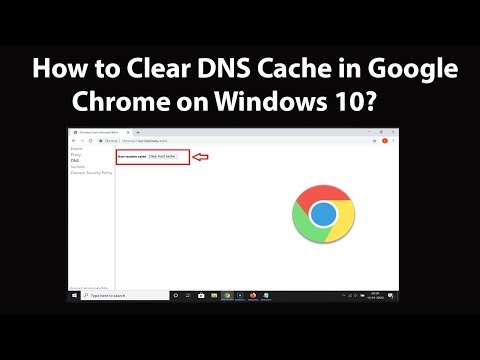
How to Clear DNS Cache in Google Chrome on Windows 10?
Step 1: Open Google Chrome.
Step 2: Open this link:-
chrome://net-internals/#dns
Step 3: Click on 'Clear Host cache.'
Step 4: Click on 'Sockets' in left menu. After that, click on 'Close idle sockets,' and then click on 'Flush socket pools.'
Note: You can use this link chrome://net-internals/#sockets to directly open sockets screen.
Step 5: Clear cache in Google Chrome, follow the video tutorial above.
Step 6: (Optional)Flush DNS Resolver cache on windows 10
i) Open Command prompt as an Administrator. After that, Type the below command, and then hit enter.
ipconfig /flushdns
It's done.
Thanks for watching, please like and subscribe
==============================================
YouTube Subscribe: goo.gl/4lCCN8
Patreon: patreon.com/TechMeSpot
Facebook: facebook.com/techmespot
Twitter: twitter.com/techmespot
Website: techmespot.com
#howto #ClearDnsCache #ChromeTips
Step 1: Open Google Chrome.
Step 2: Open this link:-
chrome://net-internals/#dns
Step 3: Click on 'Clear Host cache.'
Step 4: Click on 'Sockets' in left menu. After that, click on 'Close idle sockets,' and then click on 'Flush socket pools.'
Note: You can use this link chrome://net-internals/#sockets to directly open sockets screen.
Step 5: Clear cache in Google Chrome, follow the video tutorial above.
Step 6: (Optional)Flush DNS Resolver cache on windows 10
i) Open Command prompt as an Administrator. After that, Type the below command, and then hit enter.
ipconfig /flushdns
It's done.
Thanks for watching, please like and subscribe
==============================================
YouTube Subscribe: goo.gl/4lCCN8
Patreon: patreon.com/TechMeSpot
Facebook: facebook.com/techmespot
Twitter: twitter.com/techmespot
Website: techmespot.com
#howto #ClearDnsCache #ChromeTips
About this tutorial
TechMeSpot published this 4:54 video tutorial on February 10, 2020. It has been watched 39,801 times on YouTube.
- Channel
- TechMeSpot
- Category
- Howto & Style
- Duration
- 4:54
- Published
- February 10, 2020
- Views
- 39,801
- Likes
- 192
Tags
Share
This tutorial in other languages
- FRComment supprimer le cache DNS dans Google Chrome sur Windows 10?
- ESCómo borrar la caché DNS de Google Chrome en Windows 10?
- PTComo Limpar DNS Cache no Google Chrome no Windows 10?
- ITCome Cancella cache DNS in Google Chrome su Windows 10?
- DEWie zu löschen DNS Cache in Google Chrome unter Windows 10?
- NLHoe kan ik Clear DNS Cache in Google Chrome op Windows 10?
- RUКак очистить DNS кэш в Google Chrome на Windows 10?
- PLJak wyczyścić DNS Cache w Google Chrome w systemach Windows 10?
- JAどのようにWindowsの10のGoogle ChromeでクリアDNSキャッシュのか?
- ARكيفية مسح ذاكرة التخزين المؤقت DNS في جوجل كروم على ويندوز 10؟
- HIकैसे Windows 10 पर गूगल क्रोम में स्पष्ट डीएनएस कैश करने के लिए?
- IDCara Batal DNS Cache di Google Chrome di Windows 10?