Playback starts YouTube’s embedded player (privacy-enhanced mode).
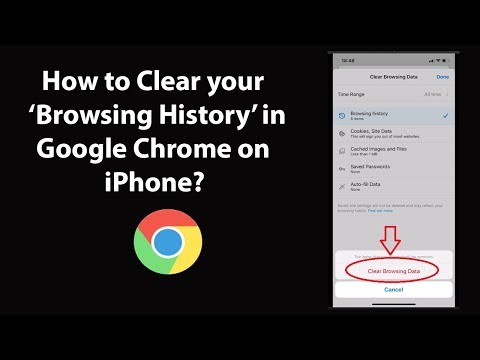
How to Clear your Browsing History in Google Chrome on iPhone?
ChannelTechMeSpotDescription from the creator
How to Clear your Browsing History in Google Chrome on iPhone?
Step 1: Open 'Google Chrome' App.
Step 2: Tap on 'Three Dots' at the bottom right.
Step 3: Tap on 'History.'
Step 4: Tap on 'Edit' link at the bottom right. After that, select the history that you want to delete by tapping on it, and the tap on 'delete' link at the bottom left.
Note: If you want to delete your browsing history based on time frame. Follow the instructions below:-
Step 1: Follow till step 3 from above.
Step 2: Tap on 'Clear Browsing Data...' at the bottom left.
Step 3: Uncheck other options, and leave only 'Browsing history checked.' Tap on 'Time Range.'
Step 4: Select the 'Time Range' of your choice like Last hour, last 24 hours, Last 7 days, last 4 weeks, or All time. After that, go back.
Step 5: Tap on 'Clear Browsing Data' at the bottom. After that, again tap on 'Clear Browsing Data' button at the pop-up.
Step 6: Tap on 'Done' link at the top right, and again tap on 'Done' link.
It's done.
Thanks for watching, please like and subscribe
=======================================
YouTube Subscribe: goo.gl/4lCCN8
Twitter: twitter.com/techmespot
Website: techmespot.com
#howto #ClearBrowsingHistory #ChromeTips
Step 1: Open 'Google Chrome' App.
Step 2: Tap on 'Three Dots' at the bottom right.
Step 3: Tap on 'History.'
Step 4: Tap on 'Edit' link at the bottom right. After that, select the history that you want to delete by tapping on it, and the tap on 'delete' link at the bottom left.
Note: If you want to delete your browsing history based on time frame. Follow the instructions below:-
Step 1: Follow till step 3 from above.
Step 2: Tap on 'Clear Browsing Data...' at the bottom left.
Step 3: Uncheck other options, and leave only 'Browsing history checked.' Tap on 'Time Range.'
Step 4: Select the 'Time Range' of your choice like Last hour, last 24 hours, Last 7 days, last 4 weeks, or All time. After that, go back.
Step 5: Tap on 'Clear Browsing Data' at the bottom. After that, again tap on 'Clear Browsing Data' button at the pop-up.
Step 6: Tap on 'Done' link at the top right, and again tap on 'Done' link.
It's done.
Thanks for watching, please like and subscribe
=======================================
YouTube Subscribe: goo.gl/4lCCN8
Twitter: twitter.com/techmespot
Website: techmespot.com
#howto #ClearBrowsingHistory #ChromeTips
About this tutorial
TechMeSpot published this 3:38 video tutorial on May 2, 2020. It has been watched 21,777 times on YouTube.
- Channel
- TechMeSpot
- Category
- Howto & Style
- Duration
- 3:38
- Published
- May 2, 2020
- Views
- 21,777
- Likes
- 149
Tags
Share
This tutorial in other languages
- FRComment effacer votre historique de navigation dans Google Chrome sur iPhone?
- ESCómo borrar el historial de navegación en Google Chrome en el iPhone?
- PTComo limpar o seu histórico de navegação no Google Chrome no iPhone?
- ITCome cancellare la cronologia di navigazione in Google Chrome su iPhone?
- DEWie Sie Ihren Browserverlauf in Google Chrome auf dem iPhone löschen?
- NLHoe kunt u uw Browsegeschiedenis wissen in Google Chrome op de iPhone?
- RUКак очистить историю посещенных страниц в Google Chrome на iPhone?
- PLJak wyczyścić historię przeglądania w Google Chrome na iPhone?
- JAiPhone上のGoogle Chromeであなたの閲覧の履歴をクリアする方法?
- ARكيفية مسح تاريخ التصفح الخاص بك في جوجل كروم على iPhone؟
- HIकैसे iPhone पर गूगल क्रोम में अपना ब्राउज़िंग इतिहास साफ़ करने के लिए?
- IDCara Hapus Browsing History di Google Chrome di iPhone?