Playback starts YouTube’s embedded player (privacy-enhanced mode).
How to Create Keyboard Shortcuts
ChannelHOWTECHDescription from the creator
Learn how to create a shortcut of a program. Furthermore, learn how to assign the shortcut key to it. Simply, press the key if you want to launch the program.
Don't forget to check out our site howtech.tv/ for more free how-to videos!
youtube.com/ithowtovids - our feed
facebook.com/howtechtv - join us on facebook
plus.google.com/103440382717658277879 - our group in Google+
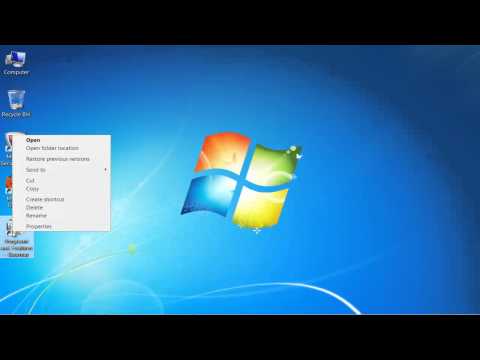
In this tutorial, we will teach you how to create keyboard shortcuts. We will first create a shortcut of Programs & features in this tutorial. We will then assign a shortcut key to this shortcut. Creating shortcut keys helps the user save some time. Pressing the keys will launch the program right away.
Step 1 -- Open Control panel
First of all, go to the start menu and open the control panel.
Step 2 -- Create shortcut
Once you are in the control panel window, right click on the item that you want to create the shortcut of. For the purpose of this tutorial, we will create the shortcut of programs & features. Right click on it and select the create shortcut option from the drop down menu.
Step 3 -- Go to properties
We will now go to the desktop where you will see the shortcut icon that we just created. Right click on the programs & features icon and select properties.
Step 4 -- Go to the shortcut tab
Once the shortcut properties appear on your screen, go to the shortcut tab and place the short key that you want to assign to this program. For the purpose of this tutorial, we will set "ctrl + alt + p" for programs & features. Click on the apply button to save the changes and then on the ok button to exit properties.
Step 5 -- Use the shortcut key
Press the shortcut key that you just assigned. In this tutorial, we will press the "ctrl + alt + p" key and the programs & features window will appear as a result. Creating shortcut keys allows a user to customize the system as per his or her requirements.
Don't forget to check out our site howtech.tv/ for more free how-to videos!
youtube.com/ithowtovids - our feed
facebook.com/howtechtv - join us on facebook
plus.google.com/103440382717658277879 - our group in Google+
In this tutorial, we will teach you how to create keyboard shortcuts. We will first create a shortcut of Programs & features in this tutorial. We will then assign a shortcut key to this shortcut. Creating shortcut keys helps the user save some time. Pressing the keys will launch the program right away.
Step 1 -- Open Control panel
First of all, go to the start menu and open the control panel.
Step 2 -- Create shortcut
Once you are in the control panel window, right click on the item that you want to create the shortcut of. For the purpose of this tutorial, we will create the shortcut of programs & features. Right click on it and select the create shortcut option from the drop down menu.
Step 3 -- Go to properties
We will now go to the desktop where you will see the shortcut icon that we just created. Right click on the programs & features icon and select properties.
Step 4 -- Go to the shortcut tab
Once the shortcut properties appear on your screen, go to the shortcut tab and place the short key that you want to assign to this program. For the purpose of this tutorial, we will set "ctrl + alt + p" for programs & features. Click on the apply button to save the changes and then on the ok button to exit properties.
Step 5 -- Use the shortcut key
Press the shortcut key that you just assigned. In this tutorial, we will press the "ctrl + alt + p" key and the programs & features window will appear as a result. Creating shortcut keys allows a user to customize the system as per his or her requirements.
About this tutorial
HOWTECH published this 0:57 video tutorial on November 2, 2013. It has been watched 19,484 times on YouTube.
- Channel
- HOWTECH
- Category
- Howto & Style
- Duration
- 0:57
- Published
- November 2, 2013
- Views
- 19,484
- Likes
- 85
Share
This tutorial in other languages
- FRComment créer des raccourcis clavier
- ESCómo crear accesos directos de teclado
- PTComo criar atalhos de teclado
- ITCome creare scorciatoie da tastiera
- DESo erstellen Sie Tastaturkürzel
- NLHoe om sneltoetsen maken
- RUКак создать Сочетания клавиш
- PLJak tworzyć skróty klawiaturowe
- JAキーボードショートカットを作成する方法
- ARكيفية إنشاء اختصارات لوحة المفاتيح
- HIकैसे कीबोर्ड शॉर्टकट बनाने के लिए
- IDCara Membuat Shortcut Keyboard