The creator does not allow this video to be played on other websites. You can watch it directly on YouTube.
How to Find UDID of iPhone and iPad
ChanneliPhone, iPad and Android Tutorials from HowTechDescription from the creator
In this tutorial you will learn how to find UDID of iPhone running on iOS 7
Don't forget to check out our site howtech.tv/ for more free how-to videos!
youtube.com/ithowtovids - our feed
facebook.com/howtechtv - join us on facebook
plus.google.com/103440382717658277879 - our group in Google+
Step 1. Four simple letters: UDID stand for Unique Device Identifier that every iPhone or iPod touch has. UDID is a sequence of 40 letters and numbers, rather hard to memorize. It is annoyingly long and looks like that:
Step 2. Usually you need to know the unique code of your iPhone in the following case: when you want to test an app before its general distribution. So, if a developer asks for your UDID, here's how to find it.
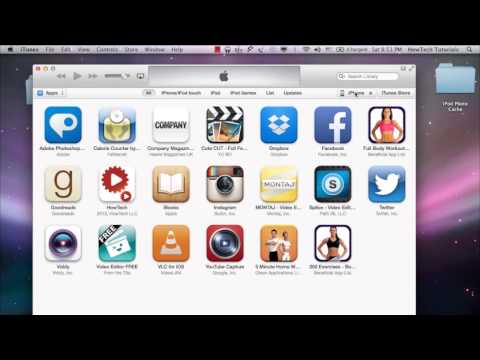
Connect your iPhone to your Mac or PC and open your iTunes.
Step 3. Click on appearing "iPhone" button.
Step 4. In the summary tab of your iPhone, click on your iPhone's serial number. It magically changes into UDID. We'll not show our UDID to you, you'll just have to believe it is there:)
Step 5. Click on UDID again to invoke "Copy" function and click "Copy".
Step 6. Now paste and save your UDID where only you know and share it only with the app developer:).
If using iTunes seems too complicated or you cannot connect your iPhone to your computer, you can use the third-party apps that are tracking UDID. There is, however, a downside to it: your UDID number can be potentially used for your private data tracking and path to complete access to the contents of your digital device. Sounds too scary? Just be careful with apps that you trust and, whenever in doubt, use iTunes instead.
Result: Good luck in app testing! This was a HowTech tutorial. Like us on Facebook, love us forever or leave us a comment here in the fields below :) Thanks for watching!
Don't forget to check out our site howtech.tv/ for more free how-to videos!
youtube.com/ithowtovids - our feed
facebook.com/howtechtv - join us on facebook
plus.google.com/103440382717658277879 - our group in Google+
Step 1. Four simple letters: UDID stand for Unique Device Identifier that every iPhone or iPod touch has. UDID is a sequence of 40 letters and numbers, rather hard to memorize. It is annoyingly long and looks like that:
Step 2. Usually you need to know the unique code of your iPhone in the following case: when you want to test an app before its general distribution. So, if a developer asks for your UDID, here's how to find it.
Connect your iPhone to your Mac or PC and open your iTunes.
Step 3. Click on appearing "iPhone" button.
Step 4. In the summary tab of your iPhone, click on your iPhone's serial number. It magically changes into UDID. We'll not show our UDID to you, you'll just have to believe it is there:)
Step 5. Click on UDID again to invoke "Copy" function and click "Copy".
Step 6. Now paste and save your UDID where only you know and share it only with the app developer:).
If using iTunes seems too complicated or you cannot connect your iPhone to your computer, you can use the third-party apps that are tracking UDID. There is, however, a downside to it: your UDID number can be potentially used for your private data tracking and path to complete access to the contents of your digital device. Sounds too scary? Just be careful with apps that you trust and, whenever in doubt, use iTunes instead.
Result: Good luck in app testing! This was a HowTech tutorial. Like us on Facebook, love us forever or leave us a comment here in the fields below :) Thanks for watching!
About this tutorial
iPhone, iPad and Android Tutorials from HowTech published this 1:53 video tutorial on November 6, 2014. It has been watched 23,820 times on YouTube.
- Category
- Howto & Style
- Duration
- 1:53
- Published
- November 6, 2014
- Views
- 23,820
- Likes
- 40
Tags
Share
This tutorial in other languages
- FRComment trouver UDID de l'iPhone et l'iPad
- ES¿Cómo encontrar UDID de iPhone y iPad
- PTComo encontrar UDID de iPhone e iPad
- ITCome trovare UDID di iPhone e iPad
- DESo finden Sie UDID von iPhone und iPad
- NLHoe vindt u UDID van de iPhone en iPad
- RUКак найти UDID на iPhone и IPad
- PLJak znaleźć UDID iPhone i iPad
- JAiPhoneとiPadのUDIDを検索する方法
- ARكيفية البحث UDID من اي فون وتطلب الشركة
- HIकैसे iPhone और iPad के UDID का पता लगाएं करने के लिए
- IDCara Cari UDID dari iPhone dan iPad